What is the Data Consolidator?
After reporting and confirming the data in the ESRS reporting measures, companies can proceed to the data consolidation process. In short, Consolidate data enables you to consolidate responses on registrations where more than one organization units have reported data.
Confirmed registrations are processed through a consolidation engine before they are being pulled in your Sustainability Statement. This process involves two main tracks:
- Automatic consolidation, which applies to quantitative data, dropdown selections, and yes/ no responses;
- Manual consolidation, which applies to qualitative data, where responses are provided for more than one organization unit.

How confirmed measures are consolidated depends on the data type. Quantitative data is automatically consolidated and displayed in the Statement Editor, whereas qualitative data with multiple responses needs to be manually consolidated in the Data Consolidator.
Automatic consolidation
Automatic consolidation includes quantitative data, dropdown selections, and yes/no responses.
The aggregation method for quantitative measure points depends on the nature of the data, and the reporting frequency. For example, figures representing a number of employees will be averaged across all periods for a single org unit, then the org unit averages are summed together to find the organizational total figure.
This process happens behind the scenes, and consolidated figures are automatically populated in the Sustainability Statement, bypassing any need for manual consolidation in the data consolidator.
Manual consolidation - also referred to as the Data Consolidator
The Data Consolidator applies for qualitative measure points with multiple responses. This situation typically arises when data is reported by multiple organizational units or reporting frequency exceeds once a year.
This process happens in the Consolidate data view, with or without support from AI. You as a user integrate multiple text responses into one unified and coherent response before the data moves onto to the Statement Editor.
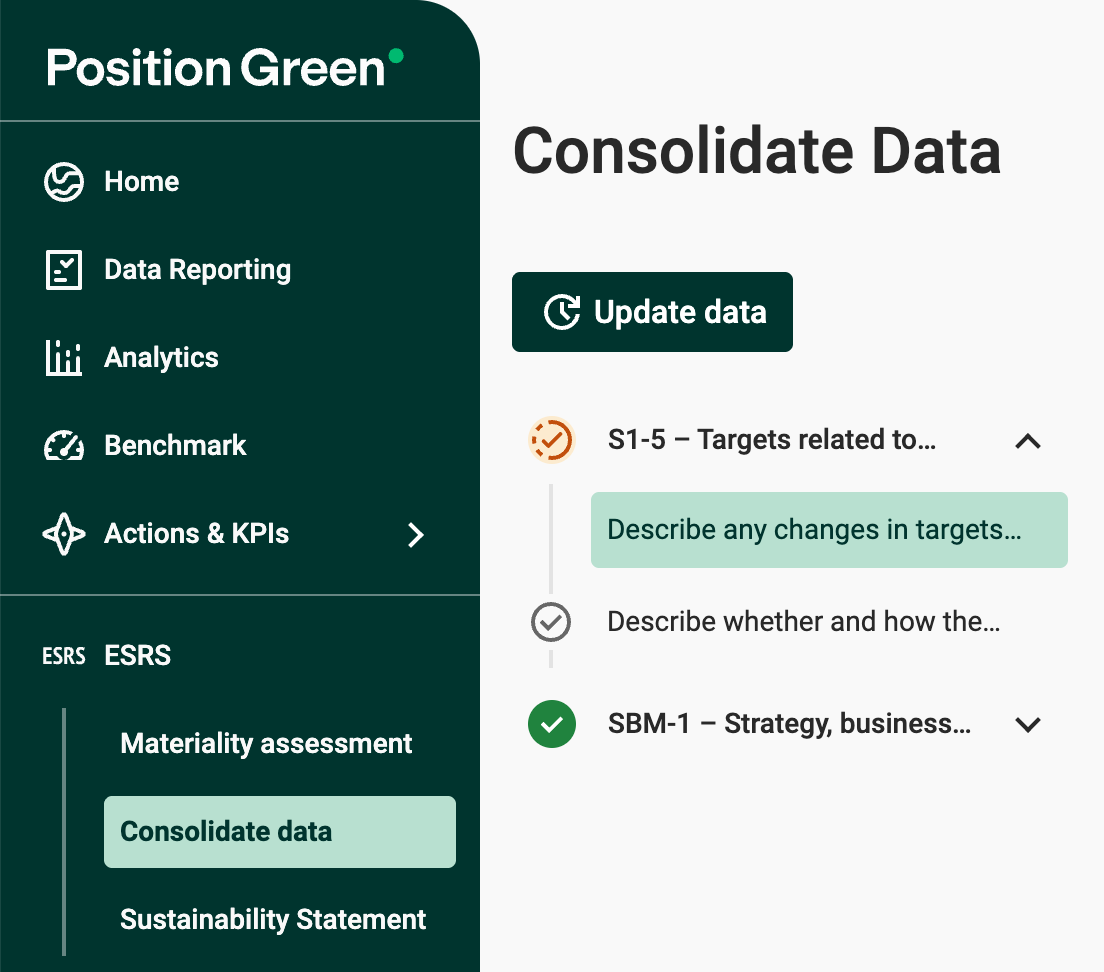
The Data Consolidator is supported for all topical standards.
If you want the help of AI for the consolidation and it isn't available, reach out to your Customer Success Manager.
Start consolidation
Once the consolidation process begins by pressing Start Review, confirmed registration data undergoes automatic mapping in the background.
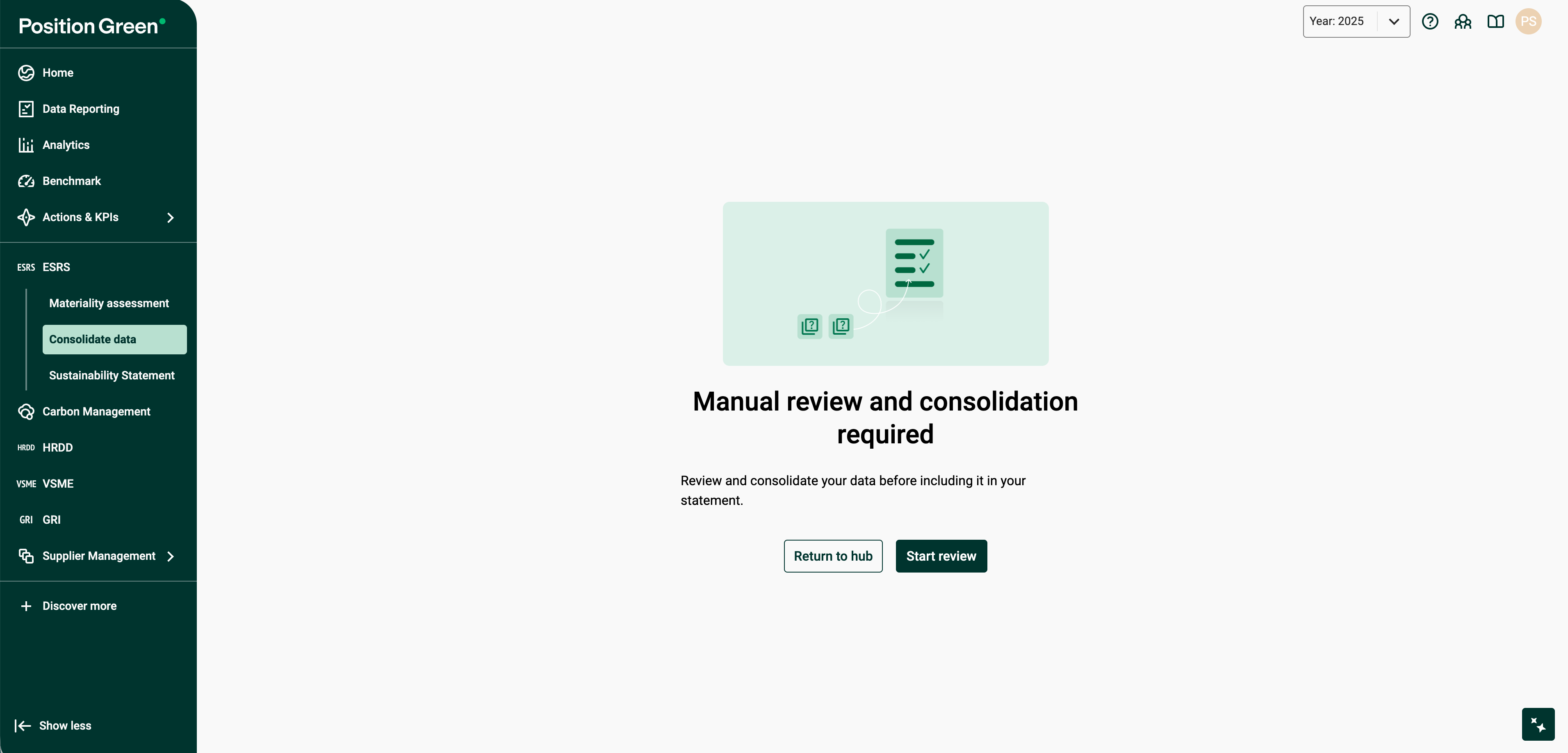
The mapping process can take time, potentially several hours, depending on the volume of reported data. You can safely leave the page and will receive an email notification once the mapping is complete.
When the consolidation is completed, you can access the Consolidate Data view, which displays the text questions with multiple answers that require manual consolidation. Here you can merge multiple answers coming from several organization units for the same data point into a single, cohesive response, using AI, or not.
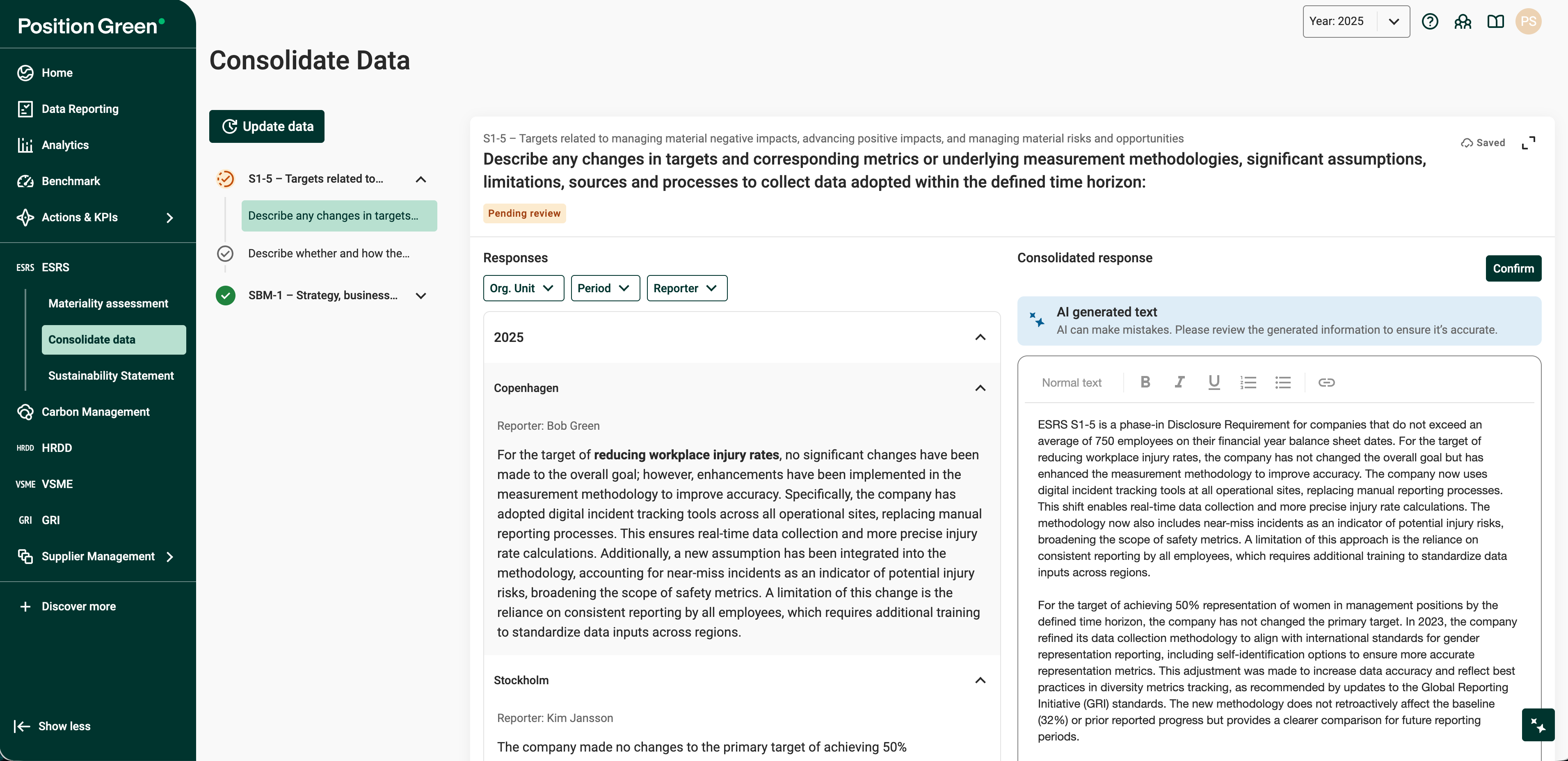
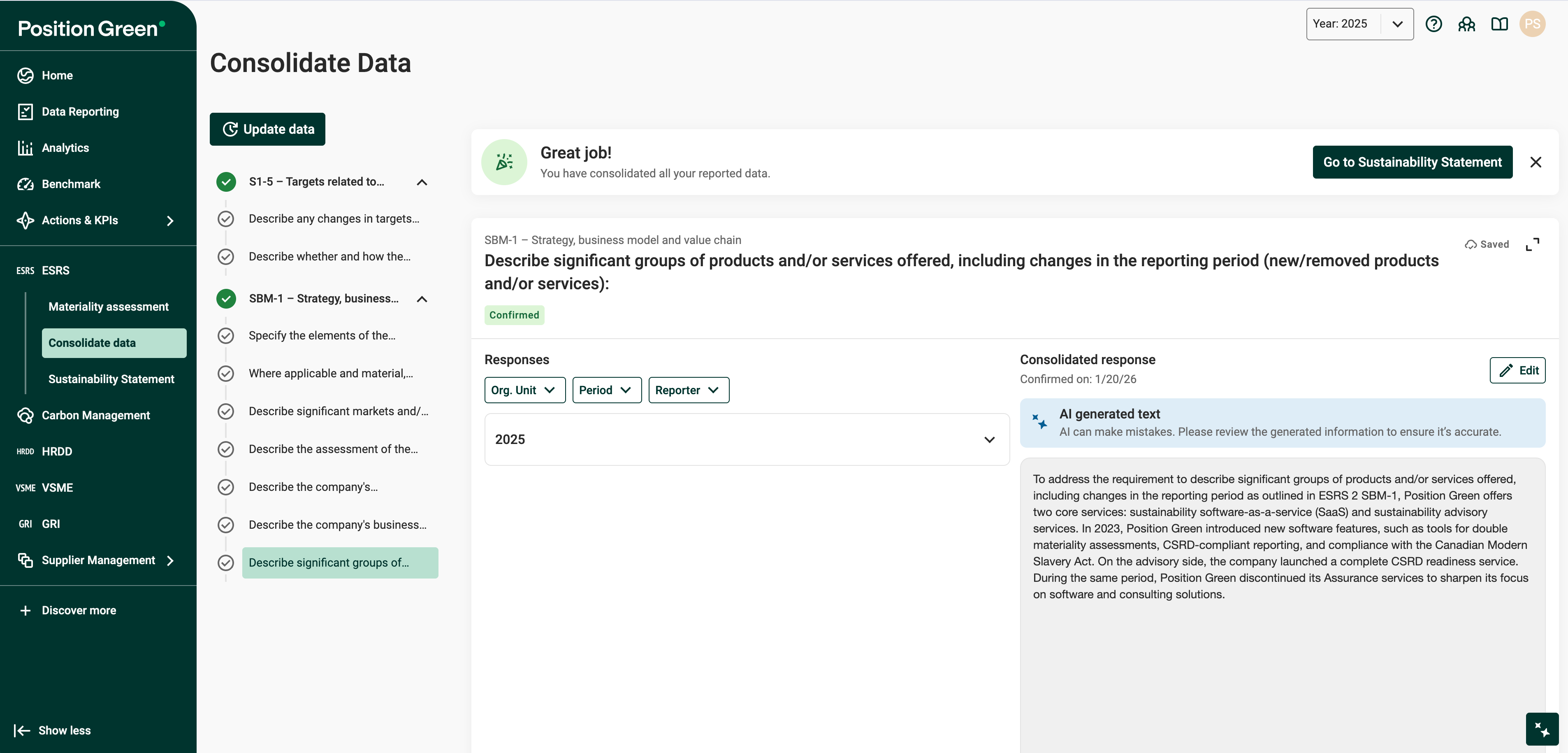
The first panel called Responses on the image above displays the original reported data, which can be filtered by organizational unit, reporting period, and reporter. The second panel called Consolidated response is where you consolidate multiple responses into a single answer.
Once the data has been edited you can confirm consolidation in the upper-right corner, clicking on Confirm. Once all data is consolidated and confirmed, the data can be pushed to the next step, and included in the Sustainability Statement.
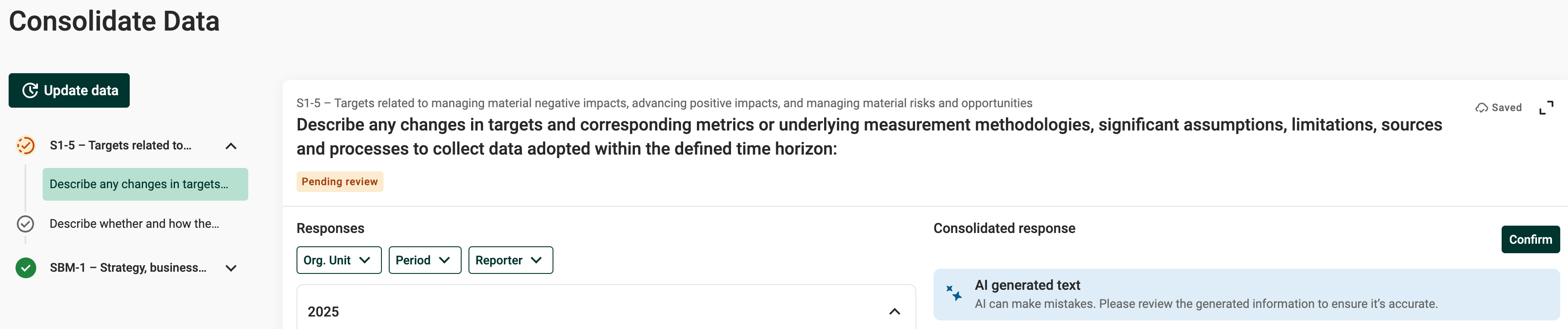
The text in light grey in the image above refers to the disclosures, while the text in bold black represents data point - questions answered by reporters within the ESRS Reporting Templates.
All responses for a specific data point are displayed in the first panel. On the right panel, the compiled responses are shown, where you can consolidating them into a single and coherent narrative.
When some data is being added, updated, and confirmed in the Data Reporting view, you can re-run the data consolidation by pressing the Update data. Any data that needs to be consolidated will then show up in the Consolidated Data view for you to review it.
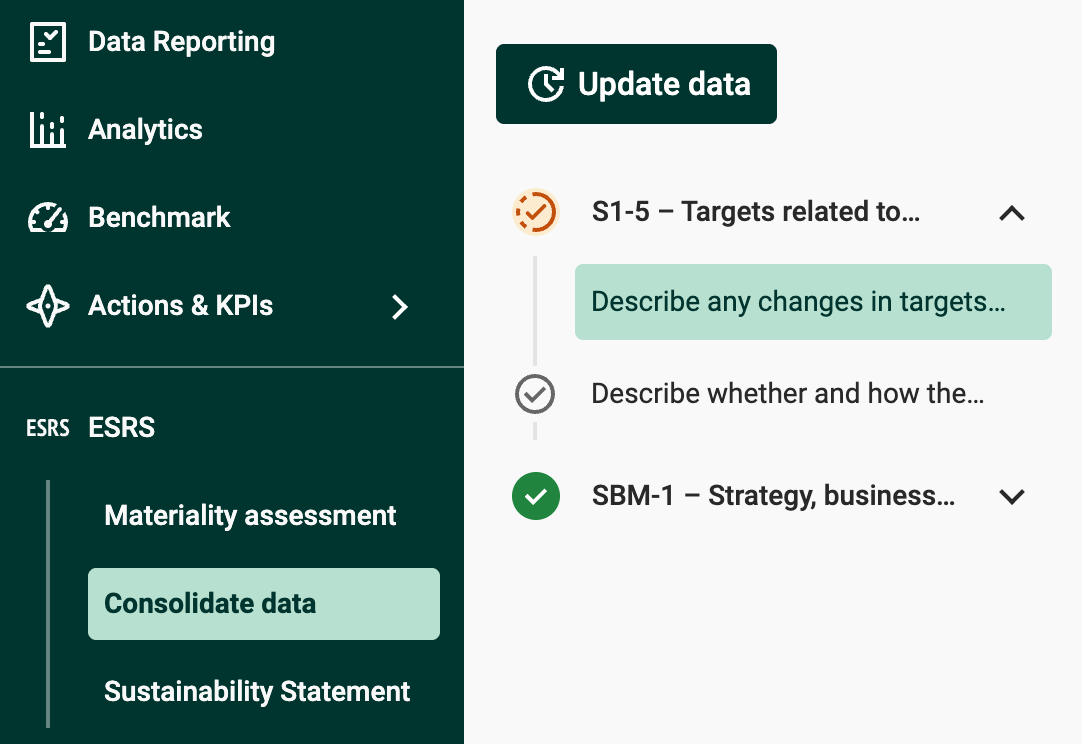
Update Data in the Consolidator
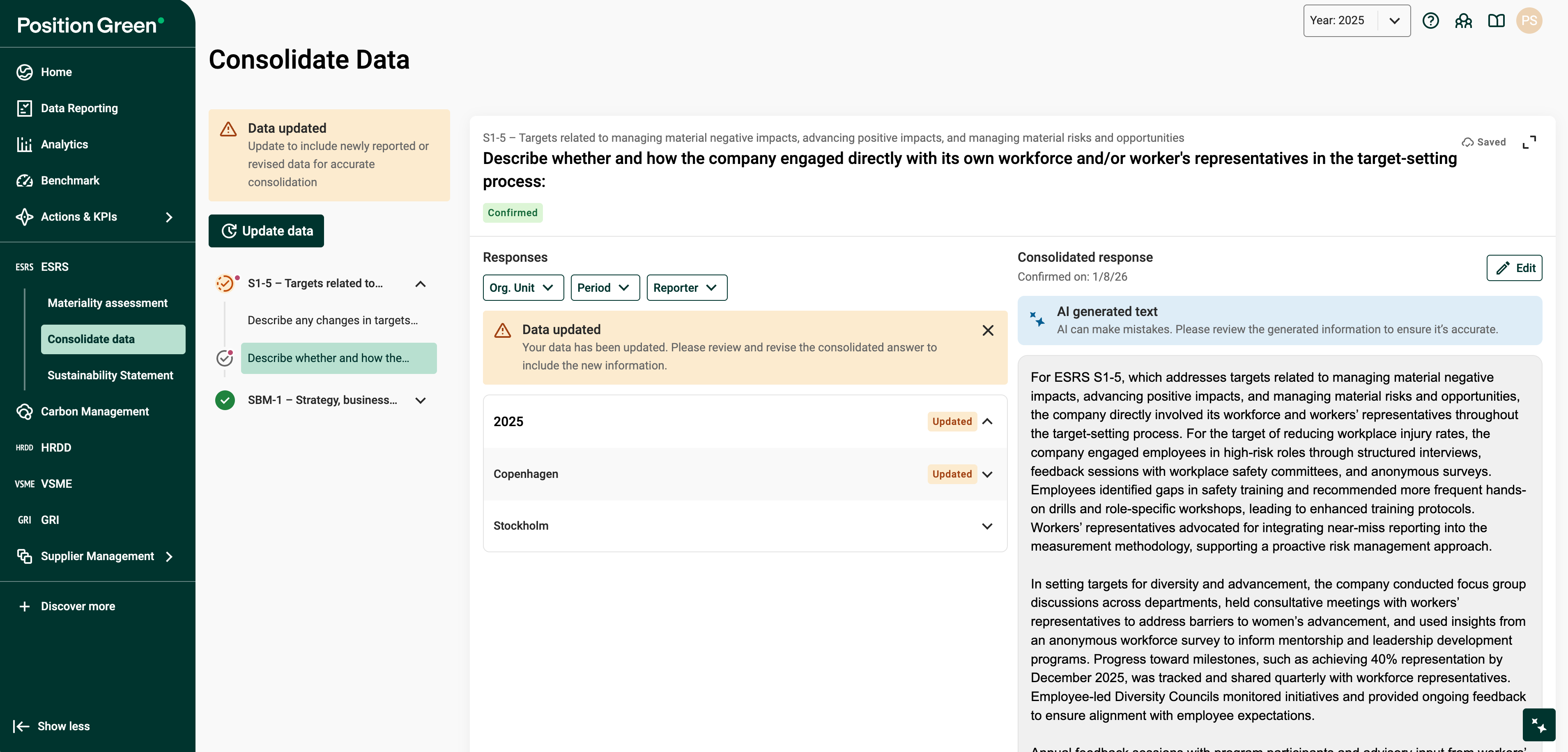
If some data is being added, or updated in the registrations, and needs to consolidated again, it will be highlighted by a red indicator next to the updated datapoint in the Consolidate Data view. A warning message will also inform you about the type of change that occurred in your data, and which organization unit is impacted highlighted by the mention Updated.
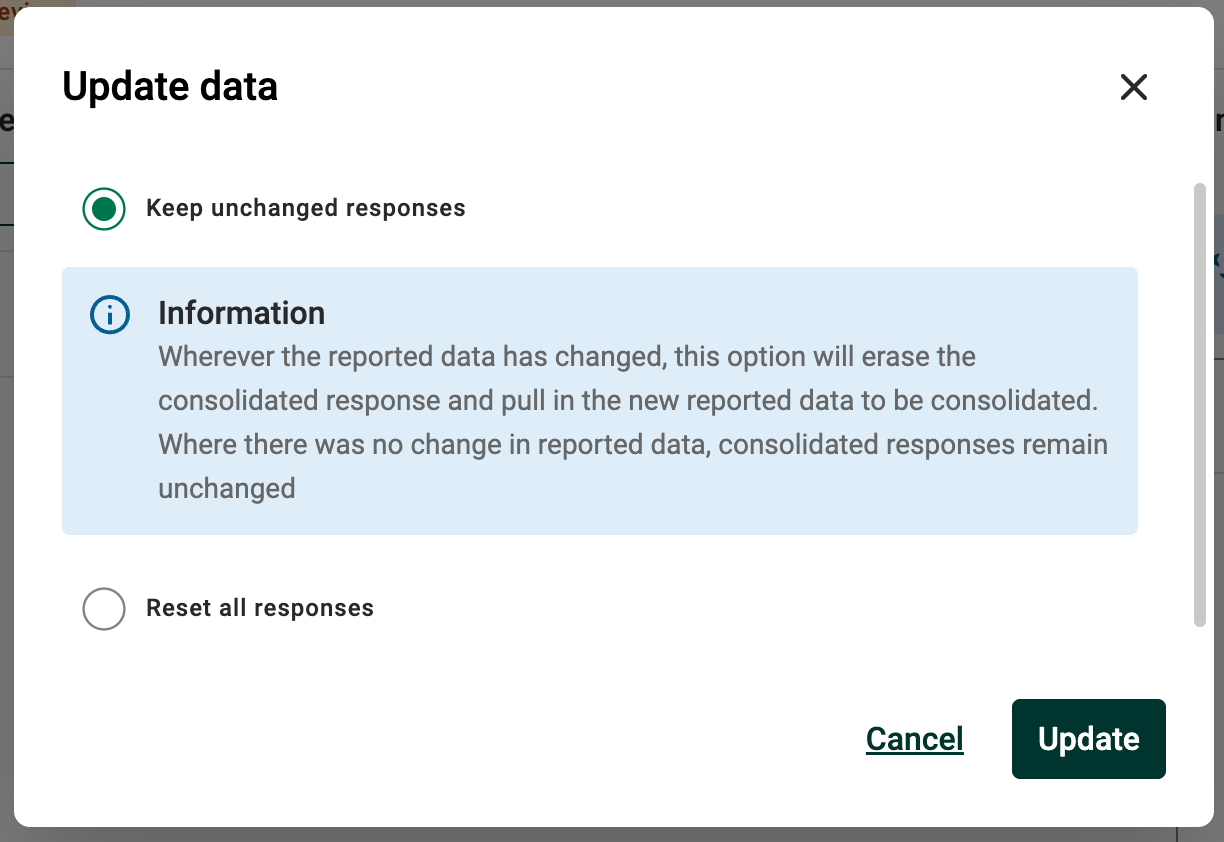
When on Update data, a pop-up window will appear.
If you decide to Keep unchanged responses, you will overwrite the consolidated data where the reporting data has been updated. Previously consolidated responses where the reporting data has not been updated will remain unchanged.
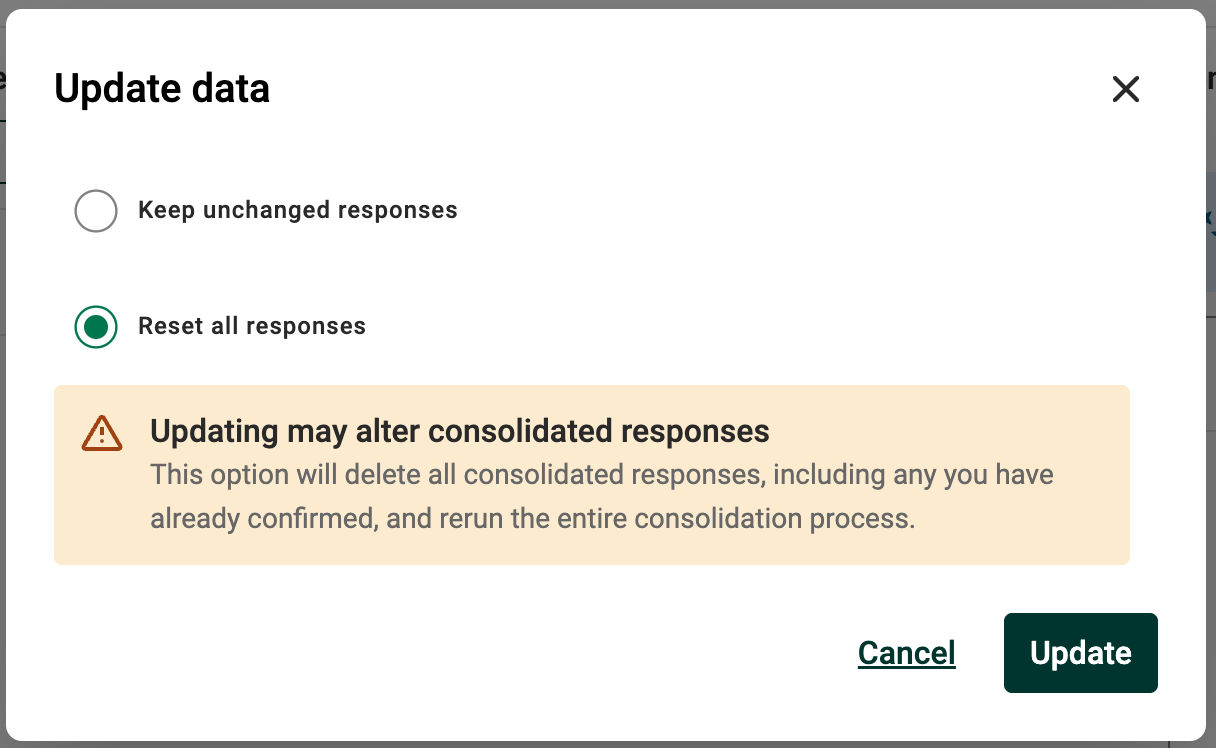
If you decide to Reset all responses, you will overwrite all consolidated responses, whether the data has been updated or not in the Data reporting view, which will impact existing consolidated responses.
Update Data in the Statement Editor
When a consolidated response has been updated you will need to click on Update in your Sustainability Statement view for this change to be reflected in your report.
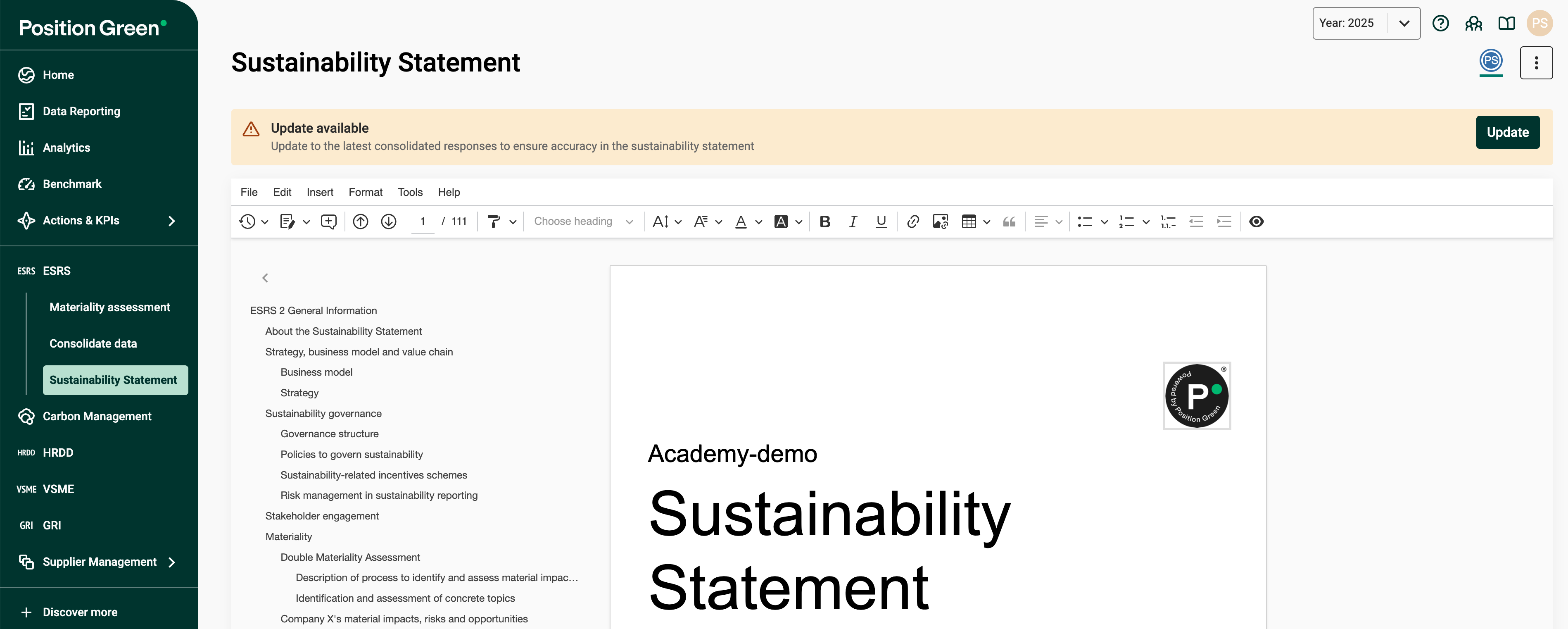
When you click on Update, the following pop-up window will appear:
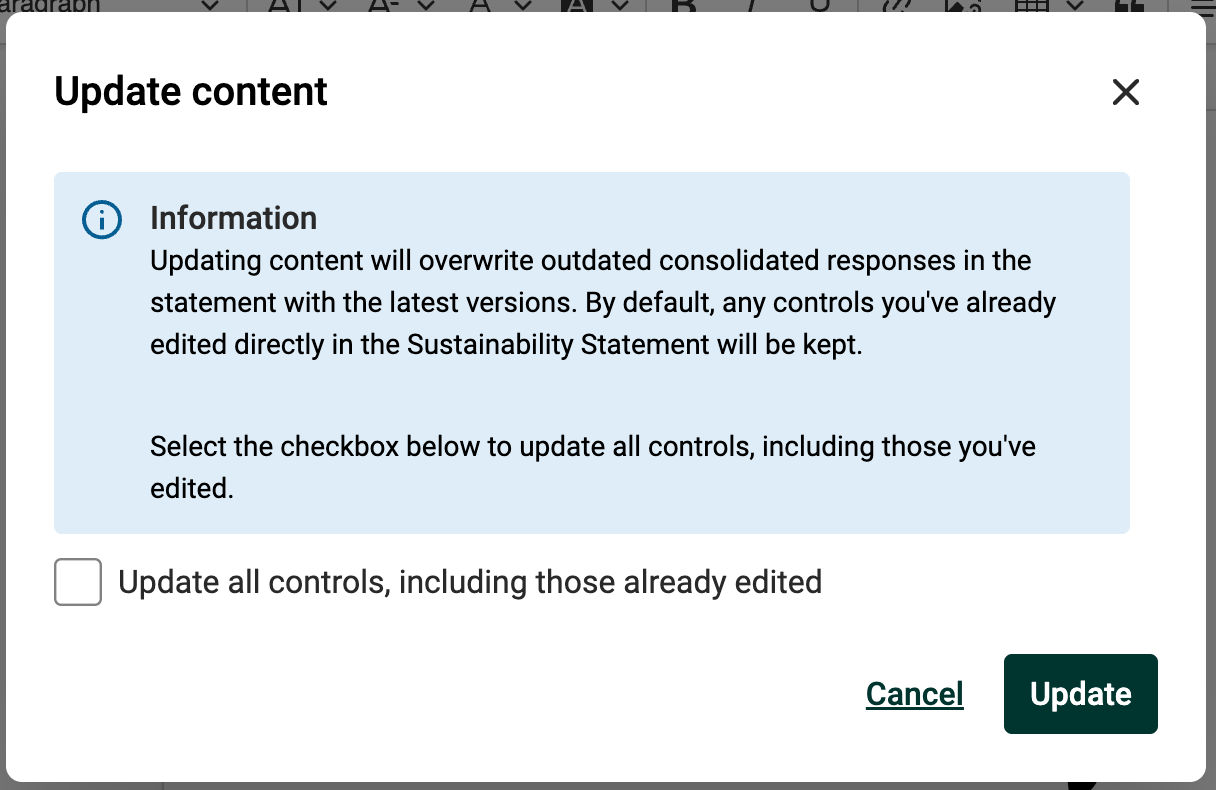
Please note that:
- If the source data in the registrations has been updated on a previously confirmed consolidated datapoint, the outdated response will be overwritten in your report by default, unless this data has been manually edited in your Sustainability Statement.
- If there is new data available that has not been consolidated previously, the confirmed consolidated datapoints will not be affected by the update.
- If the data has been manually updated from your Statement Statement, it will not be overwritten, unless you decide to do so by checking Update all controls, including those already edited checkbox in the above pop-up window.
AI Consolidation
If you have AI activated, the system automatically consolidates the responses with AI and provides a suggested answer. You can review, edit, and modify this suggestion before confirming the consolidation.

AI generates the consolidated response in the language used the most in the reported data. The AI cannot be applied to selected data points, it is automatically applied to all responses in the Consolidate Data view.
Confirming the consolidation
Once all the responses have been consolidated, and confirmed, a green indicator will show up next to the disclosure. You can now visualize all your data, whether it is quantitative, or qualitative data, consolidated, or not, in the Statement Editor. To do so, you need to create your Sustainability Statement by clicking on Go to Sustainability Statement.
Was this article helpful?
That’s Great!
Thank you for your feedback
Sorry! We couldn't be helpful
Thank you for your feedback
Feedback sent
We appreciate your effort and will try to fix the article