Table of contents
- Create a table of suppliers/portfolio companies and their assessed score
- Save the table
- Download as Excel
- More detailed assessment queries
- Scoped data selection
- FAQ
In Tabulate, design a quick report table from the data collected in Position Green.
This view makes it easy to select which data to include in the table, how to structure it and how to aggregate it.
Use it to look at the data in detail without creating pivot tables in Excel or similar applications.
As with any other type of data in Tabulate, drill down into the screening and scores of suppliers or portfolio companies.
Create a table of suppliers/portfolio companies and their assessed score
Step 1. Select general data
Select the general data to add to the table, such as “Suppliers” / “Companies” or the “Year” the data is valid for.
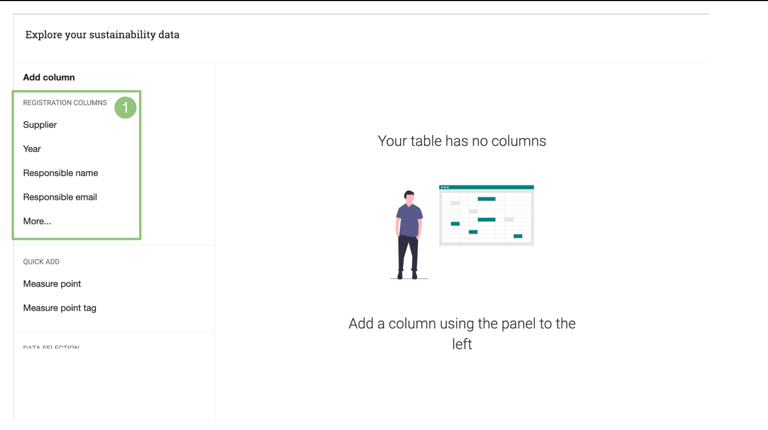
General data options
Step 2. Data selection
Data selection: Select “Assessment” to view data based on assessments.

“Assessment” under Data selection
Step 3. General assessment data
Select the assessment data to add to the table.
Standard data sets, regardless of setup:
- Name - adds a column with the names of used assessments
- Date - the date it was assessed
- Issuer - who did the assessment
In the Assessments section, drill down into data specific to individual assessments.

General assessment data and the Assessments section
Step 4. Specific assessment data
Select the assessment to query data for, in this example “Survey Assessment”.

Names of the specific assessments used in the setup
Selecting a specific assessment makes it possible to query data for that assessment. In the image below, the outcomes are “Score” and “Rating”.

Score and Rating selected as columns
Standard outcomes for most assessments:
- Score - the assessment score for that supplier
- Max score - the maximum score available for that assessment
- Rating - if a rating is available for the assessment e.g. Well approved or Not approved
- Rating description - description for a specific rating, if available
Save the table
To return to tables later, see Tabulate to learn how to create a page of data tables.
Download as Excel
Download tables by clicking “Download spreadsheet” in the bottom-right corner.
More detailed assessment queries
Query on category and subcategory data
If assessments contain categories and subcategories, selecting a specific category adapts the queries to that category.

Drill down through several layers of scoring in an assessment
Query on flags
Query which suppliers/companies have received notice flags or disqualification flags to get a high-level overview. Drill down through the categories to view flags on sub-levels. The null value for flags is 'Unknown'.

Suppliers that have received flags in the social category of the assessment
Scoped data selection
After clicking Assessments, some data fields are available together with a list of assessments. Selecting one of these data fields lists the fields from all assessments in the table. If an assessment is clicked first and then one of those data fields is selected, e.g. Date, the date the assessment was issued is listed only for that assessment.
The same principle applies to calculation assessments, which can contain categories and subcategories. If a data field, e.g. Score, is selected without clicking a category, the total score for each assessment is listed. If Score is selected after selecting a category, the total score for the selected category is listed.
FAQ
- Some cells contain Unknown when querying qualifications, what does that mean?
When an assessment is defined, it needs a flag set. In some use cases this is empty or not used, so Unknown is set. To query assessments that have flags without seeing Unknown, create a column filter to filter them out.
Was this article helpful?
That’s Great!
Thank you for your feedback
Sorry! We couldn't be helpful
Thank you for your feedback
Feedback sent
We appreciate your effort and will try to fix the article