Table of contents
- Overview
- File format
- Suppliers sheet columns
- Valid Values sheet
- Inspecting changes before import
- How to import suppliers
- Supplier access permissions
- Validation errors
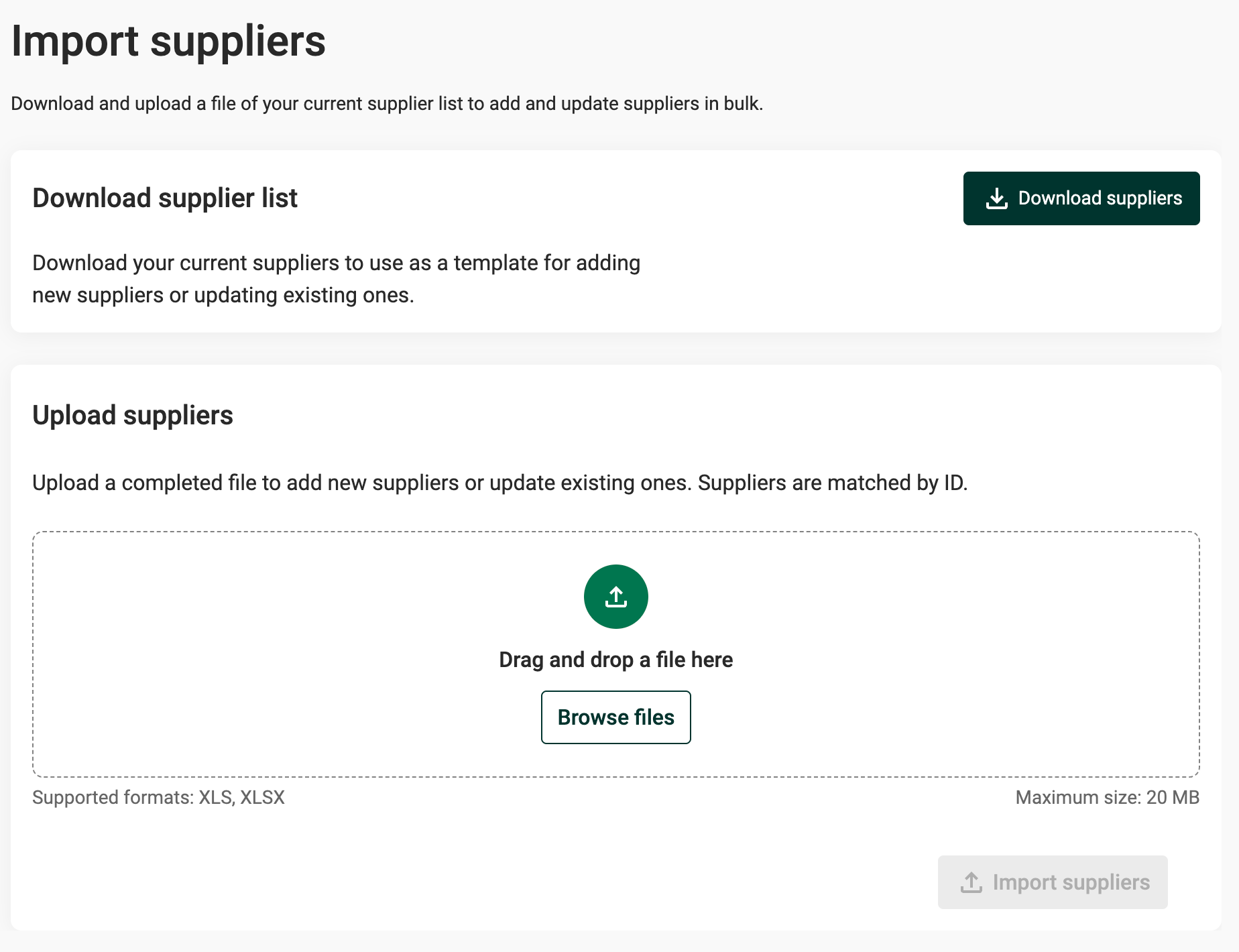
In Supplier Management, add or update suppliers by importing an Excel file. “Import Suppliers” is next to “+New Supplier” on the supplier list.
Import Suppliers next to +New Supplier on the supplier list
Overview
Each row in the file represents a supplier for the active year. For changes across multiple years, run a separate import for each year. The type of operation - creation of a new supplier or updating an existing one - is determined by the Id field.
Note: This feature does not delete suppliers. Suppliers missing from the uploaded file remain untouched.
File format
The Excel file contains two sheets:
- Suppliers (for data entry)
- Valid Values (reference data for valid options).
Suppliers sheet columns
Id - The supplier's database ID. Leave empty to create a new supplier, or use an existing supplier's ID to update that supplier.
Name
PrettyID - A user-defined custom ID. Must be unique within the year. When creating a supplier, the system searches for matches on this ID across previous years. If a match is found, the system links the new entry to the existing supplier by assigning the same Global ID.
ContactPersonEmail - The email address of the contact person. If the user does not exist in the organization, a new user is created and invited.
ContactPersonFirstName - The contact person's first name. Required when creating a new user.
ContactPersonLastName - The contact person's last name. Required when creating a new user.
ContactPersonCulture - The preferred language or culture for the contact person. Select from the dropdown or refer to the Valid Values sheet.
Note: For existing users,FirstName,LastName, andCulturecannot be modified through this import. The values in the file must match the existing user's details exactly. For example, if the user has "en-US", the import must also specify "en-US", not "en".
SupplierOwner - The internal owner of the supplier. If left empty, the user importing the supplier is assigned as owner.
Tags - A list of tags to assign to the supplier, separated by semicolons. Example: tag1;tag2;tag3. Tags must already exist in the tag library with the scope set to supplier. See the Valid Values sheet for available tags.
Countries - Alpha-3 country codes where the supplier operates, separated by semicolons. Example: SWE;NOR;DNK. See the Valid Values sheet for valid codes.
Sector - The supplier's sector. Select from the dropdown or see the Valid Values sheet for valid options.
Currency - The currency code for financial data. Select from the dropdown or see the Valid Values sheet for valid options.
Spend - The spend amount for this supplier.
Valid Values sheet
The Valid Values sheet provides reference data for fields with restricted options:
- Valid Tags - Available tags for suppliers
- Valid Country Codes - Alpha-3 country codes
- Country Name (reference) - Full country names for reference
- Valid Sectors - Available sector options
- Valid Currencies - Available currency codes
- Valid Cultures - Available language or culture codes
Inspecting changes before import
After selecting a file, the system displays a "diff view" that previews the actions to be taken. Use it to check what will happen during the import.
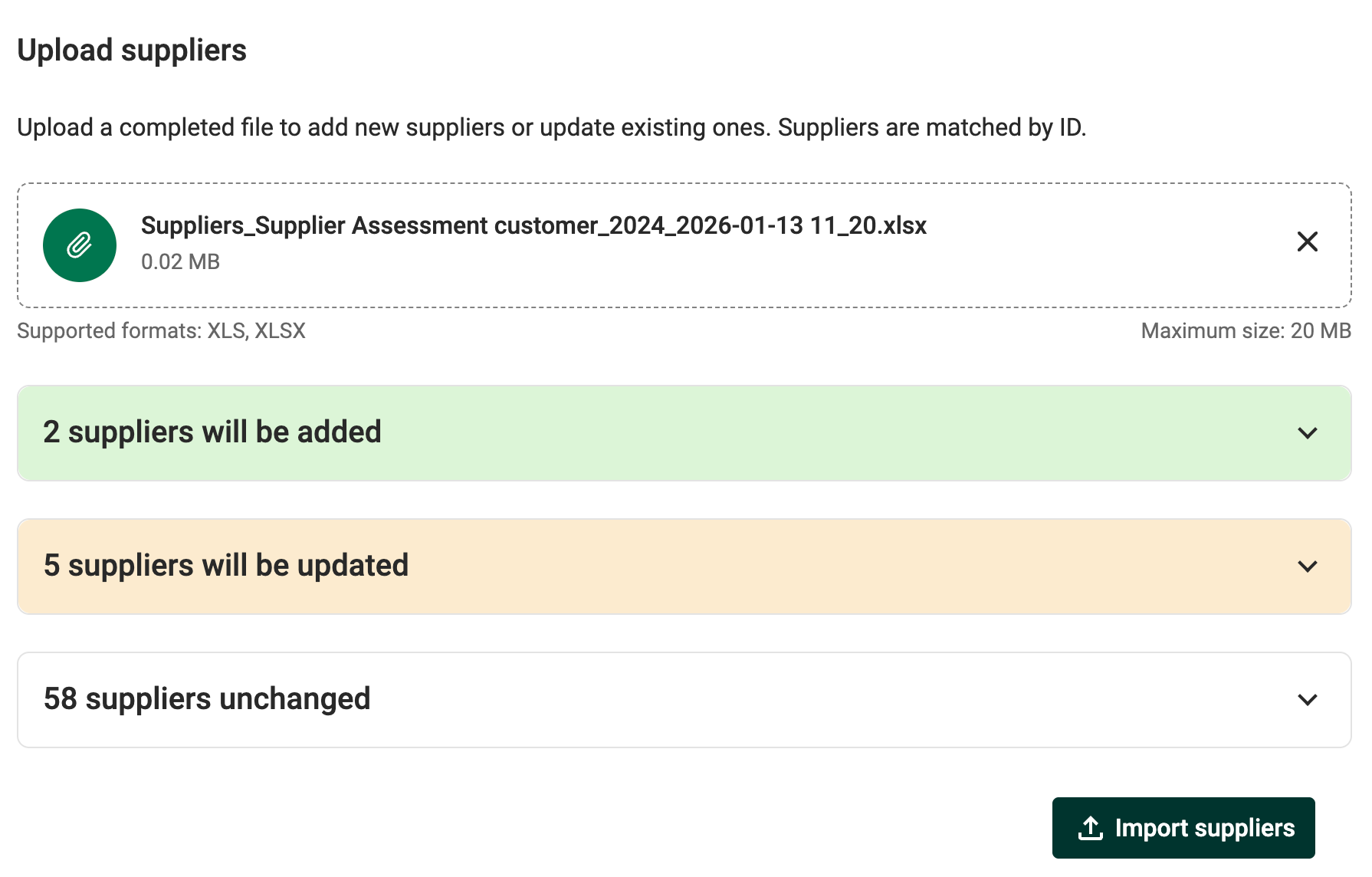
Diff view before import
- Create - Shows suppliers that will be newly created, highlighted in green
- Update - Shows suppliers that will be updated, highlighted in yellow. Changed cells are highlighted, and a checkbox can be toggled to view previous values
- Untouched - Lists suppliers that will not be affected
No changes are applied until “Import suppliers” is clicked.
How to import suppliers
- Click the user profile icon in the top navigation.
- Select Settings from the dropdown menu.
- Go to Import suppliers.
- Click “Download suppliers” to get the current supplier list as an Excel template.
- Open the downloaded file and make changes:
- To add new suppliers, add new rows with the
Idfield left empty. - To update existing suppliers, modify the values in existing rows and keep the
Idunchanged.
- To add new suppliers, add new rows with the
- Save the file.
- Drag and drop the file into the upload area, or click to browse for the file.
- Review the diff view to verify the changes:
- Expand each section to see affected suppliers.
- For updates, toggle Show previous values to compare changes.
- Click “Import suppliers” to apply the changes.
- Verify that the success message appears.
Supplier access permissions
If supplier access permissions are enabled for the organization, the downloaded file only includes suppliers that the current user has permission to edit. An information message appears on the page when this restriction is active.
Validation errors
The following validation errors may occur during import:
- Invalid email - The email address format is invalid.
- Missing contact person info - Either an email address was provided without FirstName or LastName, or FirstName, LastName, or Culture was provided without an email address.
- Invalid culture - The culture code is not supported. See the Valid Values sheet for valid codes.
- Cannot modify existing user - The
FirstName,LastName, orCulturedoes not match the existing user's details. This import cannot modify existing user information. - Country not found - The country code does not match any valid Alpha-3 code in the Valid Values sheet.
- Sector not found - The sector does not match any valid option in the Valid Values sheet.
- Tag not found - One or more tags do not exist in the tag library, or a tag exists in multiple tag sets. Check the Valid Values sheet for available tags.
- Invalid spend amount - The spend value is not a valid number.
- Currency not found - The currency code does not match any valid option in the Valid Values sheet.
- Duplicate PrettyId - The
PrettyIdis already in use by another supplier in the same year, or appears multiple times in the import file. - Duplicate Id - The same supplier
Idappears multiple times in the import file.
Was this article helpful?
That’s Great!
Thank you for your feedback
Sorry! We couldn't be helpful
Thank you for your feedback
Feedback sent
We appreciate your effort and will try to fix the article