Table of contents
- Add data to the table
- Sort the data
- Aggregate the data
- Sum several measures in one column
- Change column name
- Filters
- Download as Excel
- Save the table
Selecting “Create table” opens the edit mode of Tabulate. Design a quick report from the data collected in Position Green.
This view makes it easy to select which data to include in the table, how to structure it and how to aggregate it.
Use it to look at the data in detail without creating pivot tables in Excel or similar applications.
The options in the examples below may vary depending on the product in use and what is being measured.
Add data to the table
Either start by adding data to a new table, or click the three dots under Manage and click “Modify data table”.

Options in the side panel
Section 1 - General data
Add columns to the table through the following menus and quick adds:
Choose which registration column to add:
- Organizational unit / Supplier / Company - Each row represents an org.unit/supplier/company
- Year - Each row represents a reporting year
- Responsible name - Each row represents a reporter
- Report period - Each row represents a reporting period, such as a quarter or month
- Confirmed - Each row will show if the registration in the other column is confirmed or not (Yes/No)
- Measure - Each row will show the name of the measure
- Measure point - Each row will show the name of the measure point
- Responsible email - Each row will show each reporter's email address
Section 2 - Quick add
This is a Quick Add to choose a measure point or a measure point tag. Drill down to different measure points through the menu on the left in the image below.
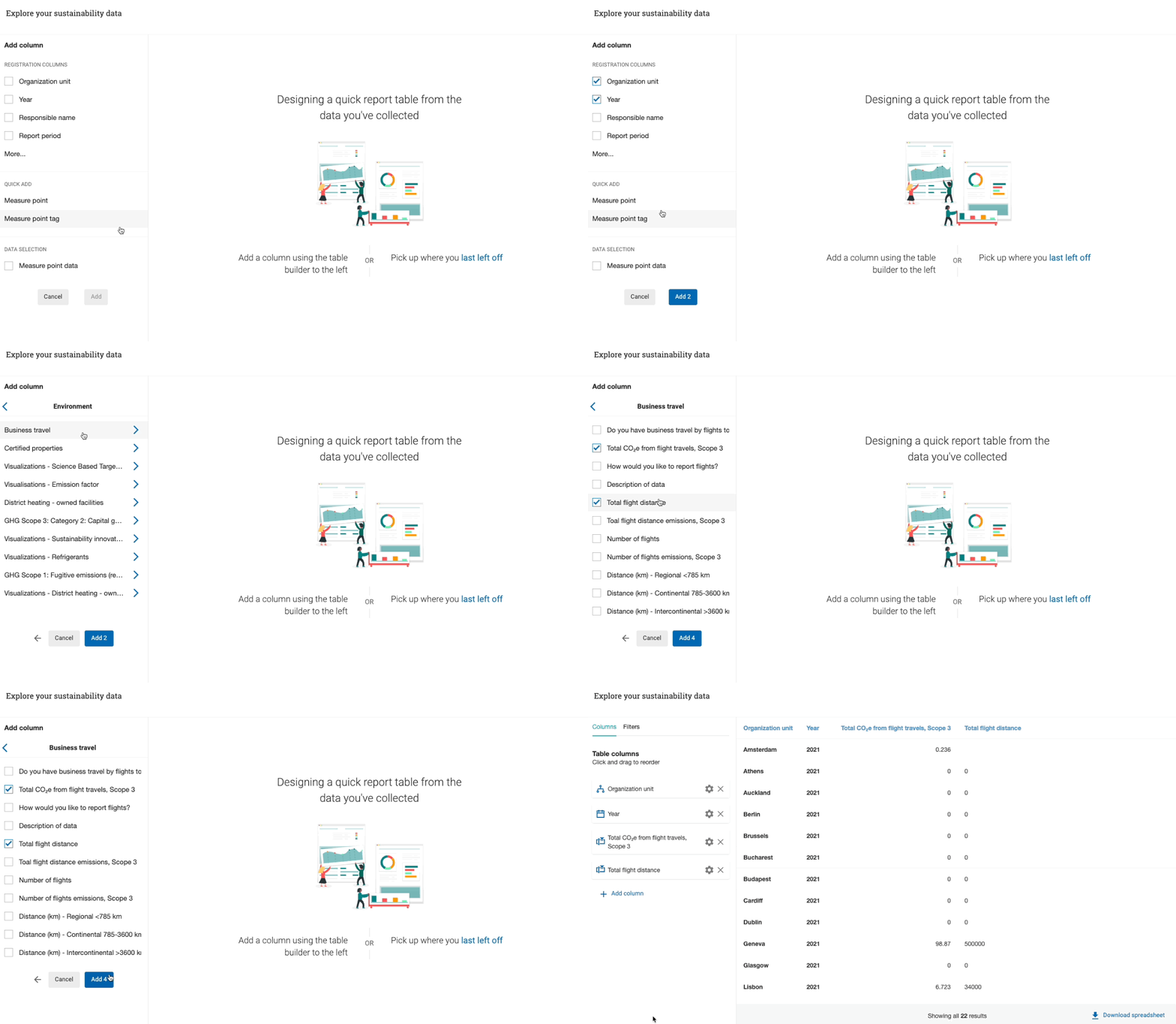
Select several data sources at once
Measure point tags are useful for summing up measure points in different measures, such as Scope 1, Scope 2 and Scope 3. After tagging the measure points with the same tag, sum them up in Tabulate by searching for the tag in the Measure point tag field.Section 3 - Data selection
Data Selection allows a more detailed search for measure points and measure point tags than the Quick Add described above.

Select Measure point and choose aspects to add measures to a table
Sort the data
Added columns are listed on the left.
To sort the table by a specific column, click the settings icon for that column.
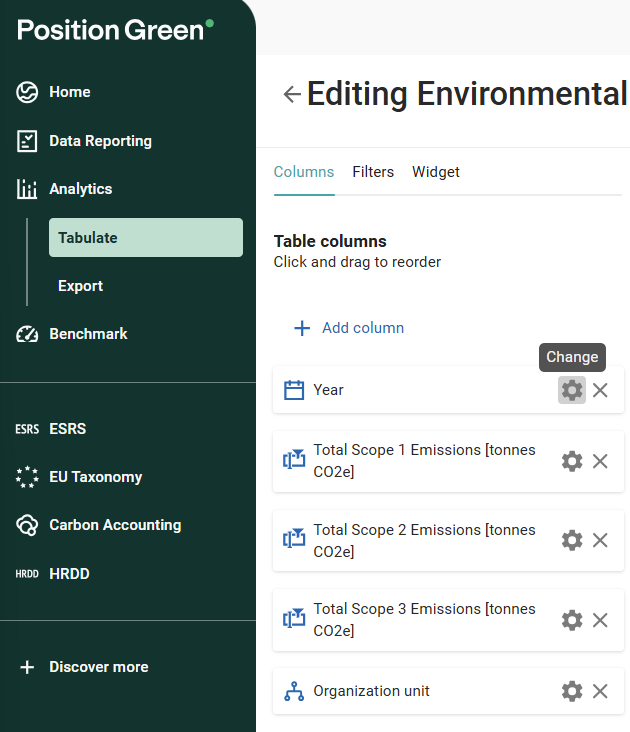
Define settings for each column using the cog icon
In the column settings, choose ascending, descending or no sorting.
Aggregate the data
To aggregate several measure points (from one column) for one specific org.unit or year, click the settings icon for the column to aggregate.
In the column settings, choose the operation to use for the column:
- Sum
- Count
- Average
- Min
- Max

Sort ascending, descending or none, and aggregate data
Sum several measures in one column
To sum several measures in one column, click the settings icon and then “Add another tag”, as shown in the image below. Then rename the column to match its content.

Click “Add another tag” to add more tagged data sets to the same column
Change column name
Rename a column to match its content. Go to the settings for the column, change the name and save.

Rename columns to better represent the data
Filters
The sections below describe how to use filters. Filters are currently available for both periods and state measures.
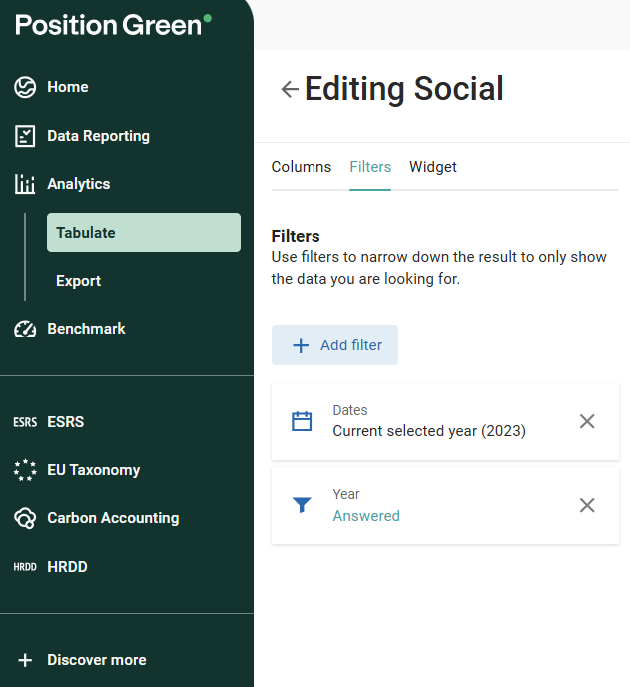
Filter options in the table editor
Filter on data range
To view data for several years, add a Years column. Then go to the Filters tab, click “Add filter” and select the “Dates” filter.
Configure a specific year or range here. Select a period to view the reported data at a more granular frequency.

Date filter settings
If “All years” is selected, all years with reported data are shown in that column.
Filter on org.units/suppliers/companies
Filter the table on org.unit, supplier or company, depending on the product in use.
There are two options to filter. Either filter by a tag or filter by a specific unit/supplier/company.
For both filters, choose whether to show:
- Only the selected unit
- Only descendants
- The selected and descendant units

Filter by tag or by a specific unit/supplier/company
Filter on registration status
To filter data based on registration status, add the Confirmed column to the table. Go to Columns, then More..., choose Confirmed, and click “Add”. After adding the Confirmed column, go to Filters and add a filter to it.
Filter content within tag columns
Filter which tags are shown directly inside a column, without affecting the rest of the table.
This is especially useful when a column contains multiple tags (e.g. Company tags, Supplier tags, or Strategy tags), to focus on a specific tag set.
How it works
Open Edit table and select a column that contains tags
- Click “Edit column”.
- Under Tags, choose which tags or tag sets to display
- The column will now only show the selected tags in each cell
If a row contains multiple tags, only the selected ones are visible and the others are hidden.
When working with tag sets:
- Selecting a full tag set will show all tags within that set
- New tags added to the selected tag set will automatically be included in the filter
Important to know
- This filters only the content inside the column, not the rows in the table
- To filter the entire table based on tags, use the filter on org.units/suppliers/companies instead
- Available for all tag-based columns (e.g. Supplier, Company, Measure, User, Org unit, Aspect tags)
Download as Excel
Export the table to Excel at any time by clicking “Download spreadsheet” in the top-right corner.
Save the table
Save tables to return to them later. See Tabulate to learn how to create a page of data tables and share them with colleagues.

Save the table
Connect to API
Data can be exported to other data management systems via APIs. This requires tables in Tabulate and a setup according to the integration documentation.
Was this article helpful?
That’s Great!
Thank you for your feedback
Sorry! We couldn't be helpful
Thank you for your feedback
Feedback sent
We appreciate your effort and will try to fix the article