TABLE OF CONTENTS
Summary
The Reporter is the standard user role responsible for submitting data and, when applicable, reviewing and approving data under the Four Eyes Principle. This article explains:
- What access a Reporter has
- What access a Reporter does not have
- How to create a Reporter
- How to assign a Reporter to a measure
The Reporter role defines who is responsible for operational data submission in the platform. Correct configuration is essential for reporting accuracy, ownership clarity, and approval workflows.
By default, reporting responsibility is linked to organizational units. Supervisors or collaborators assigned to those units are responsible for submitting and confirming data. However, measures can also be configured with a specific Reporter at measure level.
Reporter Access
Page Access
Reporters have access to the following:
No access
A reporter does not have access to the following:
How to Create a Reporter
- Click your initials in the top-right corner.
- Select Company Setup.
- Click Users.
- Click + Add user.
- Enter the user’s Email, First name, and Last name.
- Set Role groups to User.
- Set Applications to Controlling.
- Click Save.

Adding a user to a measure
There are two ways to assign a user to a measure. By default measures are connected to one or several org. units, and it is the supervisor or collaborators on that org. unit who are responsible for submitting and confirming the data.
Method 1: Unit Reports
This method can be used when reporting responsibility should follow the organizational structure.
- Click your initials in the top-right corner.
- Select Company Setup.
- Click Organization.
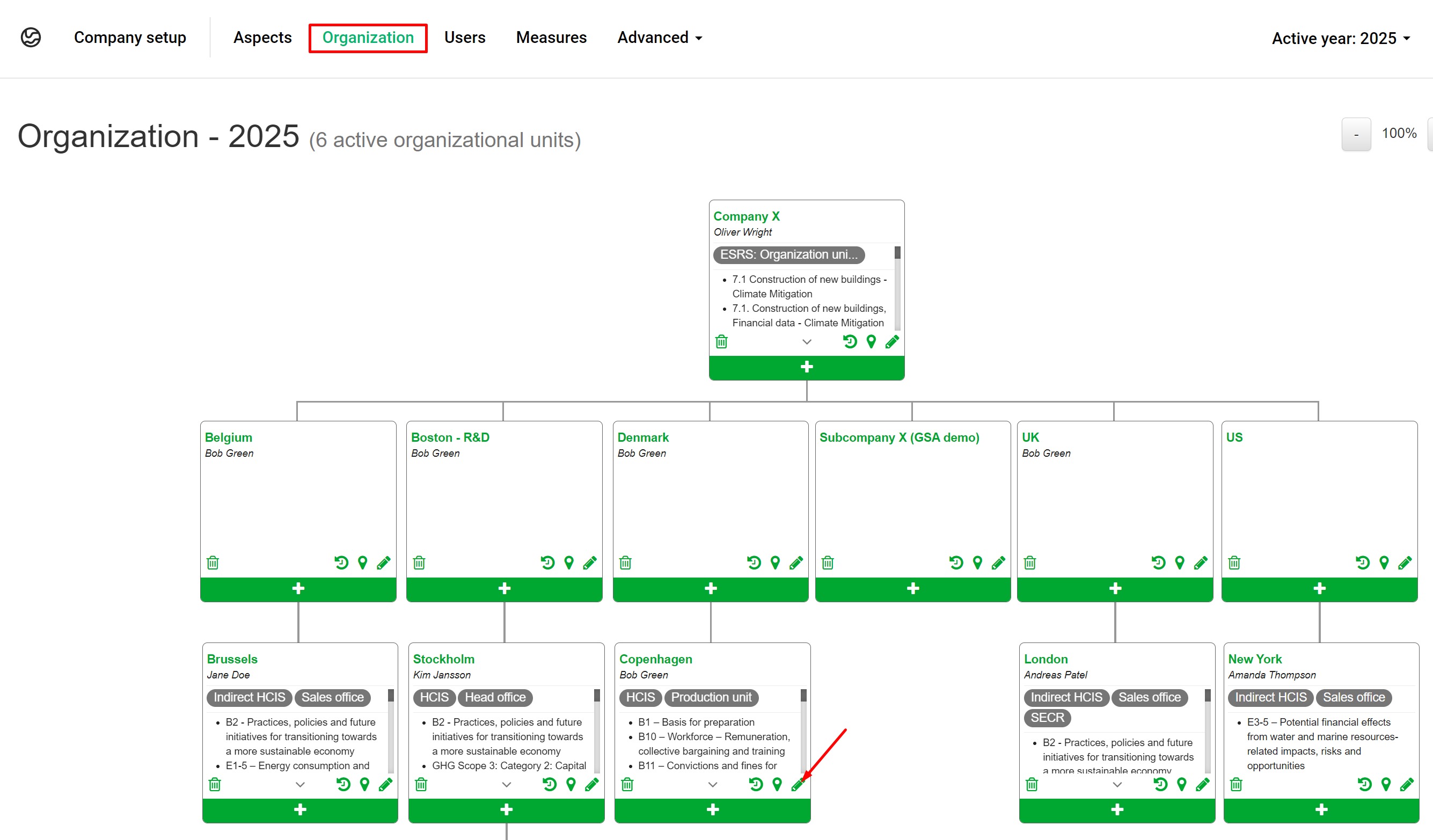
- Click the Edit (pen) icon on the relevant organizational unit.
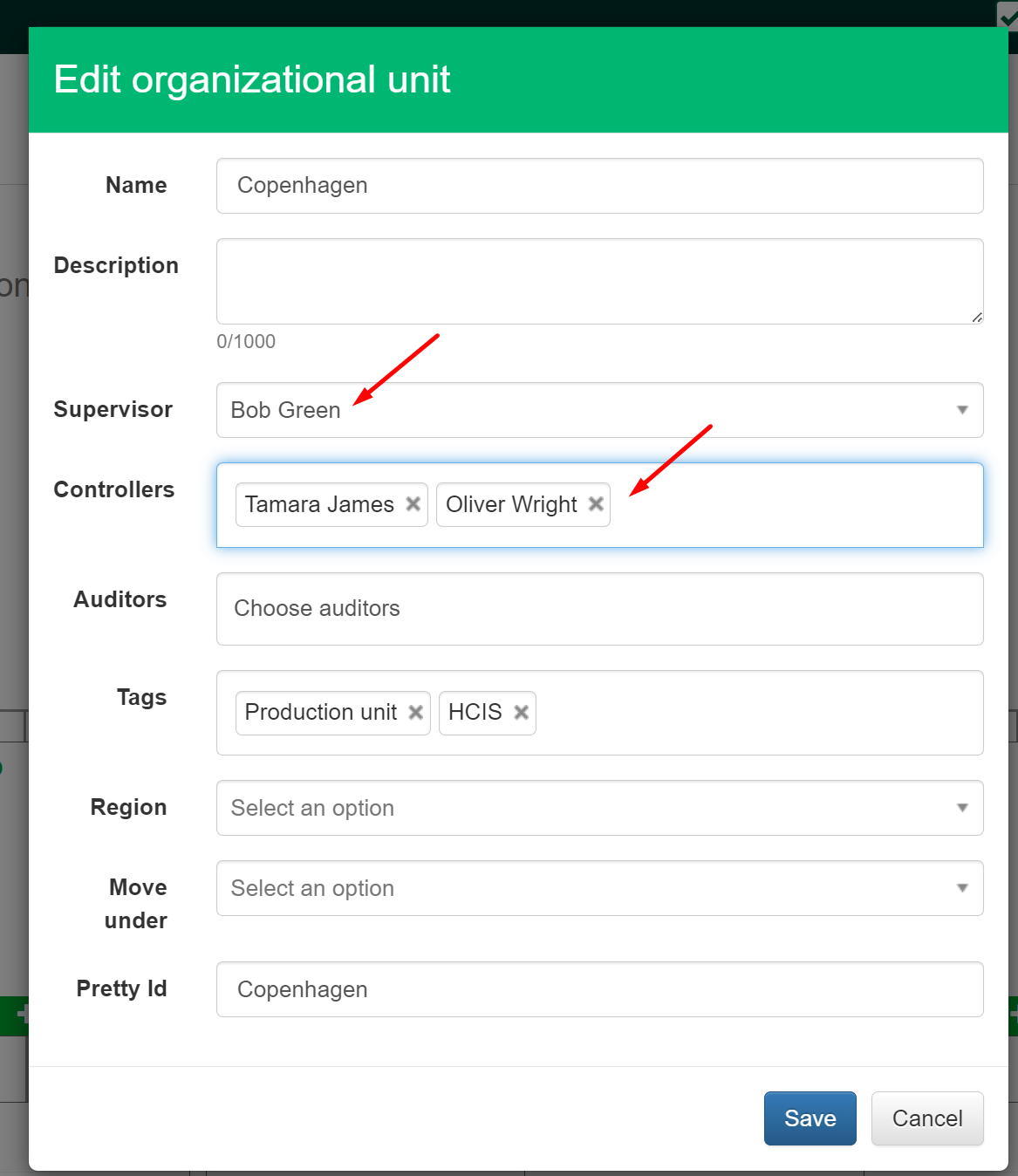
- Select the user in the Supervisor field.
- Click Save.
The assigned supervisor becomes responsible for reporting measures connected to that organizational unit.

The supervisor can assign Collaborators within the measure if additional users need to submit data.
Method 2: Assigning a user to a measure for the whole organization.
This method can be used when one user should report for the entire organization, regardless of organizational unit supervisors.
- Click your initials in the top-right corner.
- Select Company Setup.
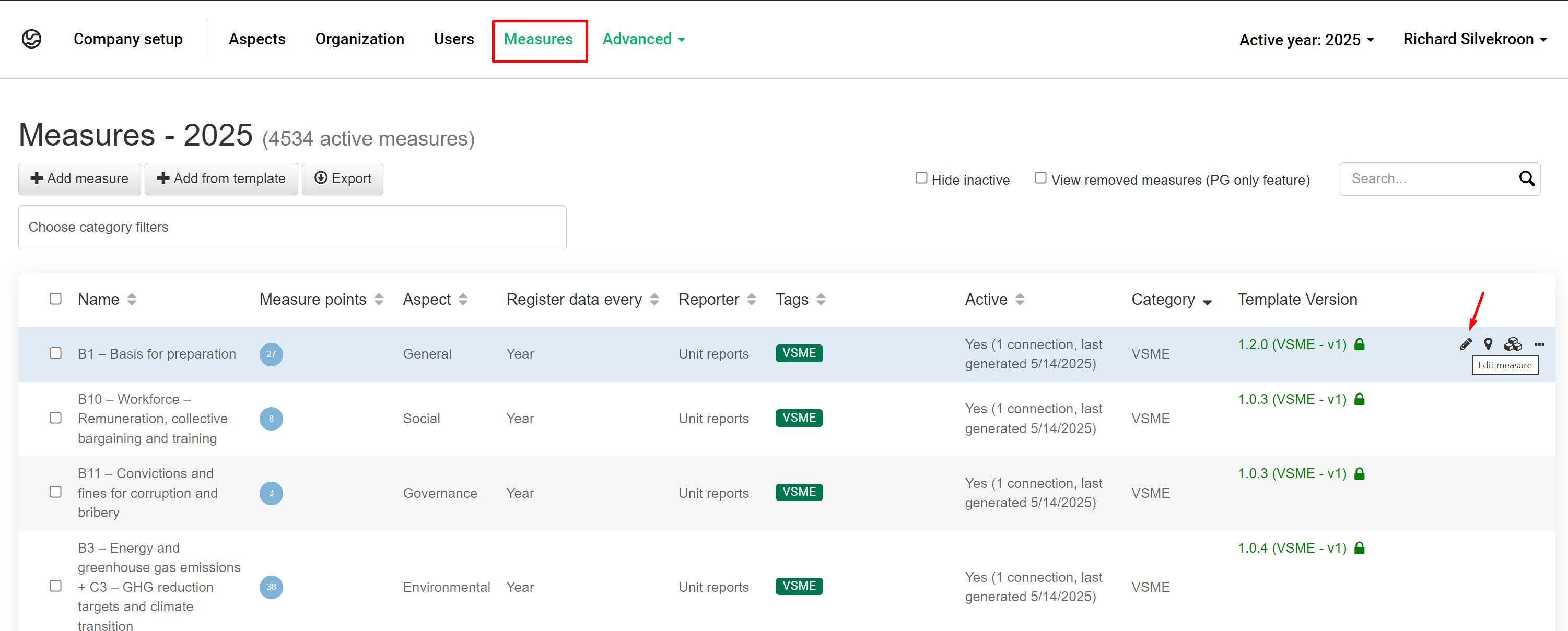
- Click Measures.
- Locate the relevant measure.
- Click the Edit (pen) icon.
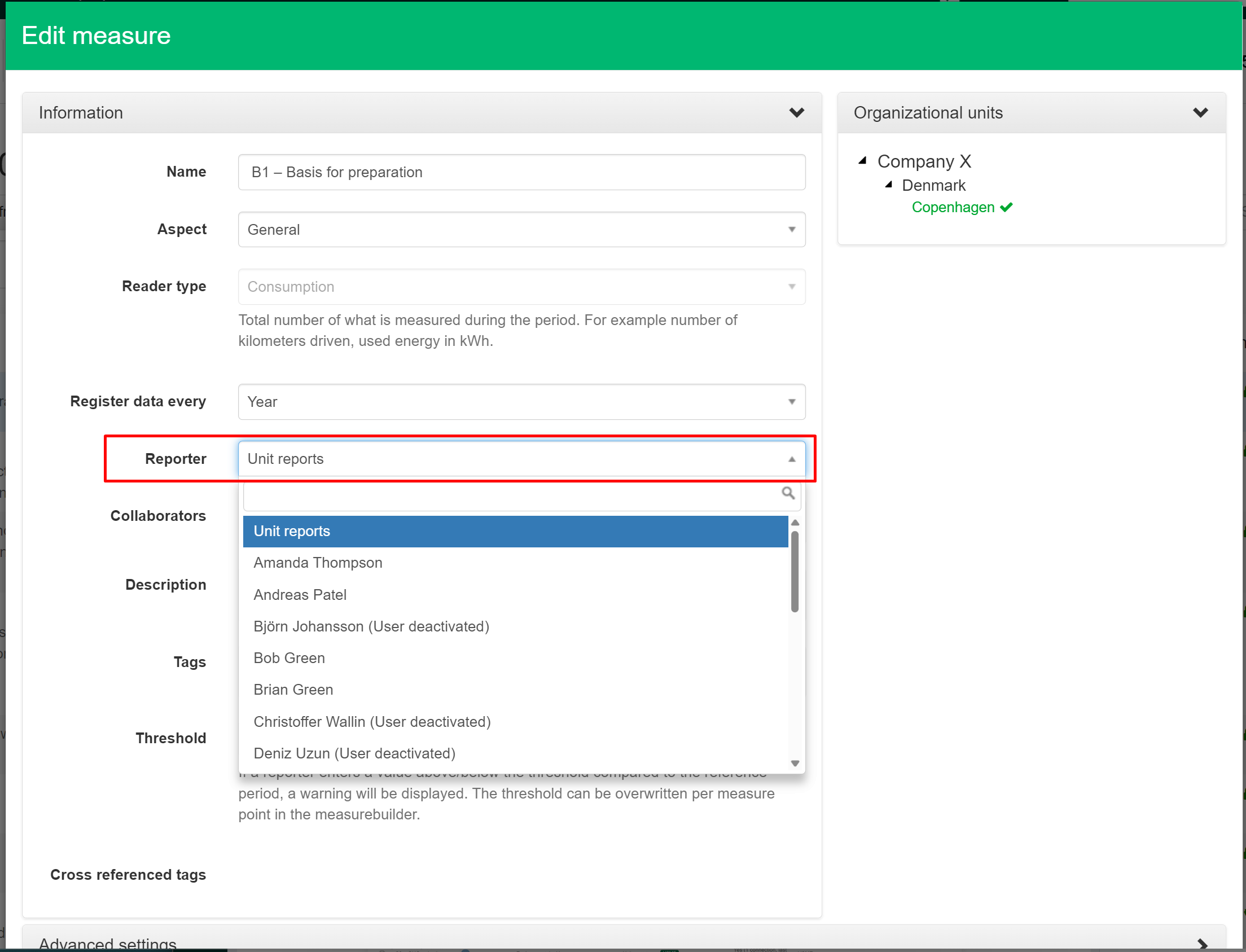
- Select a user in the Reporter dropdown.
- Click Save.
Related Articles
Was this article helpful?
That’s Great!
Thank you for your feedback
Sorry! We couldn't be helpful
Thank you for your feedback
Feedback sent
We appreciate your effort and will try to fix the article