Table of contents
- 1. Add survey
- 2. Add sections (groups) to the survey
- 3. Add questions to the template
- 4. Adding follow-up questions
- 5. Activate the template
Before building the survey, make sure its purpose is clear. A well thought-out survey is more likely to get a higher response rate.

Also consider whether each question is a main question that everyone should answer or a follow-up question.
How to create a survey in Supplier Management
To open the survey editor, click the user initials in the upper right corner -> Company Setup -> Surveys.

Company Setup in the menu under the user initials

Surveys in Company Setup
1. Add survey
To create a new survey, click “+ Add survey”. A new survey template is created.
Give the survey a name and a PrettyID. The name of the survey template should reflect the purpose and the content of the template.
The PrettyID is used to identify the survey. Keep the ID simple and do not change it over time. Changing it could break the connection to the previous years' survey answers. The name of the survey template, on the other hand, can be changed over time.

Adding a new survey
To change the survey name, click the pen icon to the right of the survey name:

Pen icon to change the survey name
2. Add sections (groups) to the survey
Click the survey name to open the survey template.

Click the survey name to open the survey template

Adding a section (group) to the survey
The groups are a way of grouping questions. Most surveys start with a section asking for general details about the supplier and later move on with in-depth questions about other subjects.
With this structure, either the whole survey or only one or several sections can be sent to a supplier, if not all of the content is relevant to that supplier.Add a section to the template by clicking “+ Add group”. Give the group a name and click “Add”. To delete or rename a group, click the group.
In the example below, the survey contains 6 sections.

Example survey with 6 sections
3. Add questions to the template
To add questions to the survey, click “+ Add element”.
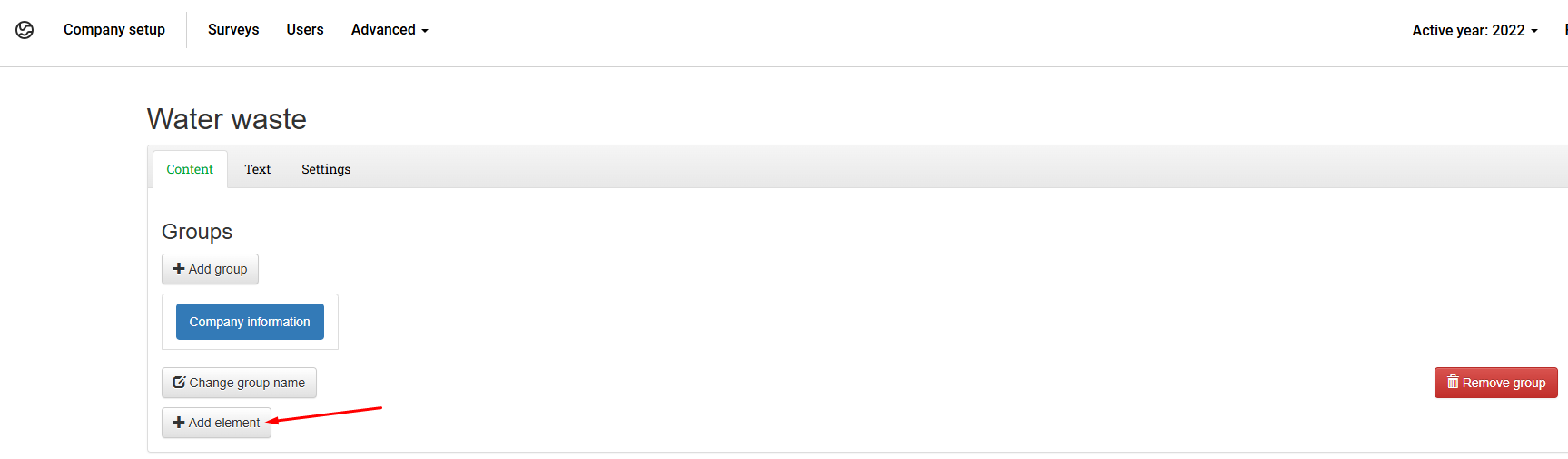
“+ Add element” button
Type the question and click “Add”. A good practice is to always formulate a main question, as in the image below.

Example of a main question
There are a few functions available for all of the questions that have been added to the group.
- Survey builder: Customize the question.
- Tags: Tag the question, e.g. with GRI, Scope 1 or other relevant tags.
- Edit: Edit the PrettyID (system ID) of the question.
- Move: Change the order of the measures by clicking this button and dragging and dropping.
- Copy: Copy a whole question.
- Delete: Delete a question from the survey.

Question functions: Survey builder, Tags, Edit, Move, Copy and Delete
To finalize the question added to the section, open the Survey Builder. In the example below, a Yes/No button is added. The type of response expected depends on the question asked.

Adding a Yes/No response in the Survey Builder
Some questions require a number or amount, others a free-text response. Read more about the Builder functionality.
4. Adding follow-up questions
The next step in the process is adding follow-up questions, which depend on the response to the main question.
Open the Survey builder for the question that needs a follow-up.
Click the measure that should be a follow-up question and tick the box “Conditional measure”. In the dropdown list “Source”, select the question that the follow-up question depends on. Then select the type of response that triggers the follow-up question.

Setting up a conditional follow-up question
5. Activate the template
When the survey template is complete with sections, main questions and follow-ups, activate the template so it can be selected in “Send survey”.

Activating the survey template
When the template has been activated, it appears as an option in Send survey.

Activated template available in Send survey
Was this article helpful?
That’s Great!
Thank you for your feedback
Sorry! We couldn't be helpful
Thank you for your feedback
Feedback sent
We appreciate your effort and will try to fix the article