To locate the page for editing dashboards:
- Click the user initials in the upper right corner.
- Click Company Setup.
- Click Advanced in the top menu and select Dashboards.
Use this view to:
- Change the dashboard name
- Organize dashboards into sections
- Change the order of dashboards
- Delete a section
- View dashboard activity logs
Change the dashboard name
To change the name of a section or a dashboard, click the pen icon beside it:
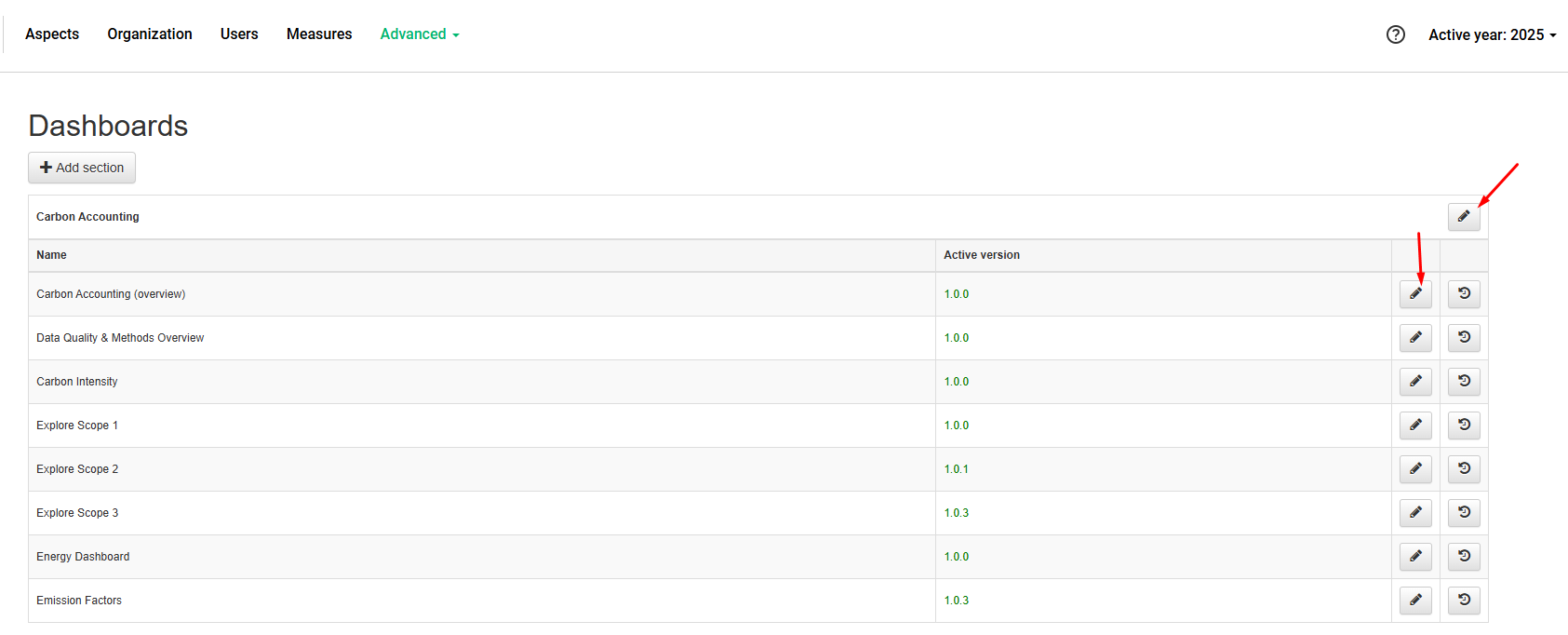
Pen icon beside a section or dashboard
Change the name and click “Save”.
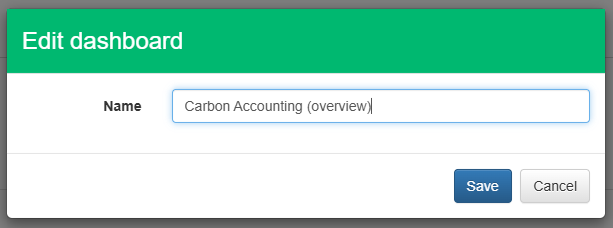
Change the name and click “Save”
Organize dashboards into sections
- Click “Add section”.
- Name the section. The name is visible to users with access to Analytics.
- Drag and drop dashboards into the new section. Users without access to any of the dashboards in the section do not see the section.

Add section

Drag and drop dashboards into a section
Change the order of dashboards
To move a dashboard up or down the list in a section, hover the mouse over the dashboard and drag it to the new position.
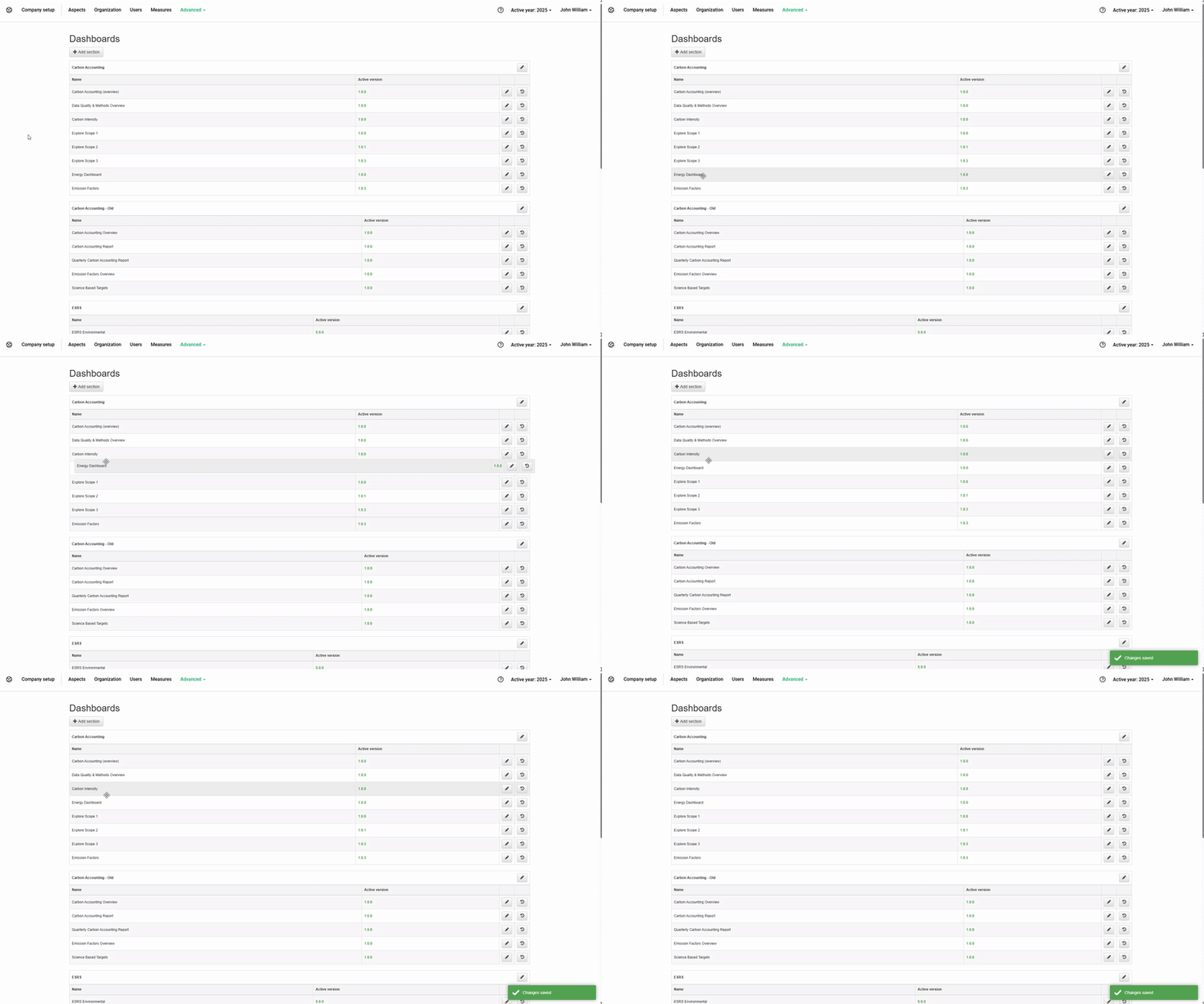
Drag a dashboard to change the order
Delete a section
To delete a section, click the bin icon beside it.

Bin icon beside a section
A section can only be deleted once no dashboards are connected to the section.
View dashboard activity logs
To view the activity logs for a dashboard, click the time icon beside it.
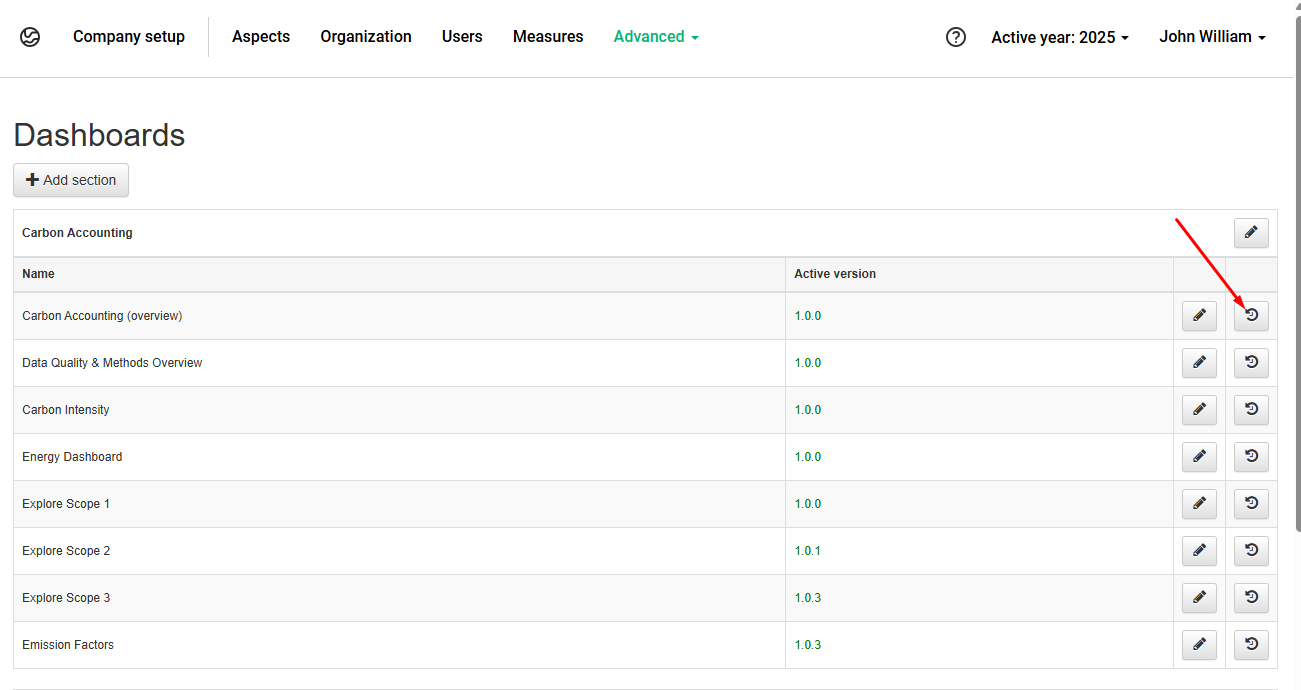
Time icon beside a dashboard
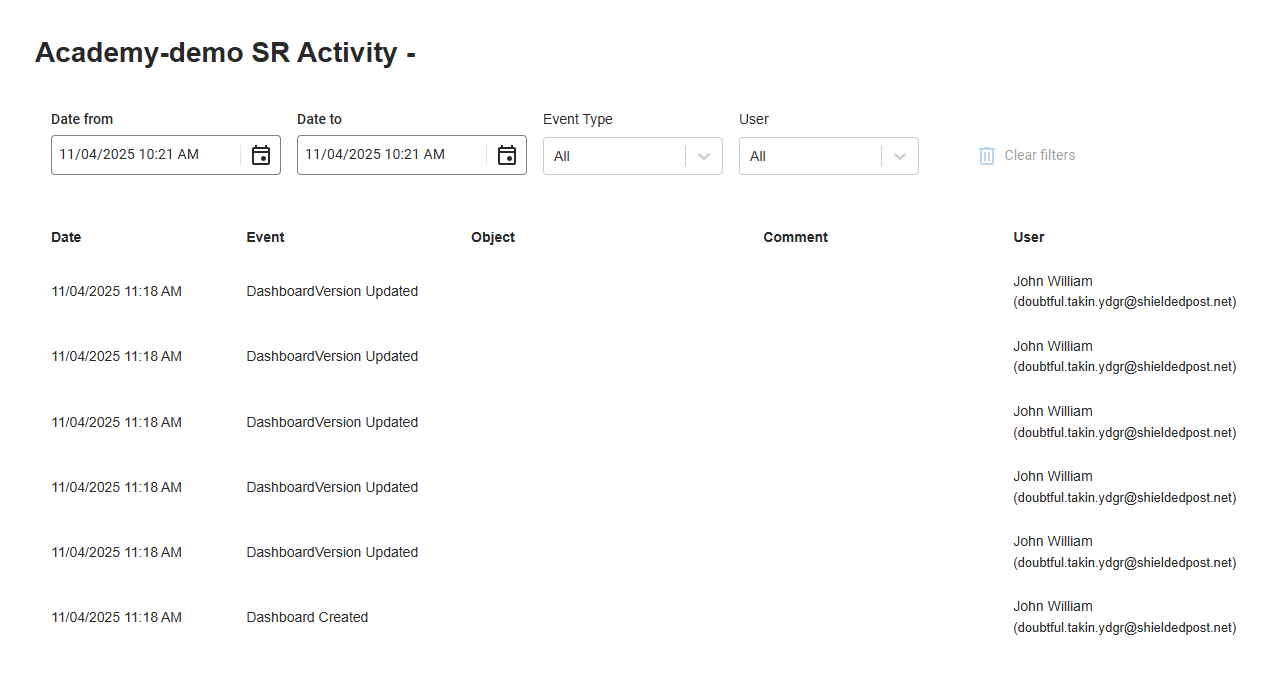
Dashboard activity log
Was this article helpful?
That’s Great!
Thank you for your feedback
Sorry! We couldn't be helpful
Thank you for your feedback
Feedback sent
We appreciate your effort and will try to fix the article