Position Green is currently rolling out an updated and improved Data registration view. The update comes with several benefits along with a cleaner user interface.
All customers will not get getting this improvement simultaneously. During a rollout period, our existing articles will have screenshots and instructions for the previous version, except for this article. All relevant changes to the updated Data registration view will be published here.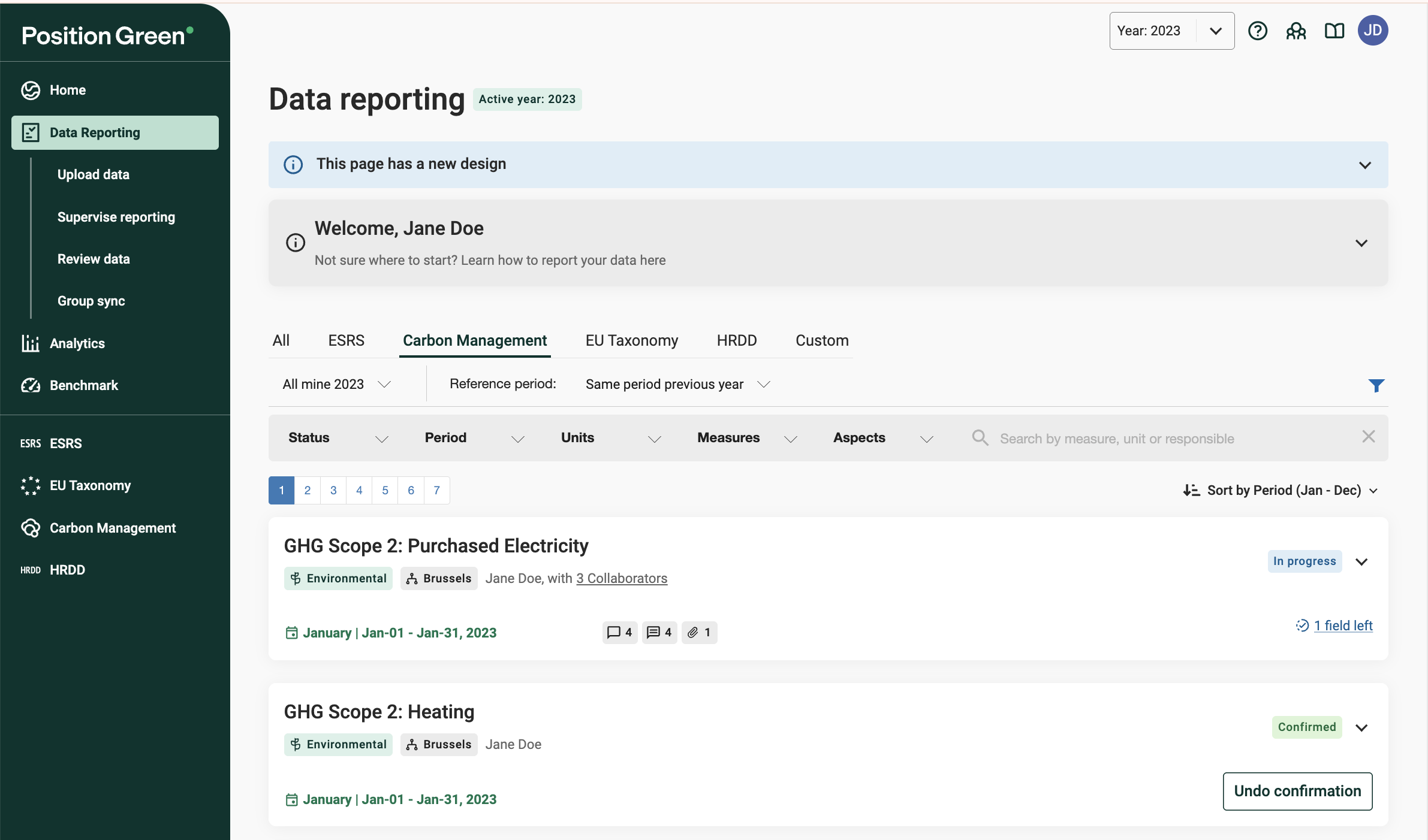
Key features
Improved summary of each registration
Information is grouped into collapsible cards for easier scanning and navigation.
- Status indicators - Each registration displays a status badge ("Not started", "In progress", "Ready to confirm", "Confirmed", "Locked") and the number of fields left to complete.
- Quick action buttons - Action buttons are clearly labeled and context-sensitive, e.g., "Confirm" or "Notify responsible".
- Improved visual hierarchy and labels - Each card displays the name of the registration, aspect, reporting period, responsible reporter, number of collaborator and links to management of collaborators.
- Quick links to collaborator management, comments and attachments. Hover the cursor over collaborator link to see their names.
Updated filters and sorting
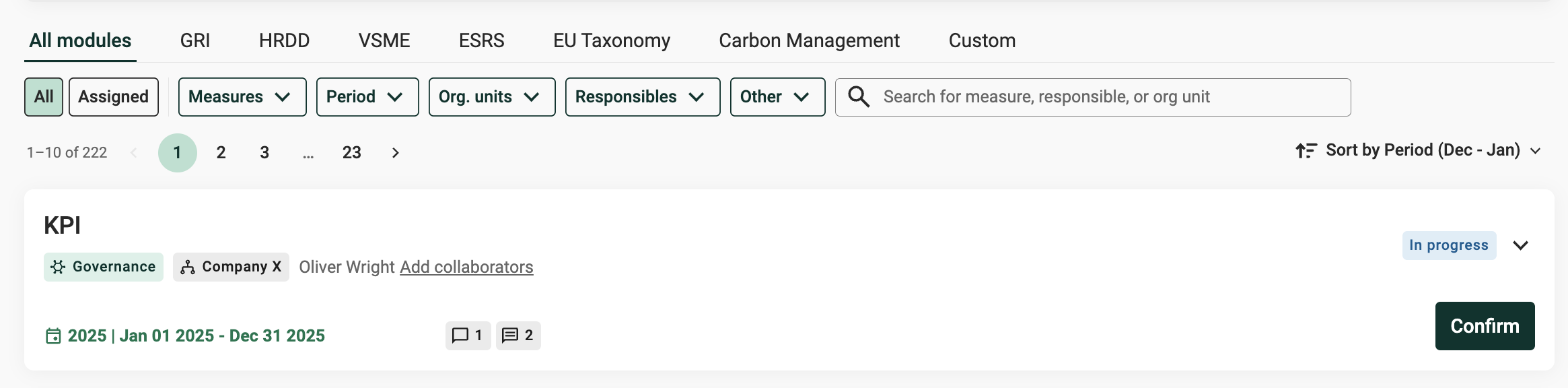
Updated filters
- Module tabs
Each module (framework such as ESRS, GRI, etc.) in your setup has one tab. Custom measures are found in the last tab. Your choice of tab impacts the filters below. - Show registrations: All / Assigned (controllers only). This filter
- Is only visible to controllers and org unit controllers. Defaults to “All.” Other user roles can only see registrations assigned to them.
- Affects the filters below.
- Was previously part of the Status filter and called “All {active year}” and “All mine {active year}.”
- Measures filter
- Measures are ordered A to Z.
- Supports search for measure names.
- New: Measures with no registrations do not appear as options.
- Period filter (including Reference period)
- New: The reference period is now included in the Period filter.
- Org unit filter
- Lists your organizational structure.
- Supports search for org unit names.
- Users filter
- Supports search for user names including Collaborators and Responsible reporters
- Replaces the "Responsibles" filter, limited to users with the role Responsible reporter.
- Other
- “Suggestions” filters registrations with data points that have AI suggestions from AutoReporting. Previously part of the Status filter.
Search bar
- Supports free-text search for measure, org unit, and responsible.
Overview of active filters
- All active filter options appear below the filters. To remove a filter, click it.
Progress overview and Status filter
Shows filtered registrations by status:
- Not started No user has yet made any updates to the registration.
- In progress A user has made at least one update to the registration.
- Ready to confirm A user has made at least one update to the registration, and there are no mandatory fields left to fill in.
- Confirmed A user with access rights, normally the reporter responsible for this registration, has clicked Confirm.
To filter the list of registrations, click a status button.
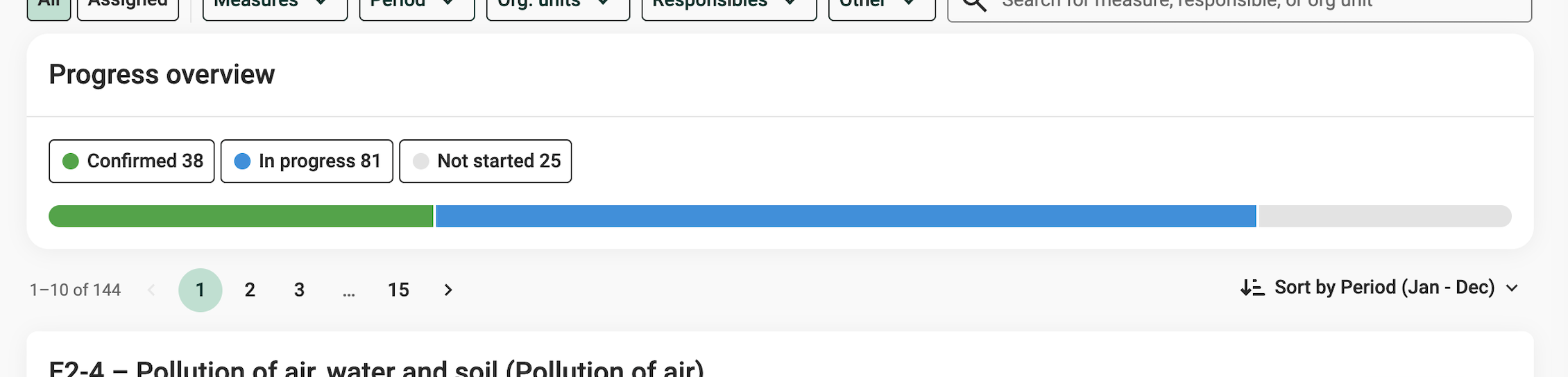
Reporting progress per status
- The progress overview replaces the previous Status filter and the "Todo/In progress", and "Current/Confirmed" filters.
- The “Suggestions” status is now found in the filter "Other".
Links to specific registrations
When you are linked to specific registrations, an information message appears. Click “Clear selection” to show all registrations again. (Replaces the previous Status filter option “Selected.”)
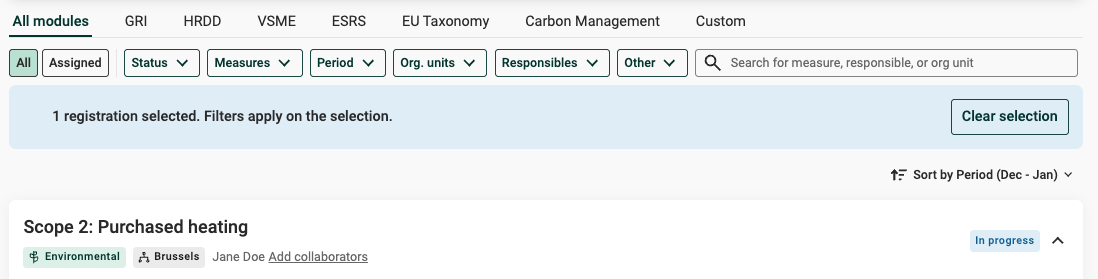
Info message shown when linking to specific registrations.
List of registrations
- Number of hits now show number of registrations matching the filters.
- Pagination got an updated look and feel and are showing 10 registrations per page.
- Simplified options for sorting of registrations. Default sorting order is reporting period.
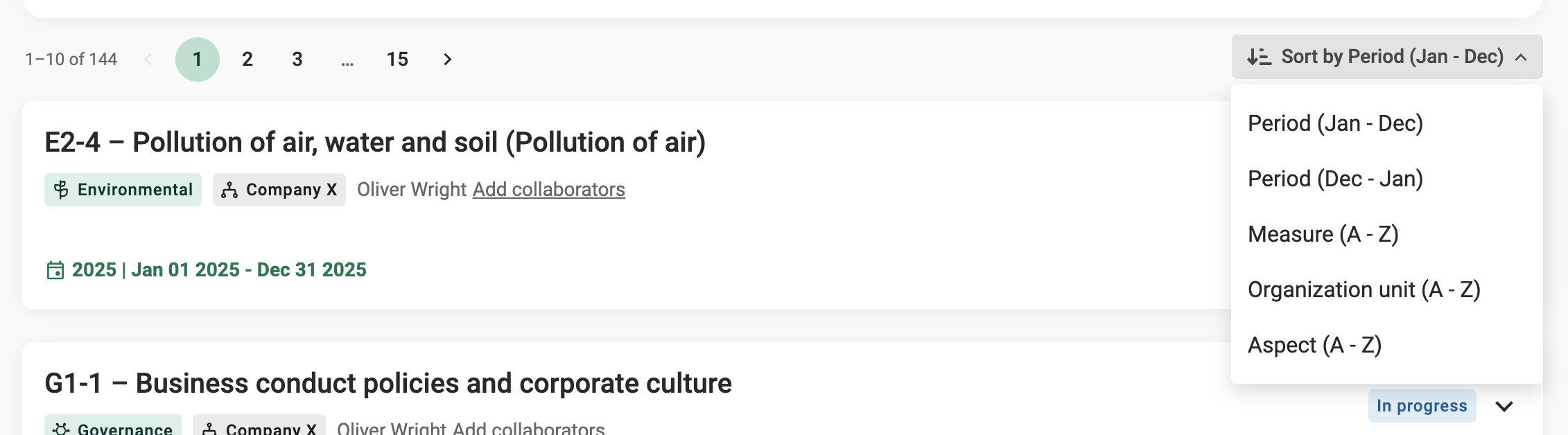
Number of hits, Paginations and Sorting option.
Improved activity log for traceability
Comments and Review statuses now have more details added to the Activity log, so it's easier to trace changes. E.g. which data point was commented or reviewed.
Threshold warnings to reduce errors and outliers without comments
If you make sure your reporters and collaborators have access to data from previous reporting period (setting) and set thresholds for numeric question, you will not see warning when threshold are exceeded and a suggestion to leave a comment
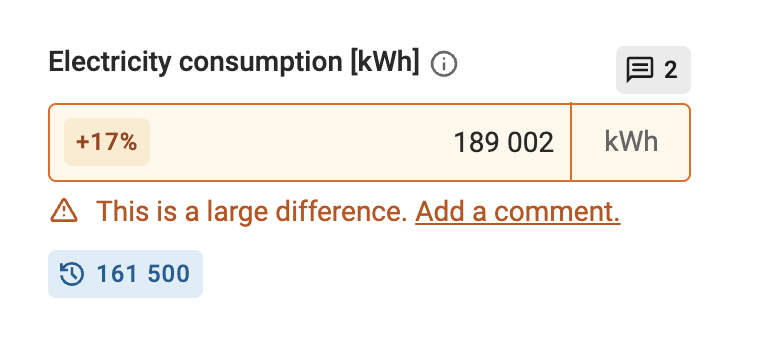 Example of threshold warning and access to previous values
Possible to show company specific instructions
Company-specific instructions let you add extra guidance at the top of a registration for reporters without changing the measure template structure. For details, see Company-specific instructions.
Updates to Yes/No questions
Yes/No questions now have three options: Yes, No, and “Not answered.” “Not answered” is now the default. Previously, there was no visible default state. You must answer all mandatory questions before you can confirm the registration.
Easier to find next conversation
Updates to the data registration page will be posted in this page.
- Overview of all your comments is now found in Notifications
- Easier to find next data point with comments. Navigate to next/previous data point with comments within the registration.
- Possibility to mention and notify users in comments on registration level.
Visual hierarchy and contrast
The look and feel of all sections and elements are updated to the latest Position green design for a cohesive experience.
- Calculated fields are marked with color and a text label.
- Optional fields are marked with text label.
- Text in confirmed and locked registrations have higher contrast now for improved readability.
- Collaborator management, Comments, Attachments and Activity log got an updated design.
Older registrations with errors will be read-only
Confirmed or locked registrations from 2024 and earlier containing errors will be read-only. If you for some reason need to edit that data you will need to fix the errors. You can expand the error message to get details on the errors. Contact our support if you need help.
Possibility to toggle between old and updated version will no longer be available after September 15 2026
During a transition period it has been possible to toggle between the old and the updated version. This possibility will no longer be supported after September 15 2026.
 Warning message about version toggling will not be available after September 15
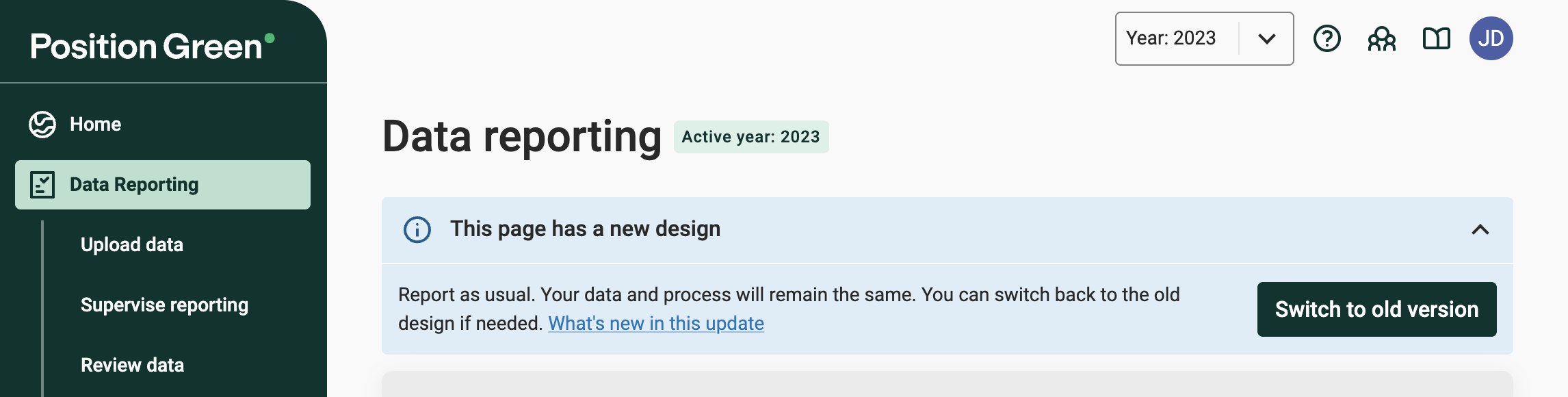
Toggle between versions
Upcoming updates
Updates to the updated Data reporting view will be posted in this page until it is generally available for all customers.
Was this article helpful?
That’s Great!
Thank you for your feedback
Sorry! We couldn't be helpful
Thank you for your feedback
Feedback sent
We appreciate your effort and will try to fix the article