You can edit or delete a tag from your company settings. If you need to remove a tag from a supplier, scroll down to view the steps on how to do that.
Edit or delete a tag from your company settings:
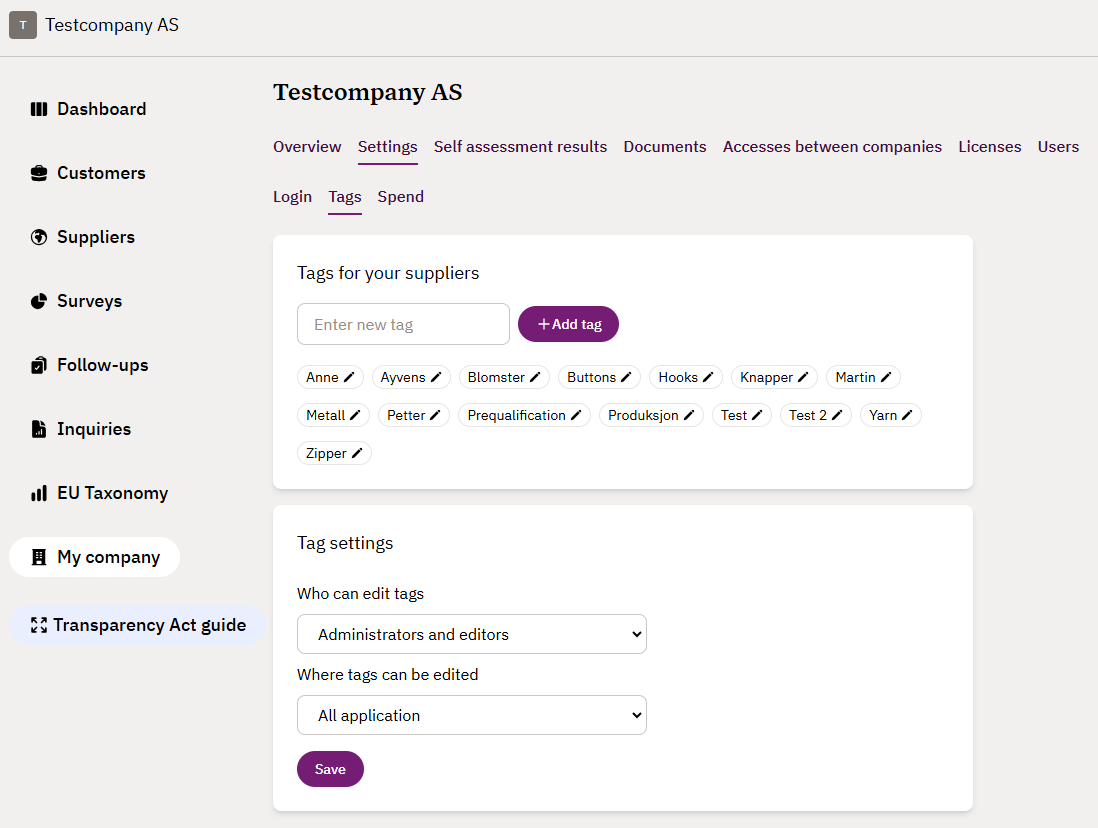
- Go to My company in the left side menu, click on the Settings tab and then Tags
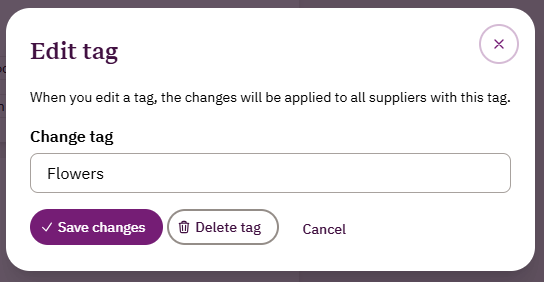
- Click on the pencil on the tag you want to edit
- Edit the tag by writing in the text box and click Save changes, or
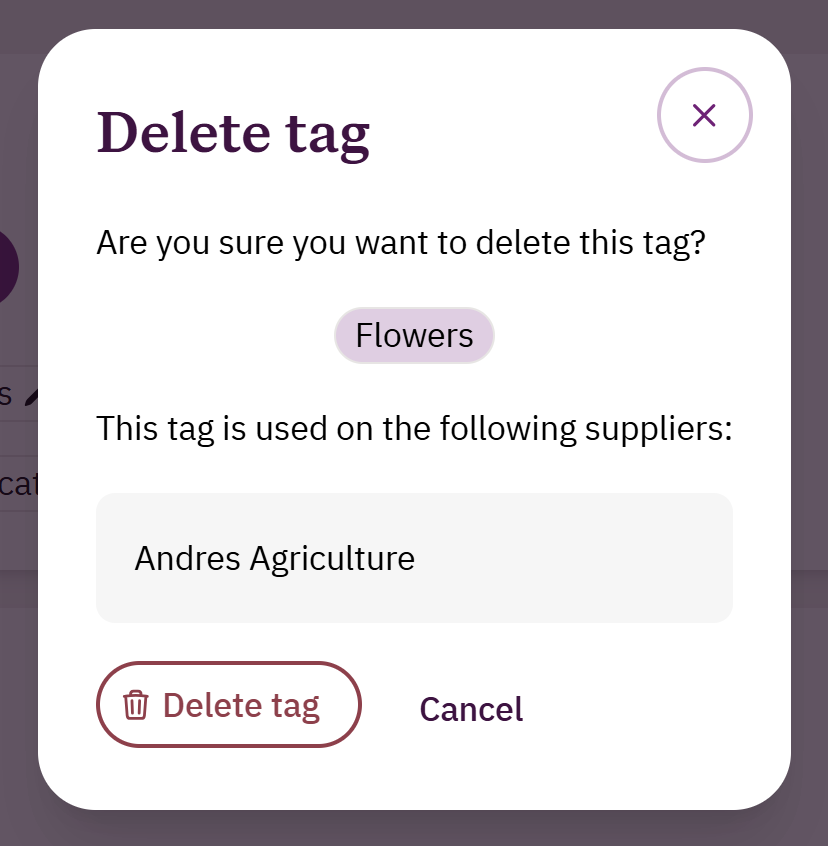
- Delete the tag by clicking on the Delete tag button
When you edit or delete a tag, the changes will be applied to all suppliers with this tag.
How to remove a tag from a supplier:
- Go to Suppliers in the left side menu and select the relevant supplier
- Click on the Edit supplier button in the upper right corner
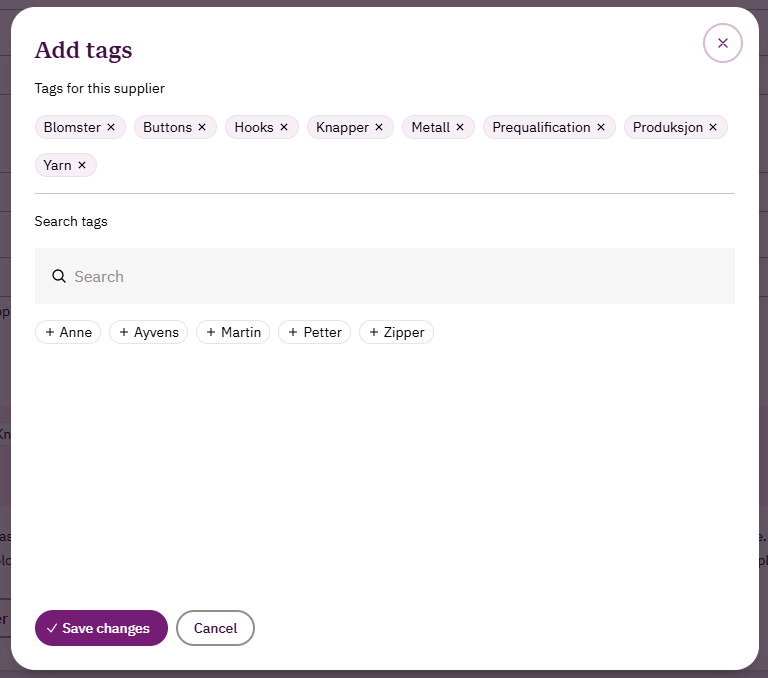
- Scroll to the bottom of the page and click on + Add or remove tags
- Tags that are already in use on the supplier are listed under Tags for this supplier and are shown in purple with x signs behind them. If you want to remove a tag on the supplier, click on the x sign.
- Remember to click on Save changes
- You will now return to the Edit supplier page. Go to the bottom of the page and click Save to complete your changes for the supplier.
Was this article helpful?
That’s Great!
Thank you for your feedback
Sorry! We couldn't be helpful
Thank you for your feedback
Feedback sent
We appreciate your effort and will try to fix the article