Microsoft Dynamics 365 Finance and Operations integration guide
Set up the Microsoft Dynamics 365 Finance and Operations integration to synchronize transactional accounting data with Position Green for spend analysis and emissions modeling.
Dynamics 365 Finance is legal-entity driven. Set up users, roles, and legal entities correctly to make sure all relevant companies are shared with Position Green.
Overview
Position Green integrates with Dynamics 365 Finance and Operations using:
- Microsoft Entra ID (Azure AD) app registration
- OAuth 2.0 client credentials flow
- Dynamics 365 Finance OData APIs
- Posted accounting data via BI entities, as recommended by Microsoft
The integration is read-only and does not modify data in the Finance environment.
Prerequisites
Make sure the following are available before starting:
- Running Dynamics 365 Finance and Operations environment
- Access to Microsoft Entra ID
- User account with Azure tenant admin permissions for consent
- User account with Finance system administrator permissions for user and role setup
Application details provided by Position Green
Position Green has already created the Azure app registration used for the integration.
- Application name: Morescope AS Dynamics 365 FO Integration
- Application Client ID:
e594856f-df39-4ea5-95f1-01736ab148b8 - Resource App ID:
00000015-0000-0000-c000-000000000000(Dynamics ERP) - Permission:
Connector.FullAccess(application permission)
Approve the enterprise application
A tenant administrator must approve the application in the Azure tenant.
Locate the Tenant ID
Go to the Azure Portal, open Microsoft Entra ID, and copy the Tenant ID.
Grant consent
Open the following URL in a browser. Replace {TENANT_ID} with the actual tenant ID:
https://login.microsoftonline.com/{TENANT_ID}/adminconsent?client_id=e594856f-df39-4ea5-95f1-01736ab148b8&redirect_uri=https://www.positiongreen.com/
After approval, the browser redirects to the Position Green website.
Verify the enterprise application
In the Azure Portal, go to Microsoft Entra ID → Enterprise applications and confirm that Position Green Dynamics ERP Integration is listed.
Create or verify the Finance service user
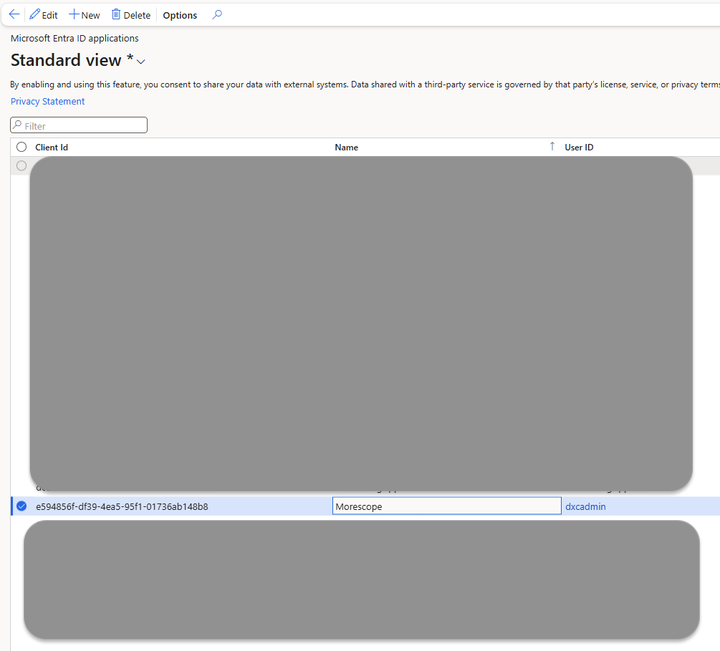
Dynamics 365 Finance requires a user linked to the Entra ID application.
Go to System administration → Users → Users.
Create or verify a service user with the recommended setup:
- User ID:
dxadmin - User name: DXCadmin, or similar
- Authentication provider: Azure Active Directory
- Linked Entra ID: Position Green Dynamics ERP Integration
Assign required roles
Assign the following roles to the service user created in the previous step:
- System administrator
- System user
These roles are required to access OData endpoints, read data entities, and query accounting data.
Assign legal entities
This step controls exactly which companies are shared with Position Green.
Go to System administration → Users → Users → Select dxadmin → Assign organizations.
- Select "Grant access to specific organizations individually".
- Choose "All legal entities", which is recommended, or explicitly select the companies that should be shared, such as
200,201, and208.
The Azure app registration does not control company access. Legal entity access is defined in this step. If a company is not assigned, its data is not returned through the API.
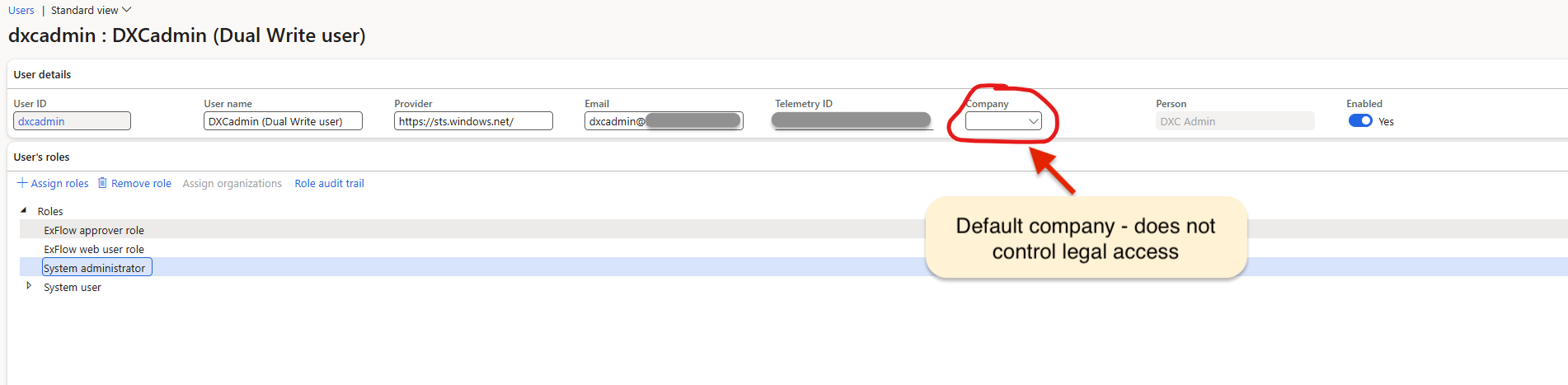
Set the default company
On the user form, the Company dropdown sets the default legal entity context. It does not grant or restrict access to other companies.
Leave Company empty, or set it to a main or technical company.
Changing this value only affects which company is used by default if no company context is specified in API calls. Standard Microsoft-provided BI entities, such as VendTransBiEntities, are used and are available by default without manual publishing.
Set up the connection in Position Green
- Navigate to Data in the left side menu.
- Click "Set up integration" under Microsoft Dynamics Finance and Operations.
- Enter the Dynamics Finance and Operations host name, such as
https://{name}.[myenv.operations.dynamics.com](http://myenv.operations.dynamics.com). - Enter the company IDs to integrate. Add one or multiple IDs separated by commas.
- Enter the Azure Tenant ID.
- Click "Authenticate and activate integration".
- Wait while a background check verifies the credentials. A popup and card show Authenticating credentials.
- When authentication completes, usually within about 30 seconds, the card status changes to "Finish up".
- Click "Finish up" and review the integration setup.
- Confirm that the integration is "Active".
Preselected sets of financial General Ledger (GL) accounts are available for each integration depending on country and accounting standard. Review and change them under Account settings in the integration setup.
Fetch data to Position Green
- Click "Sync now" or the sync icon to trigger a historical upload for a custom period, such as the whole previous year or only the previous month.
- Review and verify that the data is correct and as expected. More information about reconciliation here.
- Set a scheduled integration under "Sync frequency", such as the 5th of every month.
The Microsoft Dynamics 365 Finance and Operations account is now integrated with Position Green.
Contact Position Green support
Contact the Position Green onboarding representative for guidance or troubleshooting support.
Was this article helpful?
That’s Great!
Thank you for your feedback
Sorry! We couldn't be helpful
Thank you for your feedback
Feedback sent
We appreciate your effort and will try to fix the article