Summary
The Notifications feature provides updates about activity related to registrations, data points, surveys, comments, etc. Notifications keep users informed about discussions and updates that require attention.
Where to find notifications:
- in the top right of each page (see the bell icon)
- in the home screen (for certain user roles)
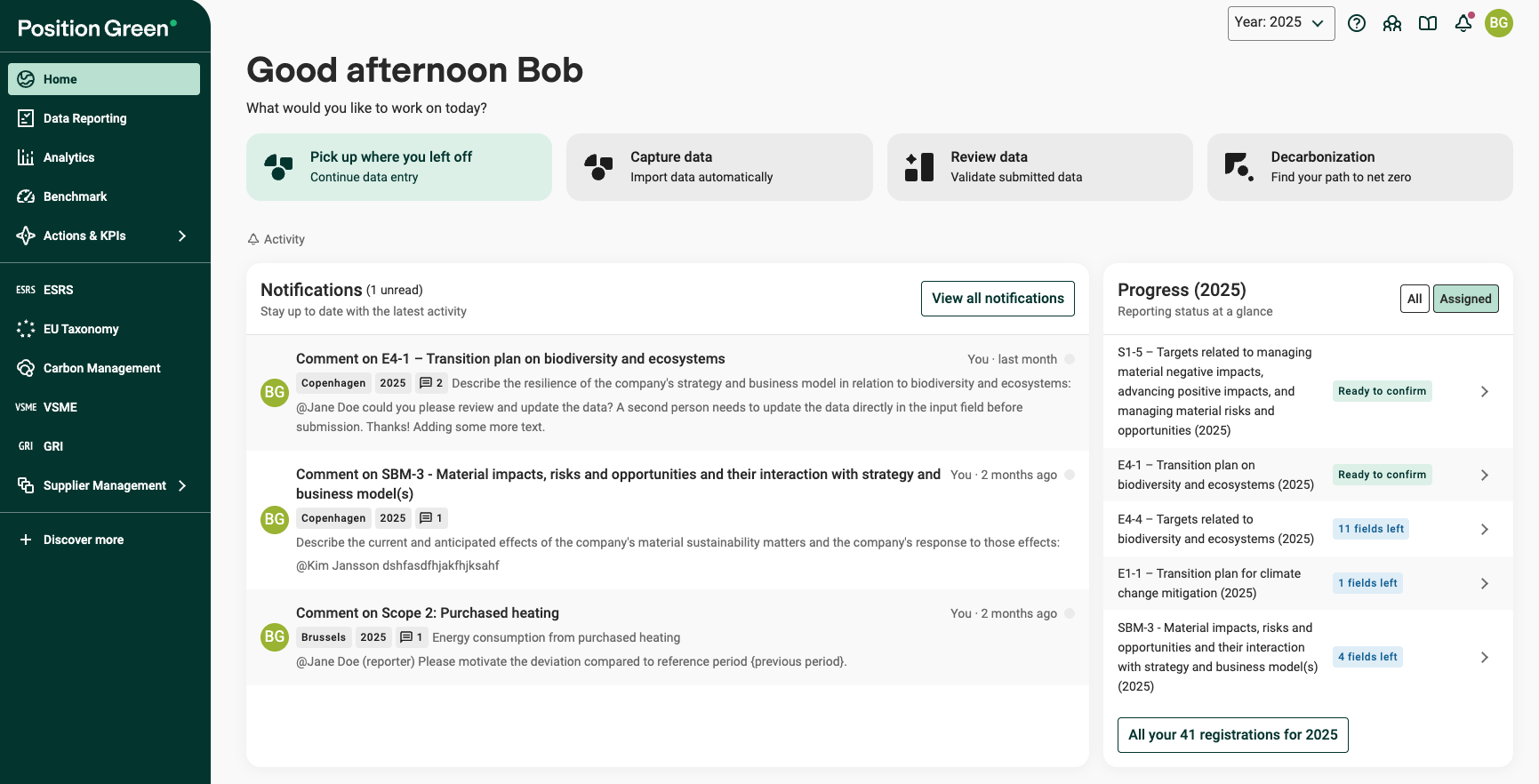
Home screen with the latest notifications
Notifications are displayed on each user's personal Notifications page and link directly to the relevant event, e.g. a specific comment or a recent change.
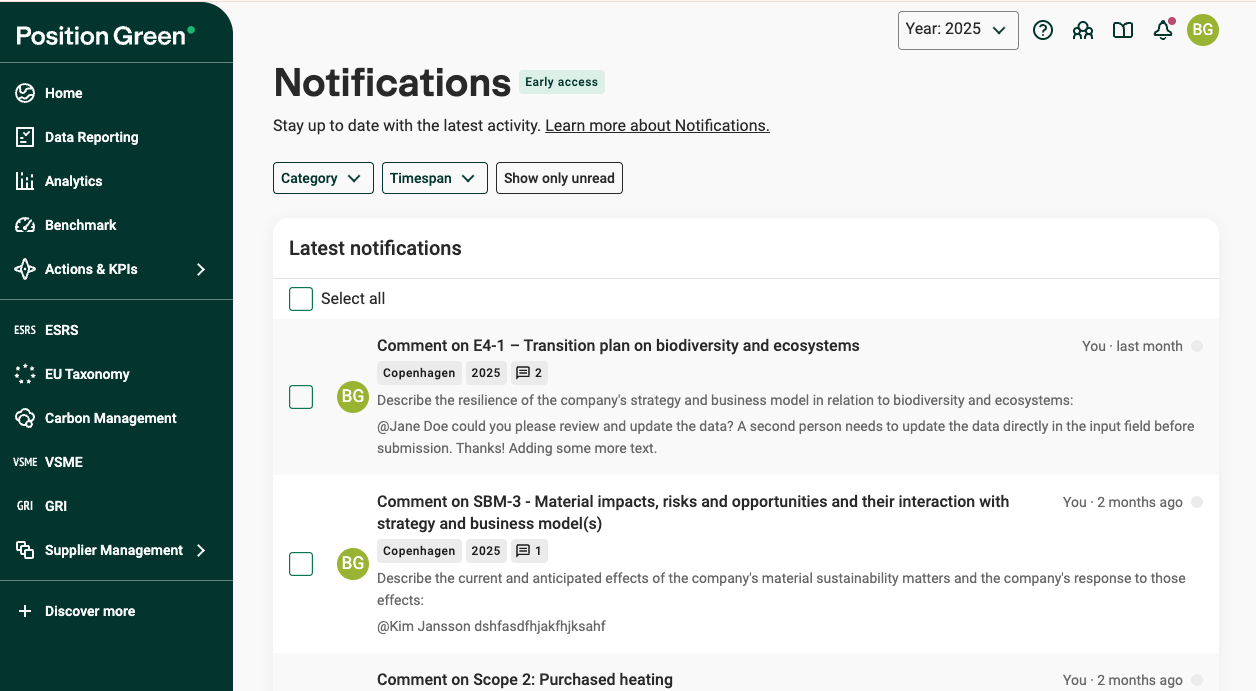
Notifications page
Each notification
- Shows Who performed the action which triggered the notification and When.
- Details on Where the update was made (e.g. the related registration, data point, reporting period and org.unit)
- Is linked to the related page (e.g. a comment, registration, survey or data point). Click it for quick access and follow up on the topic.
- Shows, depending on notification type, additional details when relevant, e.g. a preview of the comment text or which org.unit was affected.
What triggers a notification - a list of notification categories
Notifications are sent for the following categories:
1. Comments
Notifications about new activity in comments.
Users responsible for a registration, survey, or materiality assessment get notifications for both:
- comments on the registration/survey/materiality assessment
- comments on any data point/answer in the registration.
Updates in comments:
- Where the user has written a comment
- When the user receives a reply
- Where the user has been mentioned (@username)
2. Review statuses
Notifications when a review status changes on data the user is responsible for.
- Users responsible for a registration get notifications when any data point/answer in the registration gets an updated review status.
- Collaborators do not automatically get notifications about review status. The responsible reporter can notify them by mentioning them in a comment.
- Users who update the review status on a data point get notifications when someone updates that status.
Learn more about review status and reviewing
3. Registrations
Notifications when something makes a registration require action before it can be confirmed (or re-confirmed).
- Four-eyes principle approval. Only applies when the registration setting for Four eyes principle validation is enabled. When someone asks for another person to review/approve as part of the four-eyes workflow:
- A reporter sends a request to a controller for approval/confirmation.
- A reporter clicks “Confirm anyway” (self-confirms) in a setup where controllers should be alerted.
- Note: Requests from reporters to other reporters or collaborators to review and update a data point are made in comments, which trigger a notification.
- Registration needs validation. A change/update causes validation to fail, meaning the registration needs to be checked and confirmed again (e.g., after calculations/rebasing)
- Materiality assessment updated and needs validation.
4. Consolidations
Notifications when consolidation-related processes finish and results are ready.
- A consolidation run completes. For example, when consolidated data is updated and becomes available for follow-up work (such as a statement or registration that needs validation).
5. Surveys
Notifications related to surveys in Supplier Management.
- Survey submitted. Supplier owners get notifications when their supplier submits a survey.
6. Sustainability statements
Notifications related to the Sustainability statement, when
- a sustainability statement is ready
- generation of a sustainability statement has failed
Filter on category and timespan
Use the filters at the top to find notifications faster:
- Category: filter by type of notification. For details on categories, see above.
- Timespan: show notifications from a selected period (e.g. last 30/90/180 days or the full year).
- Combine both filters to narrow the list further.
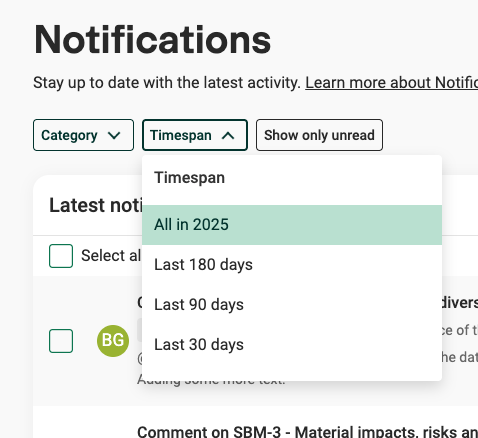
Filters on the Notifications page
Read and unread notifications
A dot at the end of each notification indicates whether it has been opened or not.
- Unread notification: Shown as a colored dot.
- Read notification: Once the notification has been opened (clicked) the dot turns grey.
If a notification receives a new update, it is marked as unread again.
To show only unread notifications, click the “Show only unread” filter.
To mark multiple notifications as read/unread, select the checkboxes and then select “Mark as read” or “Mark as unread”.
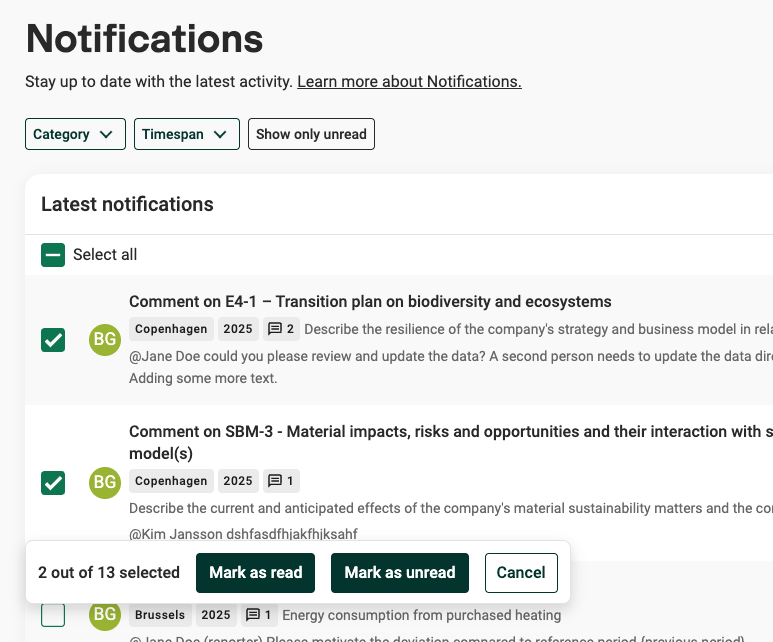
Mark notifications as read or unread
Feedback - which notifications are needed?
Have suggestions or feedback on notifications? Send feedback.
Was this article helpful?
That’s Great!
Thank you for your feedback
Sorry! We couldn't be helpful
Thank you for your feedback
Feedback sent
We appreciate your effort and will try to fix the article