TABLE OF CONTENTS
There are two types of imports in Position Green, you can read more about them here:
Checklist
Here is a checklist to refer to before importing or when troubleshooting errors:
- Are you importing data into the correct year?
- Have you written the relevant period in the correct format?
- Have you generated all registrations for the organizational units and measures you would like to import to?
- If you need help Generating registrations, you can check out our article about that.
- Are the registrations you would like to import to unconfirmed?
- Only unconfirmed registrations will be updated.
- Has there been any changes in the file structure?
- You can download one of the previously uploaded files and compare to the file you are trying to upload, do the column structure match?
- Are all new list items and organizational units in the excel file mapped to Position Green?
- If you are unsure how the list items or organizational units are setup in your import, contact your Customer Success Manager and Position Green Support.
- If you recently added new organizational units, these might need to be added to the import mapping as well. Create a setup task here to make sure new org units are added to the import.
- Have any empty rows been removed from the file that you are trying to upload?
- The file will read fully empty rows as the end of the file, make sure you remove the empty rows if there is data below you want to import
FAQ
- What types of users can use the import functionality?
- All users have access to the imports.
- You can limit the access to Custom file imports by giving access to only certain users.
- Users can only ever upload data into registration to which they have access. This includes registrations a user is a collaborator on.
- Can I change the instructions for the import myself?
- Most users cannot change the instructions themselves. However, this is done in the in the list section of the platform and if you have setup access and you're comfortable with html code, then you are able to do it. If you need support doing it you can create a task here.
Is there a limit to the size of files I can import?
Max import file size: 50mb
5000 rows per measure
What happens if I try to import a file that is too large?
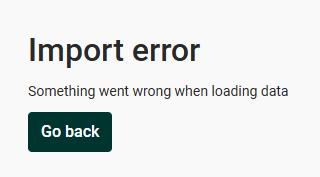
You will get an error message. Contact your Customer Success Manager to find a solution that works for you.
What happens if I import a file twice into the same registration?
If the registration is unconfirmed, it will be overwritten. There will not be twice as much data in the registration. If the registration is marked confirmed, nothing will happen.
What do I do if I have imported a file, but missed some data and need to import another file to the same registration?
Start from the original file you imported, add the missing data and import again. If you import a file with only what was missing in the first file, the data that what was already imported to the registration will disappear and only the new data will remain.
Can I import into a registration that is marked confirmed?
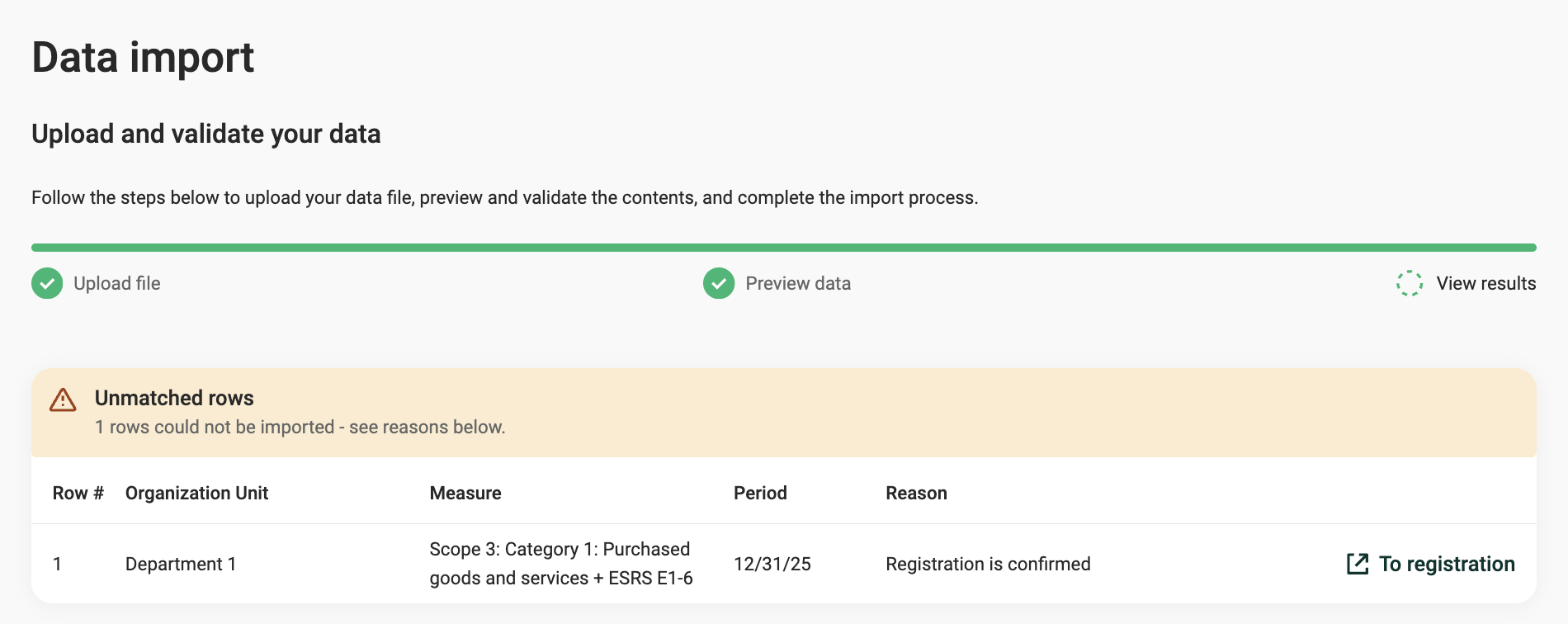
No, for the same reason you cannot manually edit a registration when it is confirmed. It will look like you are importing to the registration in the preview, however when you click import it will say that this registration is not updating and the reason why.
Can I import into a registration that is locked?
For the same reason as you cannot import into a confirmed registration.
If I add org units, do I need to update the import then and how do I do that?
This depends on how the mapping of organizational units have been done in your imports.
If you write the organizational units prettyId in the import, updating the import will not be needed, because then no additional mapping is done in the import.
However quite often there is a list that is used for mapping, especially if you have a different name or Id in your file than in the Position Green platform. This need to be updated.
To understand what the mapping looks like, you need to contact your Customer Success Manager.
Troubleshooting
Many errors will show a clear error message explaining what is wrong, however some are more common than others. Here is a list of common errors and a common reasons for them:
Period mapping
You have written the period in an incorrect format, check previous uploaded files to see the format used there or contact your Customer Success Manager if you are unsure.
You are in the wrong year
Mapping of organizational units
You have added an organizational unit that hasn't been mapped to your import
You have changed the way you write the organizational unit in your file
Look for extra spaces that have snuck in
Best way to check is to look at a previously imported file
Dropdown selection
The choice you've made for a dropdown doesn't match to the list used.
Is this a new choice that needs to be added to the list?
Have you changed the way you write the name of the list item? Any changes will affect the mapping.
You can tell if a mapping hasn't been done by looking at the relevant dropdown question in the preview and see if it's empty or if it has an Id.
Completely empty preview
- There are no matches on registrations on Organizational Unit/Measure/Period
- All matched registrations are confirmed - we never import to confirmed registrations.
- All matched registrations are locked - we never import to confirmed registrations.
Was this article helpful?
That’s Great!
Thank you for your feedback
Sorry! We couldn't be helpful
Thank you for your feedback
Feedback sent
We appreciate your effort and will try to fix the article