Table of contents
- Dynamic elements
- Create a new template
- Saving email templates with multiple translations
- Link expiration
To find the email settings, click the initials in the upper right corner, select Settings, then select Email templates in the menu.
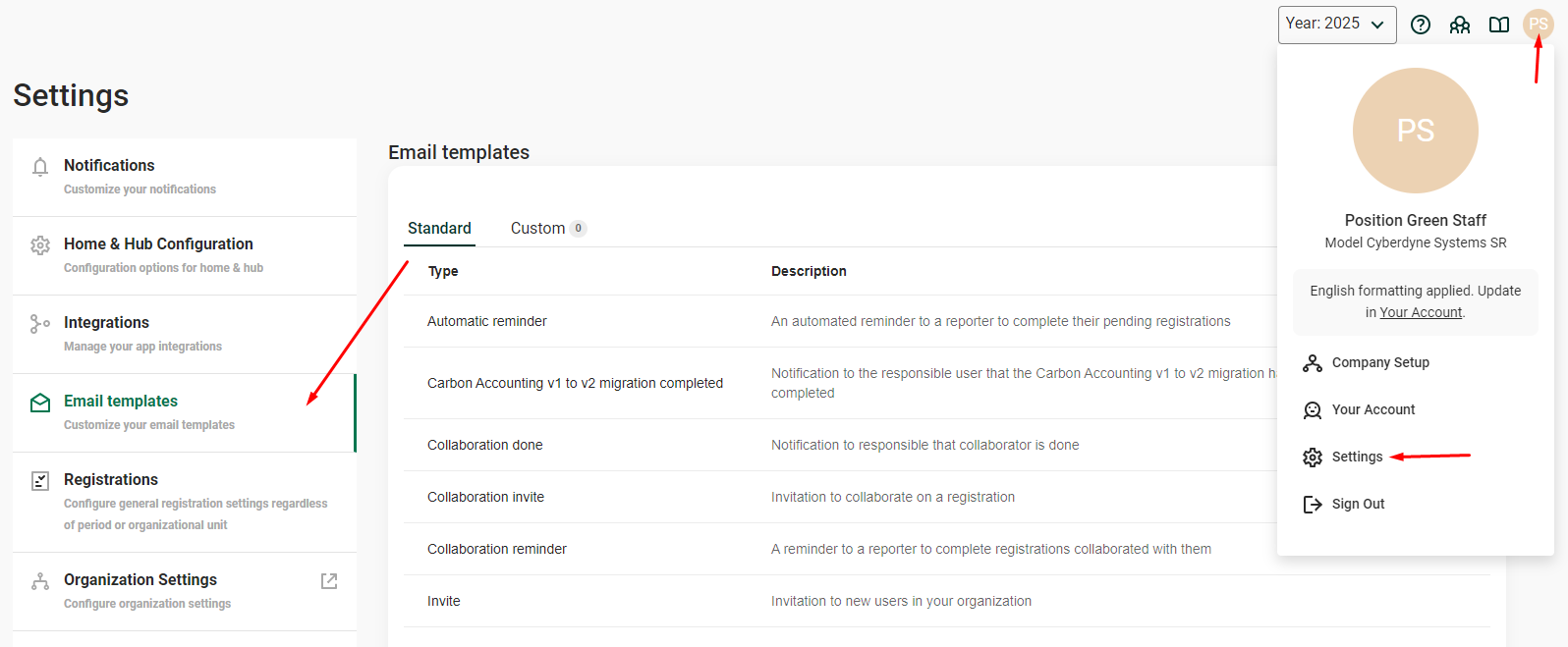
List of default email templates
To edit a template, click it. Different language options are available in the tabs across the top. The email is sent in the configured language chosen by the recipient.
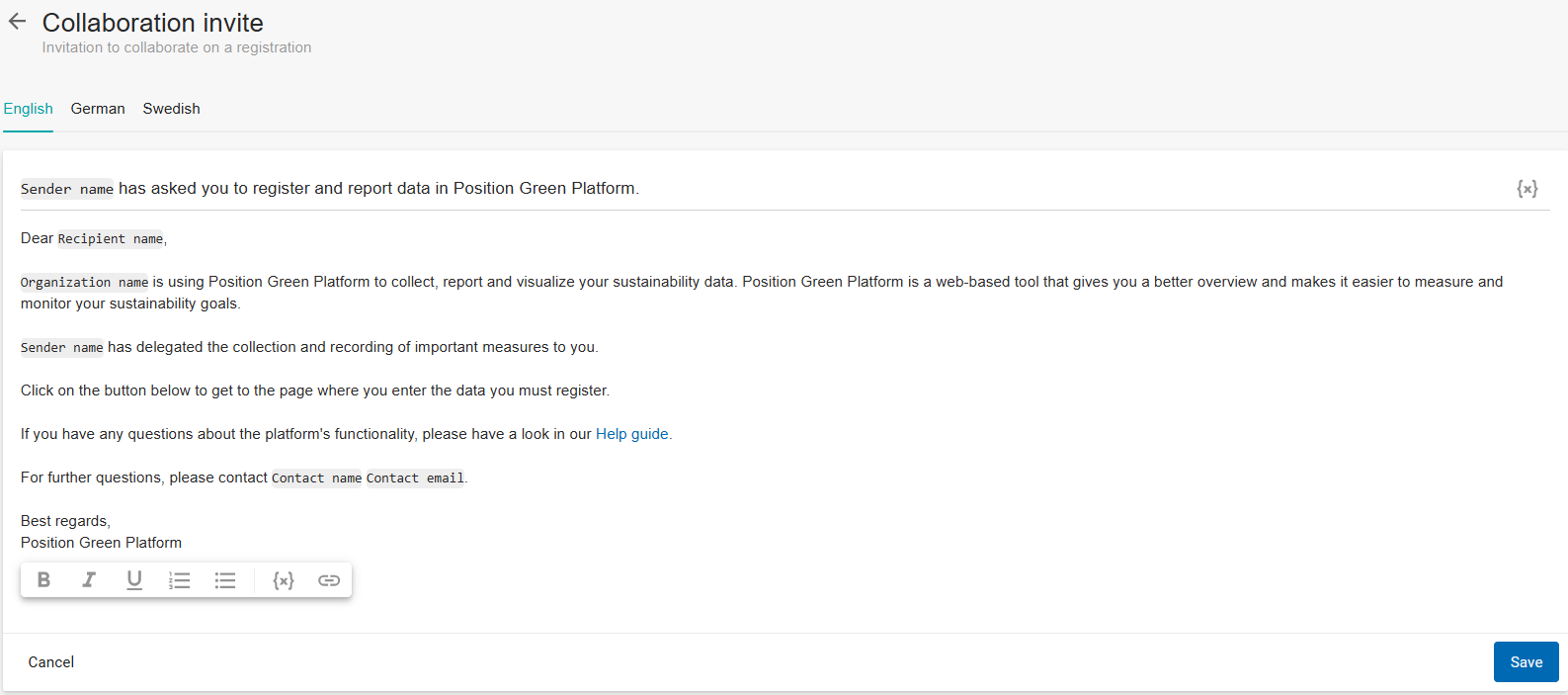
Click a template to edit the default content
Dynamic elements
Click “Edit” to edit the text and its format, add links, and so on.
Click “{x}” for a list of options to personalize the email templates:
- Sender name: Full name of the sender.
- Sender email: Email of the sender.
- Recipient name: Full name of the recipient.
- Recipient email: Email of the recipient.
- Contact name: Name of the contact person for the organization.
- Contact email: Email of the contact person for the organization.
- Organization name: Name of the organization.
- Organization unit: Name of the org.unit associated with the email.
- Custom message: Space for a custom message to be added before sending out the email to the recipient.
- Registration link: A link to the registration.
- Measure name: Name of the measure that the registration is based on.
Create a new template
Step 1 - Toggle to “Custom” and click “New template”.
Step 2 - Select the template type.
Step 3 - Add a name and description. The name is displayed when selecting which template to use.
Step 4 - Add the content to the template. Use the dynamic elements to customize the content.
Step 5 - If relevant, add a translation.
Step 6 - Click “Save”.
Saving email templates with multiple translations
When creating or saving an email template, translations are handled differently depending on whether they are enabled or disabled:
- Enabled translations must contain text. If any enabled translation is left empty, the template cannot be saved.
- Disabled translations (removed from the template) do not require any content.
Example
When a custom template is opened, the English translation is enabled by default.
- If no English version is needed, remove it from the translation tab.
- Once it is removed, the German (or other language) template can be saved without any issues.
Tip
Include as many languages as needed in one email. However, every enabled translation must be filled in before saving. If a translation is not needed, remove it so the tab is empty (as shown in the example image).
Link expiration
Each email template has a configurable link expiration period. This determines how long links included in the email remain active after the email has been sent.
The Expires after column in the template overview shows the current expiration period for each template.
Configure link expiration
Step 1 - Open the email template to configure.
Step 2 - Scroll down to the Link expiration section.
Step 3 - Enter the number of days the link should remain active in the Expires after field. The expiration period can be set between 1 and 180 days.
Step 4 - Click “Save”.
Use the default expiration period
To revert a changed expiration period to the standard setting, click “Use default”. The default expiration period is displayed on the button.
Important notes
- Link expiration is configured separately for each email template.
- Once a link has expired, recipients can no longer access it through the original email.
- Consider using a shorter expiration period for time-sensitive requests and a longer period when recipients may need additional time to respond.
Was this article helpful?
That’s Great!
Thank you for your feedback
Sorry! We couldn't be helpful
Thank you for your feedback
Feedback sent
We appreciate your effort and will try to fix the article