Fortnox Integration Guide
Below is a step-by-step guide on how to set up the integration of your transaction data with Position Green if you are using Fortnox as your ERP provider.
About Fortnox
Fortnox empowers businesses to launch, grow, and thrive. Through cutting-edge technical solutions for companies and accounting firms, streamlined financing, and a powerful ecosystem of partnerships, Fortnox stands as the vital hub for entrepreneurship in Sweden. For more information, visit fortnox.se.
Step 1: Setup Connection Inside Position Green
- Navigate to “Data” in the left side menu.
- Navigate to the "Integrations" tab.
- Click "Connect" under Fortnox.
- You will now see the Fortnox login page. Follow the instructions to log in and give Position Green access to your Fortnox account.
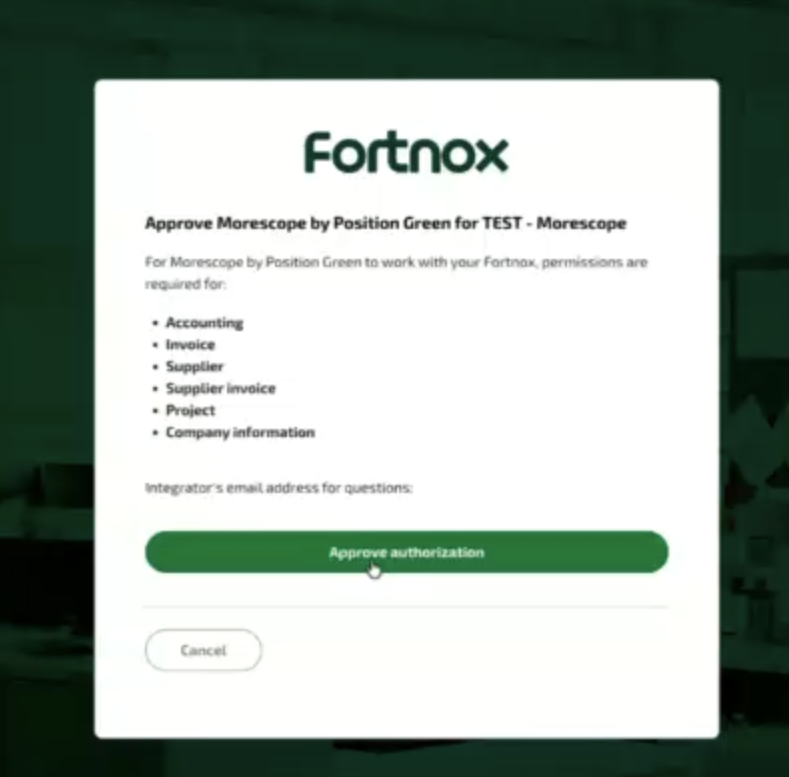
- Click “Authenticate and activate integration”.
- After clicking the button, a check is made to see that the credentials given are correct. You should see a popup and the card saying “Authenticating credentials”.
- When authentication completes (usually takes about 30 seconds), the card status will change to "Finish up".
- Click "Finish up" and review the integration setup.
- You should now see that the integration is "Active".
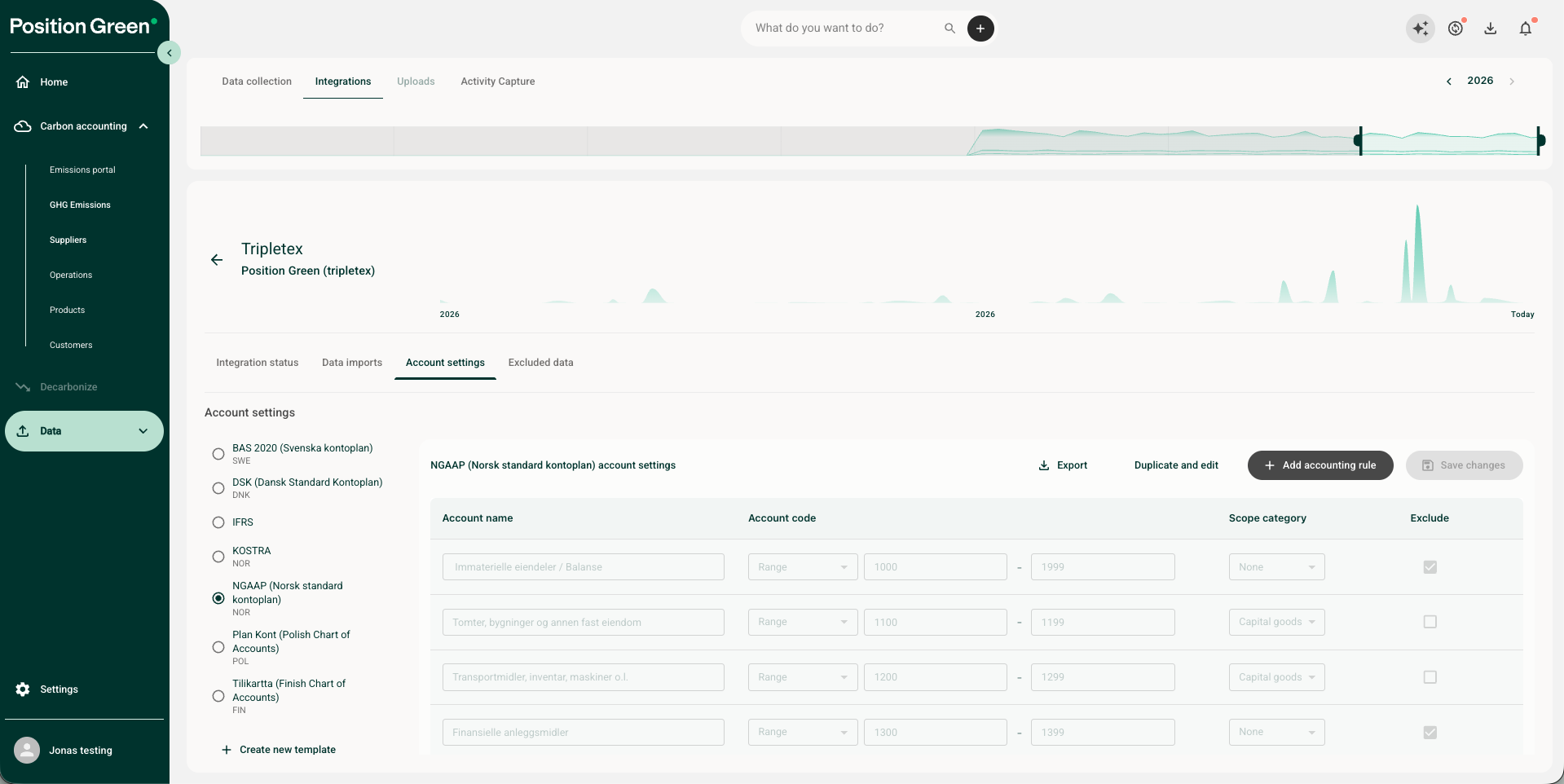
Note: There are preselected sets of financial General Ledger (GL) accounts for each integration depending on your country and accounting standard. You can view and change these under "Account settings" within the integration setup. More information about account settings here.
Step 2: Fetching Data to Position Green
- The first time you set up the integration, you can trigger a historical upload for a custom period, e.g. for the whole last year or for only last month by clicking the "Sync now" button or the sync icon
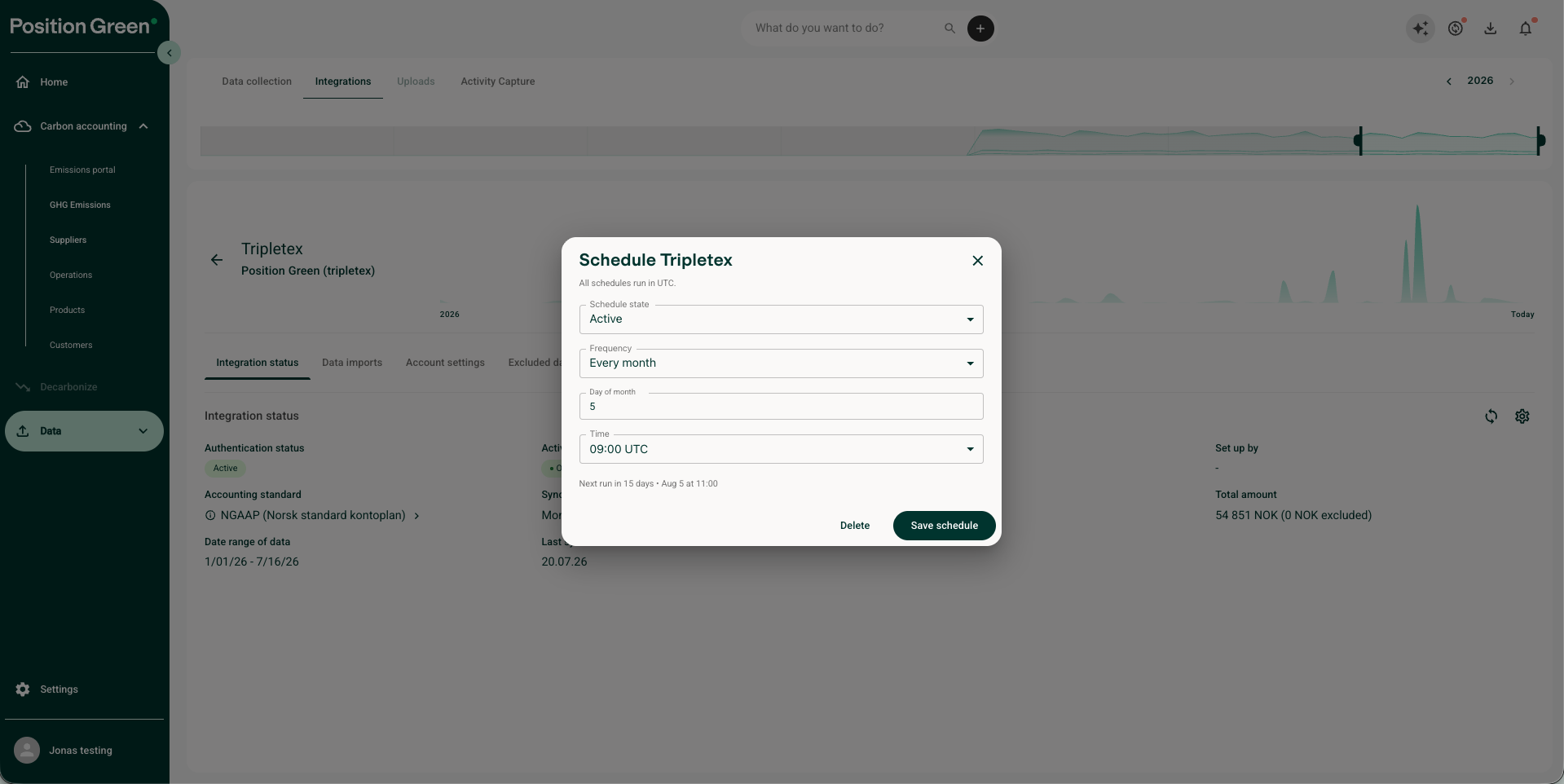
- Note that you can also set a scheduled integration, e.g. making sure we get data the 5th of every month, under the "Sync frequency" option.
- Congratulations! You are integrated.
Contact Position Green Support
If you run into any issues, contact your Position Green onboarding representative for guidance or troubleshooting support.
Was this article helpful?
That’s Great!
Thank you for your feedback
Sorry! We couldn't be helpful
Thank you for your feedback
Feedback sent
We appreciate your effort and will try to fix the article