TABLE OF CONTENTS
- Step 1: Track Progress
- Step 2: Locate Your Reporting Task
- Step 3: Enter Data and Update Status
- Filter and Search Controls
- Frequently Asked Questions (FAQ)
Step 1: Track Progress
Use the Progress Overview status buttons to filter and monitor a visual summary of your task statuses:
- Not started: No user updates have been made to the registration.
- In progress: At least one update has been made to the registration.
- Ready to confirm: Data has been entered and no mandatory fields remain incomplete.
- Confirmed: A designated user (such as the Responsible Reporter) has reviewed and confirmed the registration.
Step 2: Locate Your Reporting Task
Scroll to the list of registrations. Each card provides an improved summary and visual hierarchy:
- Registration Name & Aspect: Clearly identifies the specific reporting measure.
- Status Badge & Remaining Fields: Displays current status and remaining fields to complete.
- Responsible Reporter: Lists the primary owner assigned to the task.
- Collaborators & Quick Links: View collaborator counts or hover over links to view team member names. Click to add/manage collaborators.
- Quick Action Buttons: Context-sensitive action buttons like Confirm or Notify Responsible.
- Activity Log, Comments & Attachments: Direct quick links to access updates, files, and conversation history.
Step 3: Enter Data and Update Status
- Expand the Task Card: Click the card or measure title to open the data entry fields.
- Review Company-Specific Instructions: If configured, check the top of the card for specialized guidance provided by your organization.
- Input Information: Complete all required numeric, qualitative, or Yes/No fields.
- Yes/No Questions: Default to Not answered. Select Yes or No to complete required inputs.
- Calculated & Optional Fields: Clearly labeled with distinct colors and tags.
- Threshold Warnings: Exceeding configured thresholds will prompt a warning and request an explanatory comment.
- Update Task Status: Click Confirm or update status actions once all mandatory inputs are complete.
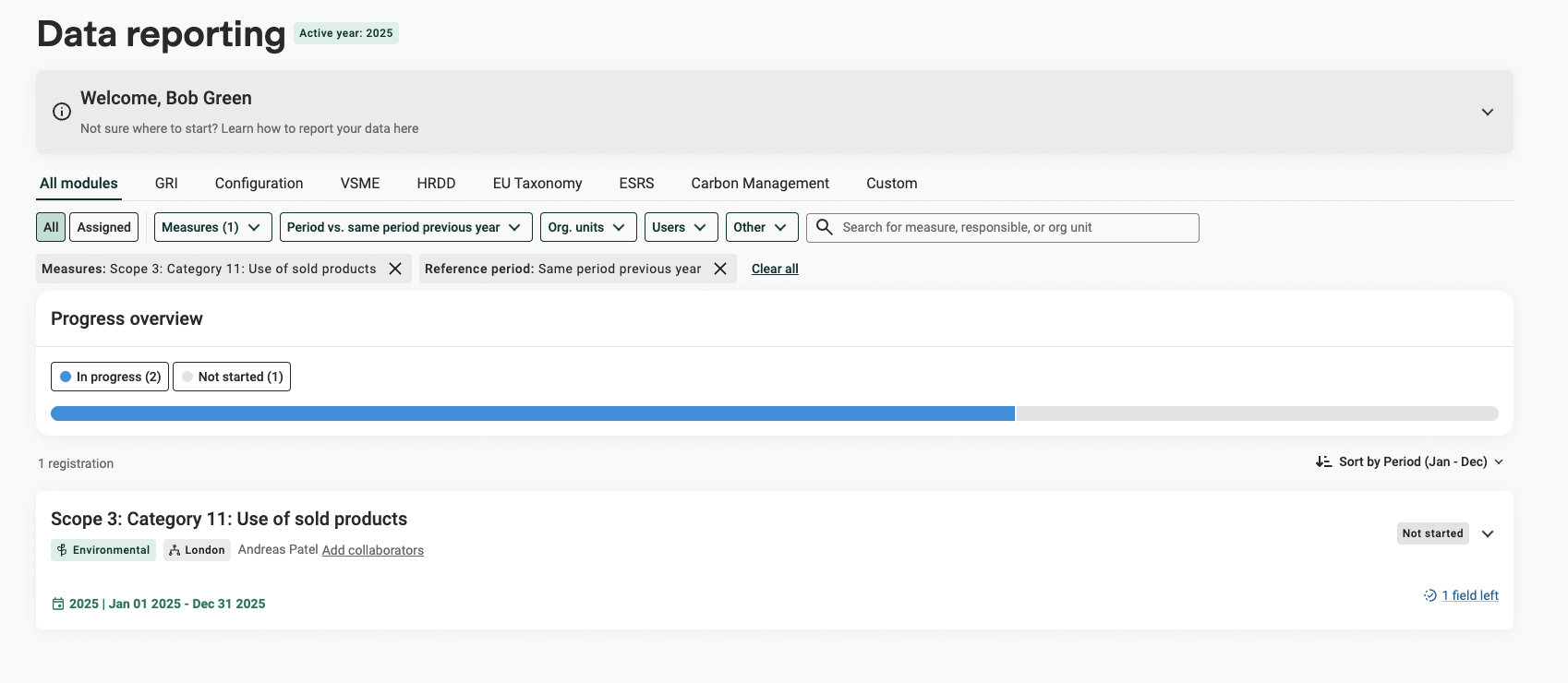
Filter and Search Controls
Narrow down and organize your view using the updated filter toolbar:
| Filter Option | Description |
|---|---|
| Module tabs | Switch between setup framework modules (e.g., ESRS, GRI). Custom measures reside in the final tab. |
| All / Assigned | (Controllers only) Toggle between viewing all registrations or only items assigned to you. Defaults to "All." |
| Measures | Filter metrics alphabetically (A–Z). Supports search. Note: Measures without active registrations are hidden. |
| Period filters | Filter by reporting period or include reference period comparisons. |
| Org. units | Search and filter by organizational structure or location. |
| Users | Search across user roles including Responsible Reporters and Collaborators. |
| Other | Access granular filters, such as AutoReporting AI "Suggestions". |
| Search bar | Free-text search for measure names, organizational units, or responsible users. |
Frequently Asked Questions (FAQ)
How do I assign additional team members to help submit data?
Click the Add collaborators link on the measure card, search for the user's name, and save.
Why am I not seeing my assigned measures?
Ensure the Assigned option is toggled, select the appropriate Module tab, and verify that active filter tags aren't hiding your tasks.
Why is an older registration read-only?
Confirmed or locked registrations from 2024 or earlier that contain errors are set to read-only. To edit them:
Option A: Expand the error message and fix the errors directly.
Option B: Use the top version toggle to switch back to the previous view, unconfirm/unlock the registration, apply your changes, and toggle back to the new view.
Can I switch back to the classic view during the update rollout?
Yes. During the transition phase, you can use the toggle button at the top of the Data Registration page to switch between the classic and updated views.
Was this article helpful?
That’s Great!
Thank you for your feedback
Sorry! We couldn't be helpful
Thank you for your feedback
Feedback sent
We appreciate your effort and will try to fix the article