Review and reconciliation
Once data starts flowing into Position Green, review and reconcile the data. Data can come from different sources, and there is always a risk of double reporting.
Include someone from accounting, finance, or the CFO function in this process.
Suggested review checklist
ERP integrations provide accounting data. Depending on how expenses are accounted for, data can be classified in different ways.
Follow these steps the first time an integration is set up:
- Sync the integration for the full last completed accounting year. This is usually the previous calendar year, but some companies have a different fiscal year. Use the company standard.
- It may take some time until the company data is completely synced. To see the data, either open the Upload log for the integration or the Data reconciliation tab and filter on the source in question
- Verify that the total amounts are as expected from accounting, finance, or the CFO function.
- Note that Position Green usually excludes some transactions based on account code, such as accrual accounting should not be considered in carbon accounting according to the GHG Protocol standard. This can cause the total costs interpreted by Position Green to deviate from the costs considered relevant by accounting or finance. We recommend to verify accounted amounts per account code and reconcile them with the general ledger from your ERP system if possible.
- Verify that the account settings are set up correctly to mirror your company's accounting standards.
- Verify that supplier names are received. Check the list of largest suppliers and reconcile it with accounting.
- Verify the largest transactions by sorting on Amount or
CO₂ein the transaction table. - Verify that any additional accounting dimensions of interest are received. Some companies track emissions per project, customer, or product sold. This data is usually accounted for as dimensions in the accounting system, and Position Green reads them as labels.
- Verify that the correct industry and country have been found for each supplier. Follow the Pareto principle, or 80/20 rule, when verifying data. There is little value in verifying every single data point and emission source. Focus on the largest 20% of suppliers or accounts, which usually represent around 80% of emissions.
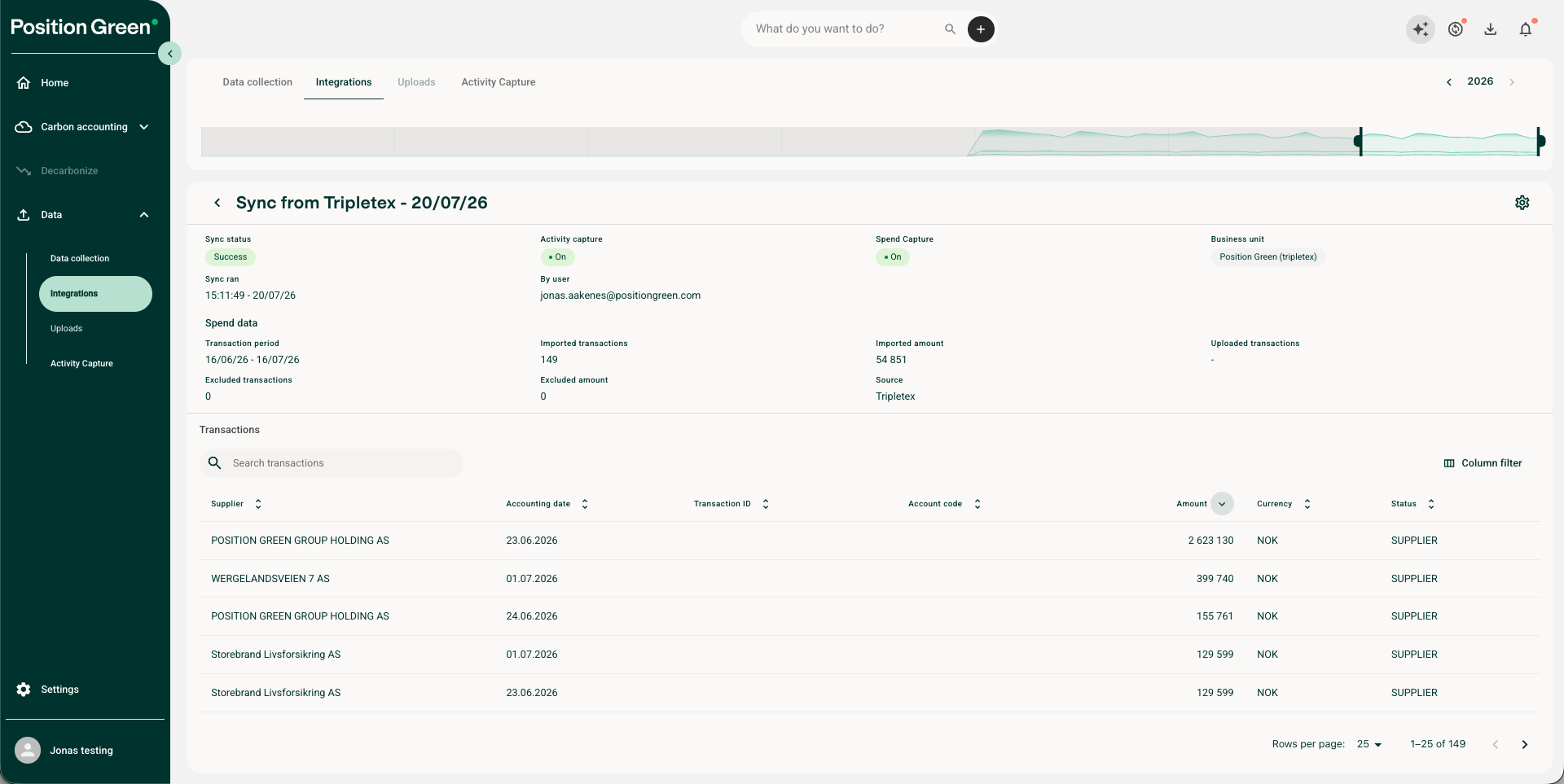
Example of transaction review in the Upload log.
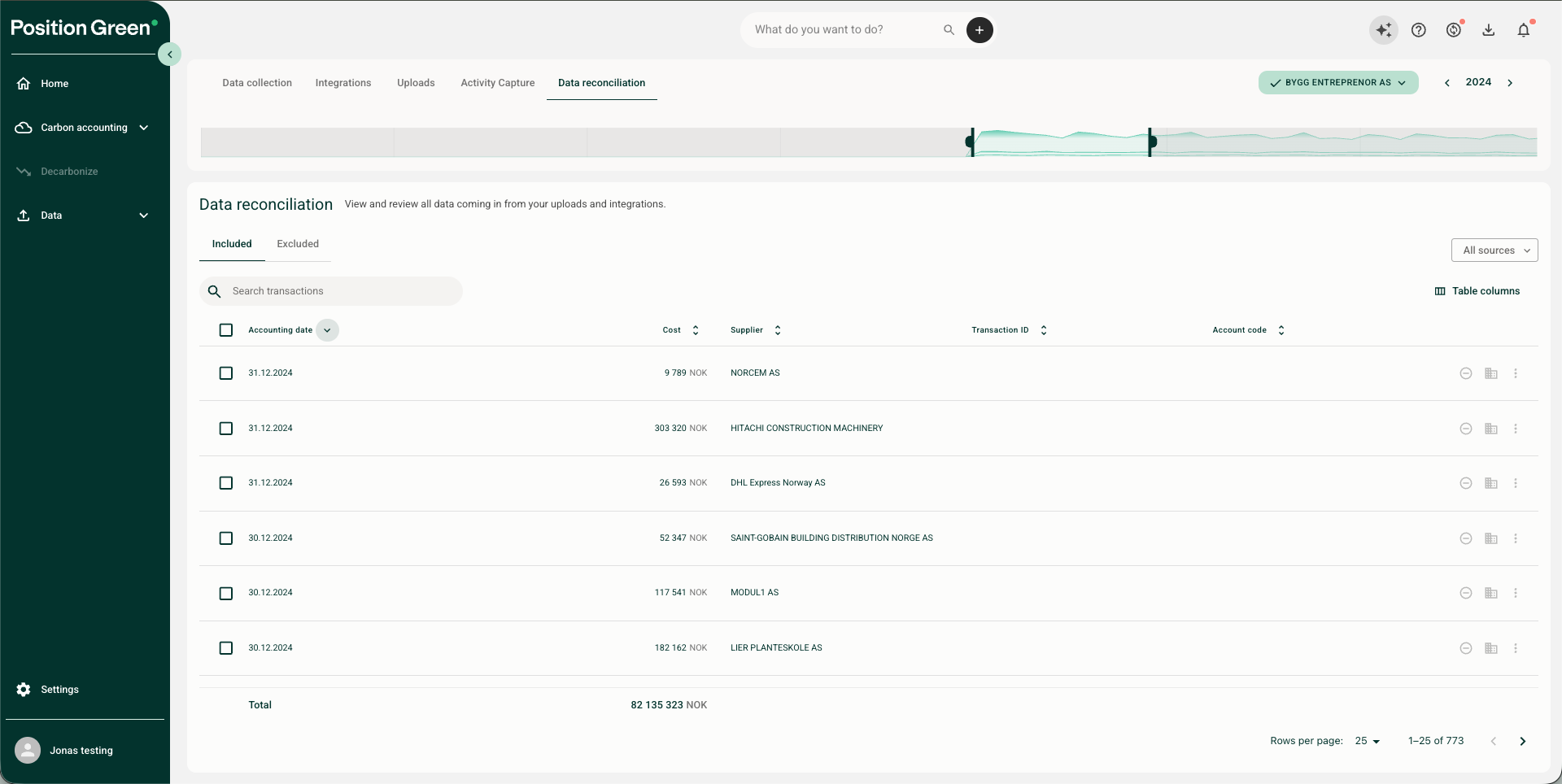
Example of transaction review in Data reconciliation tab.
After review and reconciliation are complete, set up a regular sync for the integration. Any changes made to integration settings during the review process are remembered and used the next time Position Green receives data from the integration.
General information about uploaded data
Integrations, Activity Capture, and manual uploads are normalized into the Position Green data model. Review the following fields to make sure the data can be used correctly.
Transaction or voucher ID
- Used to identify the transaction and avoid double counting. Position Green uses the transaction ID to run duplication checks and avoid double accounting over the same period.
- If this is wrong, there is a risk of double reporting because the duplication check will not work as intended.
- Verify that Position Green receives a transaction ID for each transaction and that it is unique per transaction.
Supplier data (name, org.number, industry, country, address)
- Used to identify the supplier linked to the transaction. This helps find relevant data for that supplier (products, emission factors, spend factor, GHG category) and to categorize emissions for each supplier.
- Supplier name is mandatory. If any of the other data points are missing, our algorithm will use our supplier register and/or screen the internet to map with relevant data (data matching will be flagged as high of low confidence for you to easier verify)
- If the supplier name or org.number is wrong or missing, the EEIO algorithm becomes less accurate. There is also a risk that categorization work is not remembered the next time data is received from that supplier.
- Verify that all transactions have a supplier and that the supplier name is correct. If it is wrong, check whether the supplier is registered correctly in the ERP system or contact support.
Currency and transaction amount
- Used for spend estimations and to understand costs for activity-based emission sources.
- Verify that Position Green reads the correct amounts by checking that the total amount matches the expected total costs. Consider doing random sample checks.
- If currency is missing, Position Green uses the standard currency selected for the company. Different currencies are normalized to USD to compare transaction amounts and calculate spend emissions.
Accounting code
- Used to classify the purchase into the right GHG category. Position Green does not use the accounting code to classify the emission factor, because the supplier and purchased product are more accurate for finding the emission factor. Read more in account settings.
- Verify that the received account codes match the accounting standard selected in account settings.
Dimensions and labels
- Most ERP systems use dimensions to group and categorize transactions, such as departments, projects, locations, offices, customers, or products. Position Green stores these as different label types.
- Verify that Position Green receives the dimensions of interest. You can change this when setting up the integration or in integration settings.
Was this article helpful?
That’s Great!
Thank you for your feedback
Sorry! We couldn't be helpful
Thank you for your feedback
Feedback sent
We appreciate your effort and will try to fix the article