Table of contents
This article explains how to access, navigate, and complete an assigned survey in Position Green, including how to add collaborators and track progress.
For a guided walkthrough of how to respond to a survey, see this product course for users.Applies to
- Survey respondents
- Survey collaborators
- Users assigned to self-assessments or other surveys
Access surveys
- Log in to Position Green.
- Open My Surveys.
The My Surveys page displays all assigned surveys, including:
- Not started or in progress surveys
- Completed surveys that are already submitted
- Documents your customer have shared with you
The Surveys page displays all active surveys that require input, including any self-assessments. It shows both open surveys awaiting responses and completed surveys that are already completed.
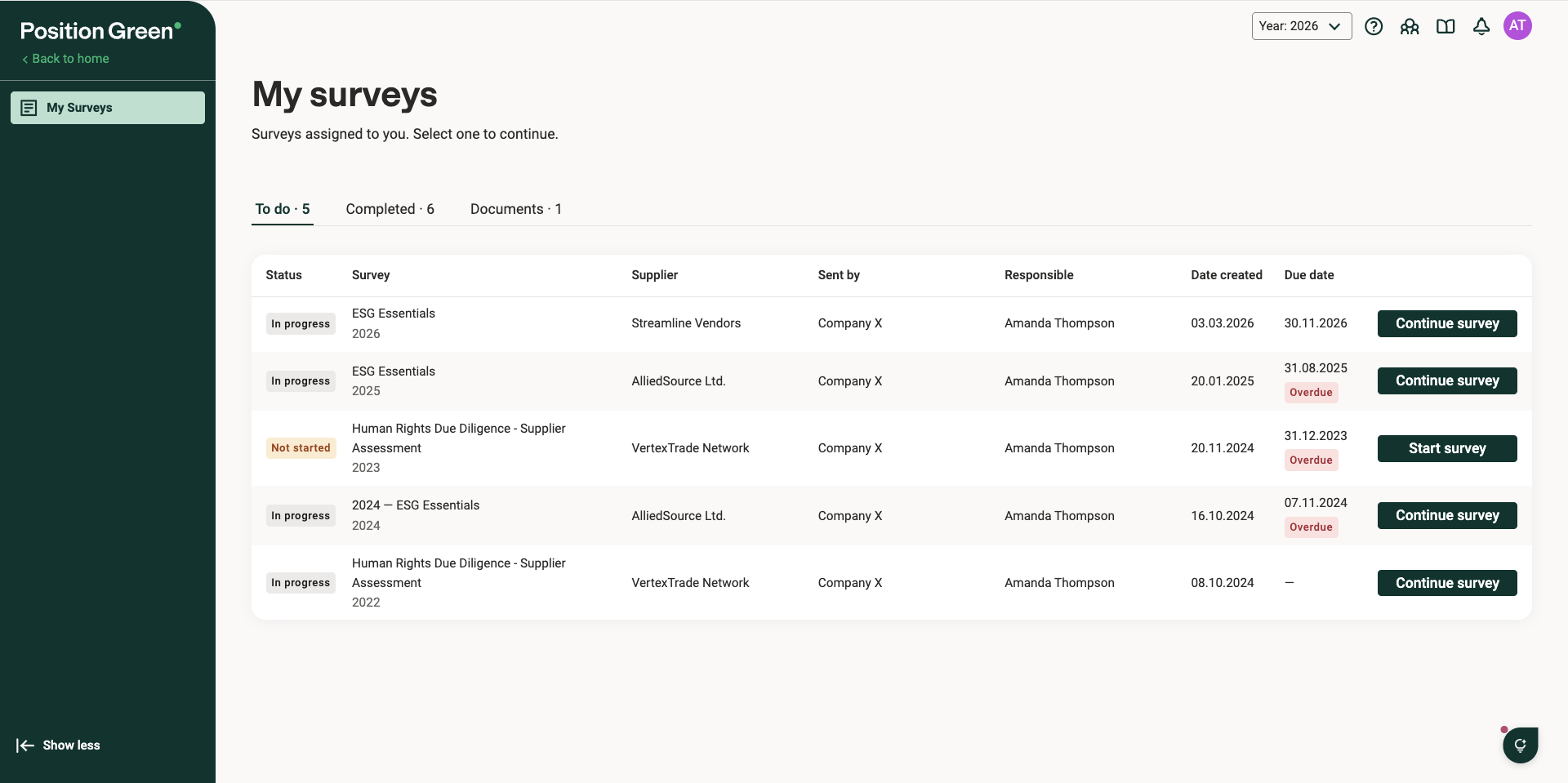
My Surveys page
Click a survey to open the Welcome page, which displays the following information:
- Purpose: Understand the goal of the survey.
- Deadlines: Review any submission deadlines.
- Instructions: Find guidance on how to complete the survey.

Welcome page of a survey
Adding collaborators
Important notes:
- The respondent remains responsible for submitting the survey.
- Collaborators can be added or removed at any time.
- Anyone with a valid email address can be invited.
- Access can be limited to specific sections.
To add collaborators
- Open the survey.
- Go to the Welcome page.
- Select the “Invite collaborators” option.
- Enter the collaborator’s email address.
- Assign access to relevant sections.
- Confirm the invitation.
Start filling out the survey

Survey interface with the section navigation panel
The survey interface contains:
- A section navigation panel on the left
- Questions within each section
- Progress indicators showing unanswered questions
More information on surveys for users, respondents, and collaborators:
- Key features of surveys
- Adding collaborators to a survey
- Accessing historical data in a survey
- Submitting your survey
- Downloading your survey responses
- Editing Submitted Surveys
Was this article helpful?
That’s Great!
Thank you for your feedback
Sorry! We couldn't be helpful
Thank you for your feedback
Feedback sent
We appreciate your effort and will try to fix the article