Transfer access rights moves a user's roles and reporting responsibilities to another active user in a single action. Use it to hand over everything a user holds on an org.unit or in reporting before deactivating that user, so nothing is left stranded on a disabled account.
The feature is available for Sustainability Reporting organizations only, from Admin > Users.
What gets transferred
A transfer moves everything the source user holds, grouped into the following areas:
- Roles – the Supervisor, Collaborator, Controller, and Auditor roles the user holds on an org.unit.
- Reporting – measures and measure points the user reports or collaborates on, together with the open and confirmed registrations tied to them.
- Role groups - Controller, Tenant Admin
- Tags - All tags added to the user (mainly used to give access to dashboards)
- Setup access
Files the source user owns on registrations and org.units move with the transfer automatically. These files are not listed or counted in the transfer dialog.
Open the transfer dialog
There are two ways to start a transfer:
- From the user list, click the three dots on the right-hand side to open the manage user menu for the relevant user and select Transfer responsibilities.
- When attempting to deactivate a user who still holds responsibilities, deactivation is blocked and a list of affected users appears instead. Select “Transfer responsibilities” next to a user's name to open the dialog for that user.
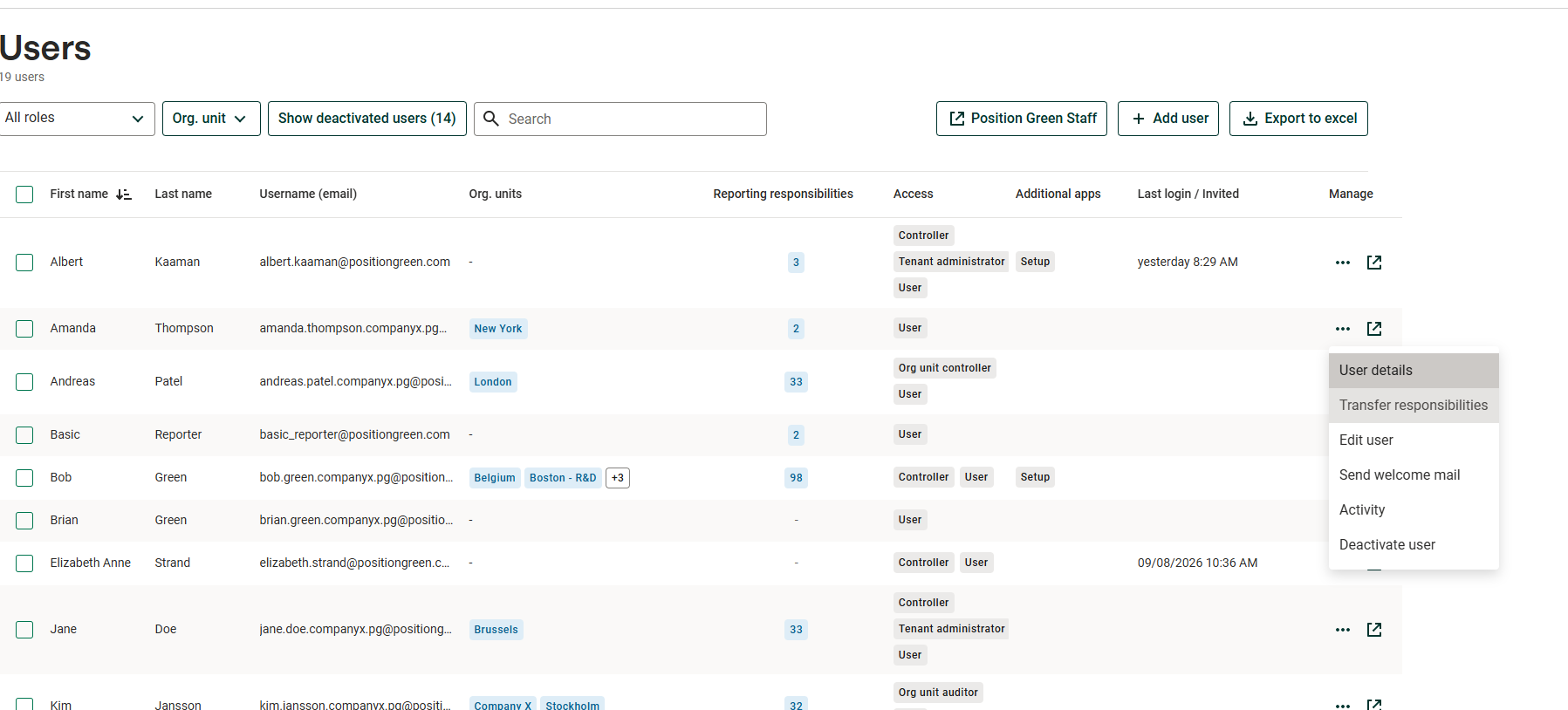
Transfer responsibilities in the manage user menu
Transfer responsibilities
Complete the transfer as follows:
- In the Transfer from field, confirm or change the user whose responsibilities are moving.
- In the Transfer to field, select the user who will receive the responsibilities. Only active users other than the source user appear in this list.
- Review the roles and reporting responsibilities listed for the source user. A summary line states how many roles and reporting responsibilities are selected for transfer.
- Select “Transfer” to move everything listed to the receiving user.
A transfer moves everything listed for the source user; individual roles or reporting responsibilities cannot be excluded from the dialog. If the source user holds nothing, the dialog states that there is nothing to transfer and the “Transfer” button stays disabled.
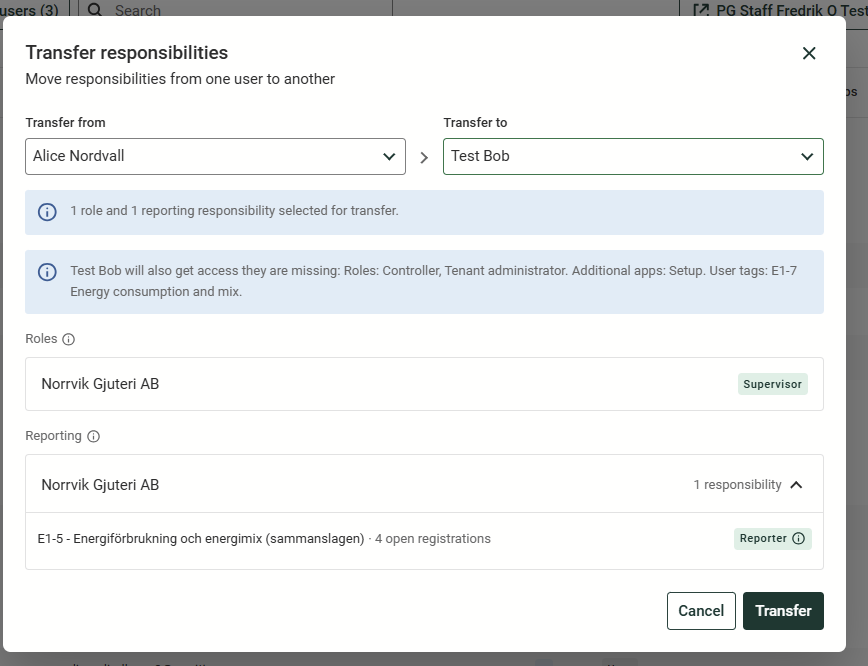
Example of transferring responsibilities from one user to another
Notice:
- The receiving user must be an active member of the organization. Disabled users can be selected as the source of a transfer, but never as the receiving user.
- Controller and Auditor roles on an org.unit are not tied to a single year. Transferring one of these roles moves it for every year in that org.unit's history, not only the currently active year.
After the transfer
Once a transfer completes, a confirmation states how many items were moved to the receiving user. If the receiving user already held some of the same roles or reporting responsibilities, those duplicates are removed rather than transferred, and the confirmation states how many were removed for that reason.
Select “Deactivate” to deactivate the source user immediately, or “Close” to leave the user active.
When the transfer is started from the blocked deactivation list, the dialog closes automatically on completion and returns to that list. Once the responsibilities of every listed user are transferred, “Yes, deactivate” becomes available to complete the deactivation.
Current limitations
- A transfer is all-or-nothing. Every role and reporting responsibility listed for the source user moves; there is no option to select or exclude individual items.
- Files owned by the source user on registrations and org.units move with the transfer, but are not shown or counted in the dialog. Files on other sources, such as templates or exported reports, are not moved and keep their original owner.
- Collaborating on a registration someone else owns does not block deactivation on its own and is not required to be transferred first.
Was this article helpful?
That’s Great!
Thank you for your feedback
Sorry! We couldn't be helpful
Thank you for your feedback
Feedback sent
We appreciate your effort and will try to fix the article