There are several ways to download data from Position Green and view it in Excel. Three methods are described below.
Table of contents
- Download data from a table in Tabulate
- Download data with Export
- Download visualized data from Analytics
Download data from a table in Tabulate
1. Go to Tabulate in the left menu and click the name of the table to export to Excel.
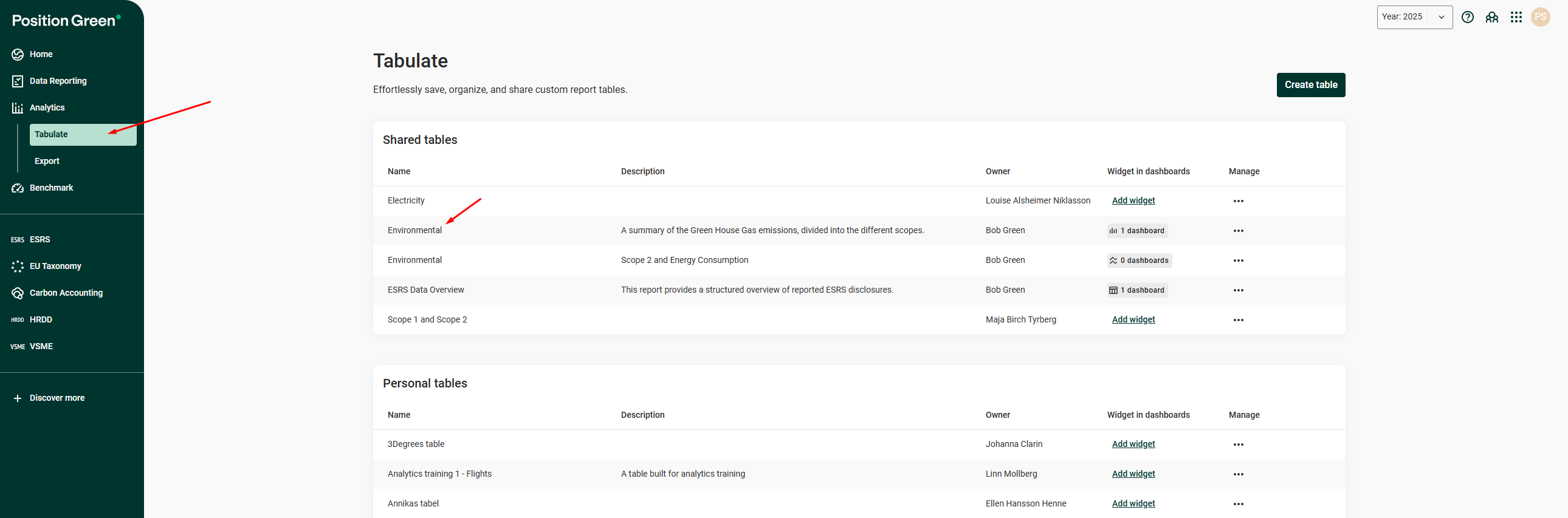
Tables in Tabulate
2. Click “Export spreadsheet”.
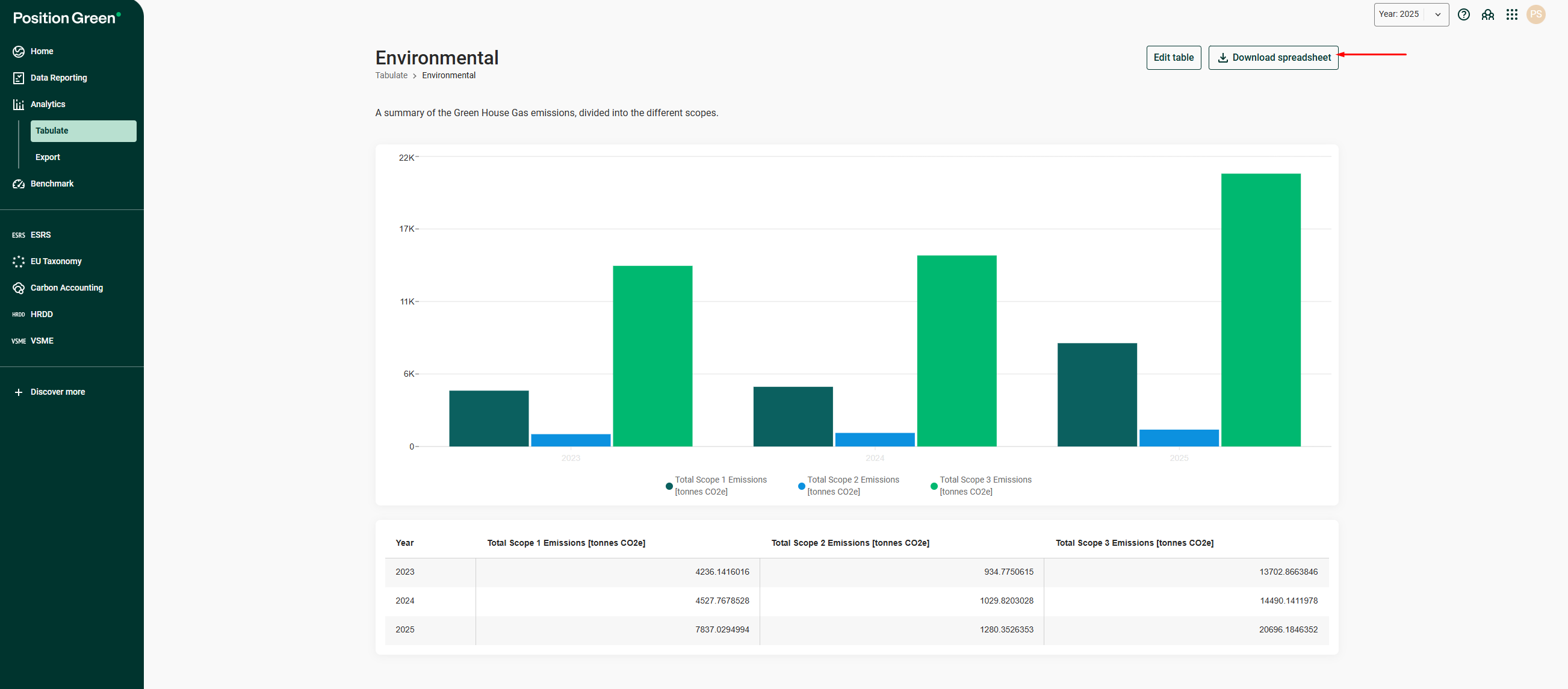
Export spreadsheet button in Tabulate
Download data with Export
Go to Export in the left menu and select the data to export, the reporting period and the org.units to include.
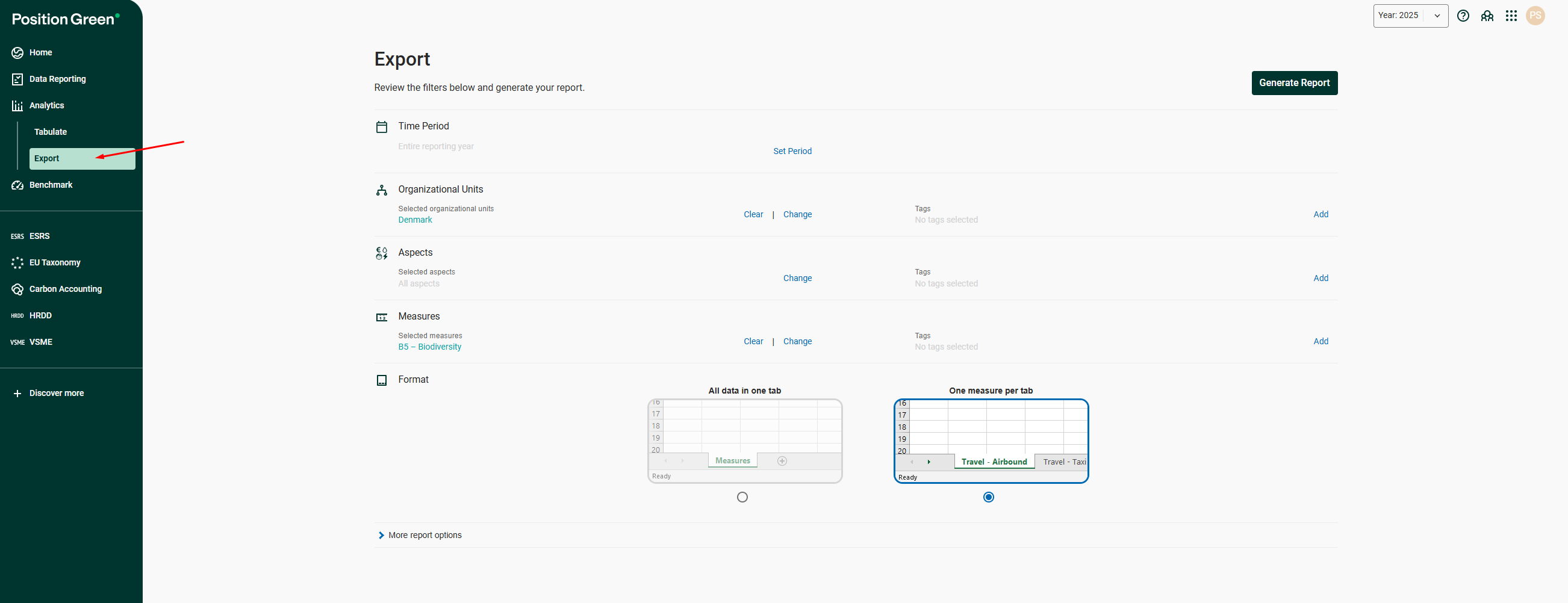
Export page filters
Download visualized data from Analytics
Go to Analytics in the left menu, select the dashboard to export, click “Export” and select “Excel”.
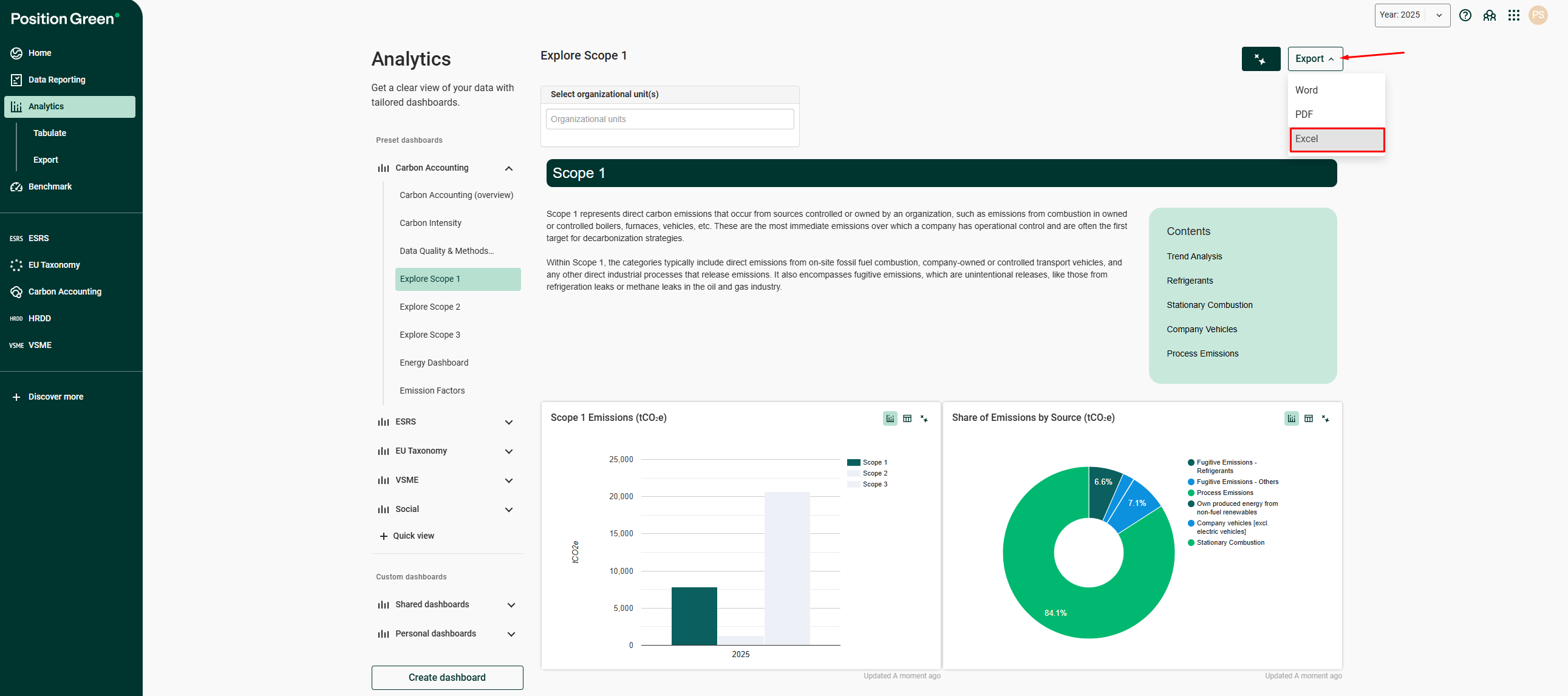
Export a dashboard to Excel in Analytics
Was this article helpful?
That’s Great!
Thank you for your feedback
Sorry! We couldn't be helpful
Thank you for your feedback
Feedback sent
We appreciate your effort and will try to fix the article