Table of contents
Use a label to show information to the user. Labels divide a measure into sections and provide inline help texts.
Labels also help reporters understand why the data is needed for a specific period, which improves the reporting experience.

Label in a measure
Combining labels with descriptions greatly improves the reporting experience.
For example, some reporters only need to report data on a quarterly or yearly basis. Labels can support an understanding of why data needs to be collected.
Links
Labels can also contain links to downloadable documents, such as a Code of Conduct. Read more about uploading documents to link to a measure.
Photographs
Use the URL from a photo that is already uploaded to the Files page of Position Green or the URL from an online photo. Click “show source” under the description box and paste the URL to insert the photo.
Advanced
Label CSS
Position Green has predefined CSS classes that can be added to the label: h1, h2, h3, h4 and h5. These display headings in different sizes.
Description
Refer to texts or list objects just as in the calculations described below. Always use { } around calculations used in labels.
How to dynamically refer to dropdown metadata
The examples below show how to display metadata connected to dropdown lists.
Read more here about managing list data.
Indicating the name of a dropdown selected option
To show the text of the dropdown list item the reporter selected, write the following in the label or its description. In this example, the measure system name is energy_measure:
{energy_measure.text}Indicating emission factors connected to a dropdown selected option
Use the following syntax to connect emission factors. This example is for the measure point select_country.
{select_country.data.marketbased_factor_scope_2}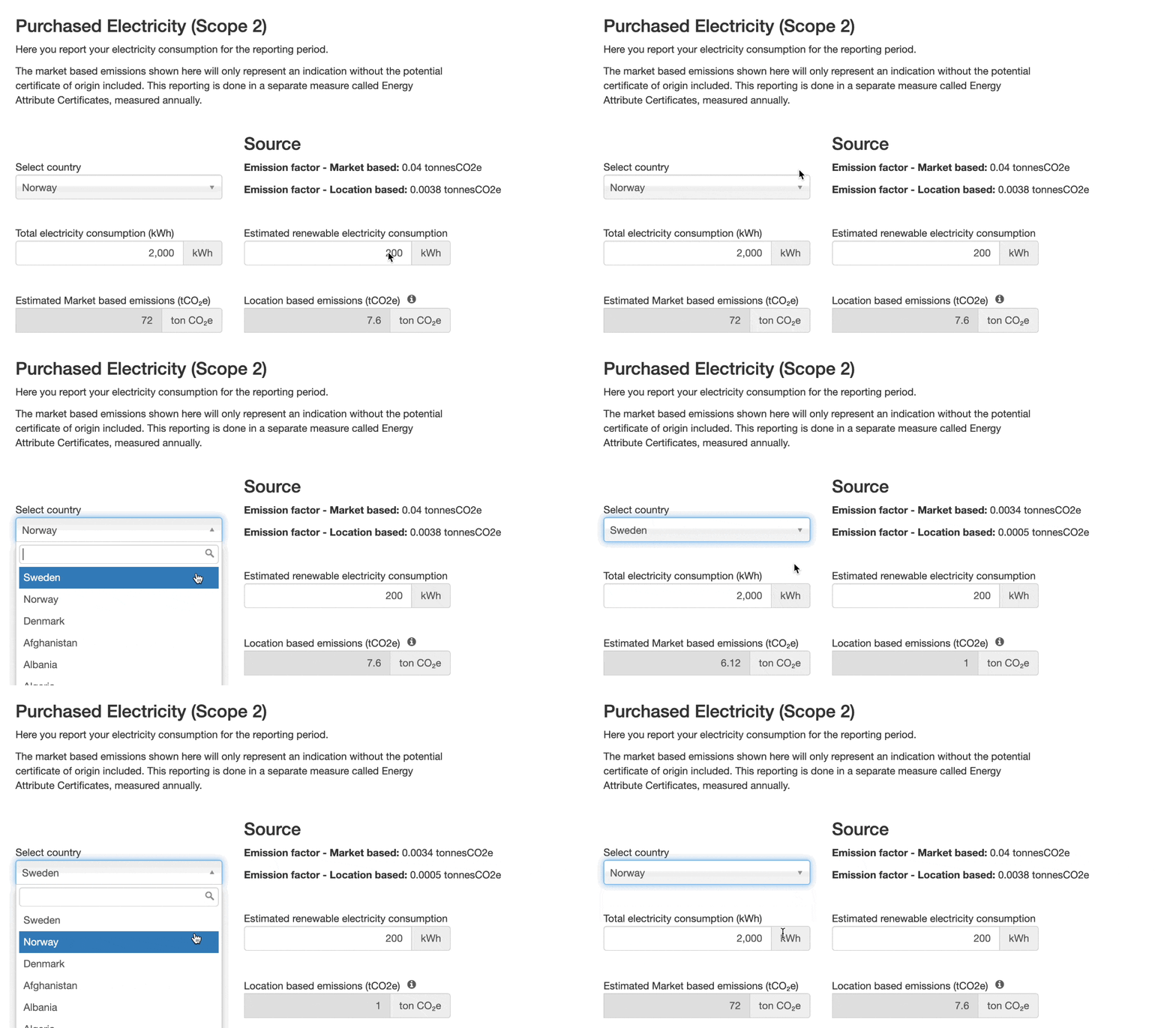
Label text changes depending on the dropdown selection
CSS classes
To show text in a certain color, add the class under CSS classes.

CSS classes field of a label
Change font color with 'text' with CSS classes
Examples of classes to add to CSS classes to change the text color, and how the text looks to the reporter.

Label with the text-primary class

Label with the text-success class

Label with the text-danger class

Label with the text-warning class

Label with the text-info class
Change background color with 'alert' with CSS classes
The background color of the box can also be changed. These classes are called alerts. The examples below show how they look to the reporter.

Label with the alert-success class

Label with the alert-danger class

Label with the alert-warning class

Label with the alert-info class
Org.unit properties: how to refer to OrgUnit properties
Displaying org.unit properties works the same way as displaying list properties. Native properties are referred to by writing the property name in curly brackets ({}). In the Sustainability Reporting product, these are:
OrgUnitNameOrgUnitPrettyIdOrgUnitTagPrettyIdsOrganizationUnitId
Custom org.unit properties are referred to with orgUnit.NameOfYourProperty. Go to the Advanced > Custom Props Import Org. Units tab to view and edit custom OrgUnit properties. For example, the DMA currency is accessed by writing orgUnit.Currency.
Example:
In this example, a custom property named "Address" has been added, and the following text is written in the label description:
“You are reporting for the organization unit {OrgUnitName}, with the address {orgUnit.Address}.”
When a reporter at, for example, the Position Green office in Malmö opens the registration, the following text is displayed in the registration view:
“You are reporting for the organization unit Malmö, with the address Jagaregatan 4.”
Was this article helpful?
That’s Great!
Thank you for your feedback
Sorry! We couldn't be helpful
Thank you for your feedback
Feedback sent
We appreciate your effort and will try to fix the article