Table of contents
- What is Group Consolidation?
- What is needed to share data?
- How does Group Consolidation work?
- Step 1: The requesting organization creates a request
- Step 2: The recipient organization approves or denies the request
- Requirements for approving requests for ESRS data
- Step 3: Approval - a snapshot of data is copied and saved from the recipient to the requester
- New request required for repeated syncs and updates to the same measure
- Delete a request
- Using synced data in the group company
- Review data
What is Group Consolidation?
Group Consolidation (formerly Group Sync Assistant) shares solution data in Sustainability Reporting between setups. For example, a company can collect data from subsidiaries that also use Position Green.
Group Consolidation is not for sharing data within a setup.Group Consolidation supports ESRS. Support for more solutions will be added.
What is needed to request data?
Contact the Position Green team to purchase Group Consolidation. This add-on must be enabled to request data from other setups.
Once Group Consolidation is enabled, all controllers within an organization can create data requests. The number of organizations that data can be requested from depends on the pricing plan.
What is needed to share data?
All customers with Sustainability Reporting can share data at no cost.
Controllers have the access level required to share data.
Data may need to be prepared before it can be shared. See below for the requirements for approving requests for ESRS data.
How does Group Consolidation work?
Data is synced in three steps:
- The requesting organization creates a request
- The recipient organization approves or denies the request
- Approval - a snapshot of data is copied and saved from the recipient to the requester.
See details for each step below.
Step 1: The requesting organization creates a request
From Home, go to Data reporting > Group Consolidation and open the Outgoing requests tab. Click “New Request” and fill in the request details:
- Solution: ESRS is currently the only supported solution.
- Only measures that the requesting company reports on are requested.
- Year: Choose the year for which to share the data.
- Period: Full year.
- Request data from: Search the list of organizations.
- Save data to: Select the org.unit to save the shared data to.
Click “Send request” to create the request. Controllers in the recipient organization receive an email asking them to take action. The email links to the Incoming requests tab.
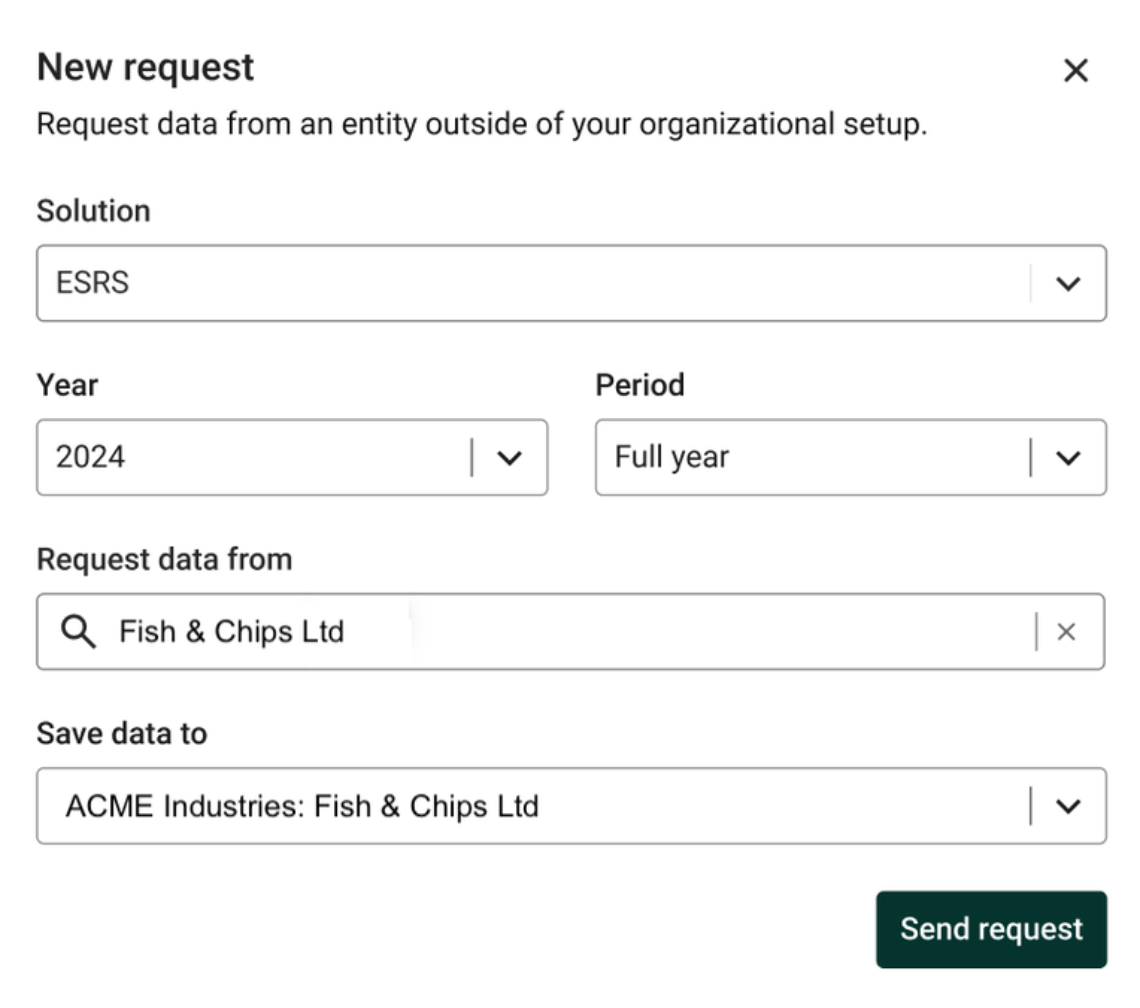
Example of creating a new request
Step 2: The recipient organization approves or denies the request
To handle a received request, go from Home to Data reporting > Group Consolidation and open the Incoming requests tab. All requests are listed here.
- First, data must be consolidated within the org.unit. Only confirmed data on the recipient's top node in the org. structure is shared.
- Approving a request is final and cannot be undone. The approval must be confirmed in a second step. The data is shared as soon as the approval is confirmed.
- A request can be denied. This action can be undone.
- A log shows the name of the person who approved or denied the request, with an email link, for both incoming and outgoing requests.
- The person who approves or denies a request receives an email notification.
Requirements for approving requests for ESRS data
- To approve a request for ESRS data, at least one ESRS measure must be confirmed and consolidated. All ESRS measures are listed under To consolidation in Group Consolidation.
- The ESRS measures consolidated so far can be shared. Not all measures need to be consolidated to sync.
Learn more about consolidation and ESRS.
Step 3: Approval - a snapshot of data is copied and saved from the recipient to the requester
On approval, a snapshot of the registration data is copied from the recipient company's setup and saved to the selected org.unit in the requester company's setup.
- Only measures that the requesting company reports on are requested and synced.
- New registrations are created that match the recipient company's data.
- The copied data is in the requester's setup under Review data and Data reporting, at the selected measure, org.unit, reporting period and solution.
New request required for repeated syncs and updates to the same measure
When synced data (measures) is updated in the recipient's setup, a new request must be created and approved to share the updated data. If some measures are synced and others are not, a new request is also needed for the missing measures.
On approval, new registrations are created in the requester's setup. Previously synced measures are overwritten if newer data is available.
Delete a request
Pending or denied requests can be deleted. To delete a request, click the “...” icon for the request and then click “Delete request”.
A deleted request disappears from both the group company's list of outgoing requests and the sub company's list of incoming requests. If a previously approved request exists with the same recipient, solution and period, it is displayed instead.
Using synced data in the group company
Review data:
- Data from synced org.units is shown in the Review data view and marked as “Synced”.
- Tabulate:
- In new tables, data from synced org.units appears in the same column as data from non-synced org.units, unless the “Include synced data” checkbox is cleared when the table is created.
- To add synced data to an existing table, go to the table overview, click the “...” icon next to the table and then click “Generate table with synced data”.
- Analytics dashboards:
- Updated ESRS dashboards include both synced and non-synced data. Outdated dashboards do not. Contact the Position Green team for help with dashboards.
- Updated ESRS dashboards include both synced and non-synced data. Outdated dashboards do not. Contact the Position Green team for help with dashboards.
Was this article helpful?
That’s Great!
Thank you for your feedback
Sorry! We couldn't be helpful
Thank you for your feedback
Feedback sent
We appreciate your effort and will try to fix the article