TABLE OF CONTENTS
A Tabulate column based on a dropdown question shows the name of the selected list item by default. List items often hold extra data, such as emission factors, units, or sources. The Show setting displays one of these fields in the column instead of the item name.
Use this setting to bring list item data into ad-hoc tables, for example, to show the emission factor for each selected fuel type, or to use that factor in a calculation column.
Before starting
- The dropdown question must be listed under Measure points in the column settings.
- The list behind the dropdown must store values for its items (for example
factor_scope_1,unitorsource).
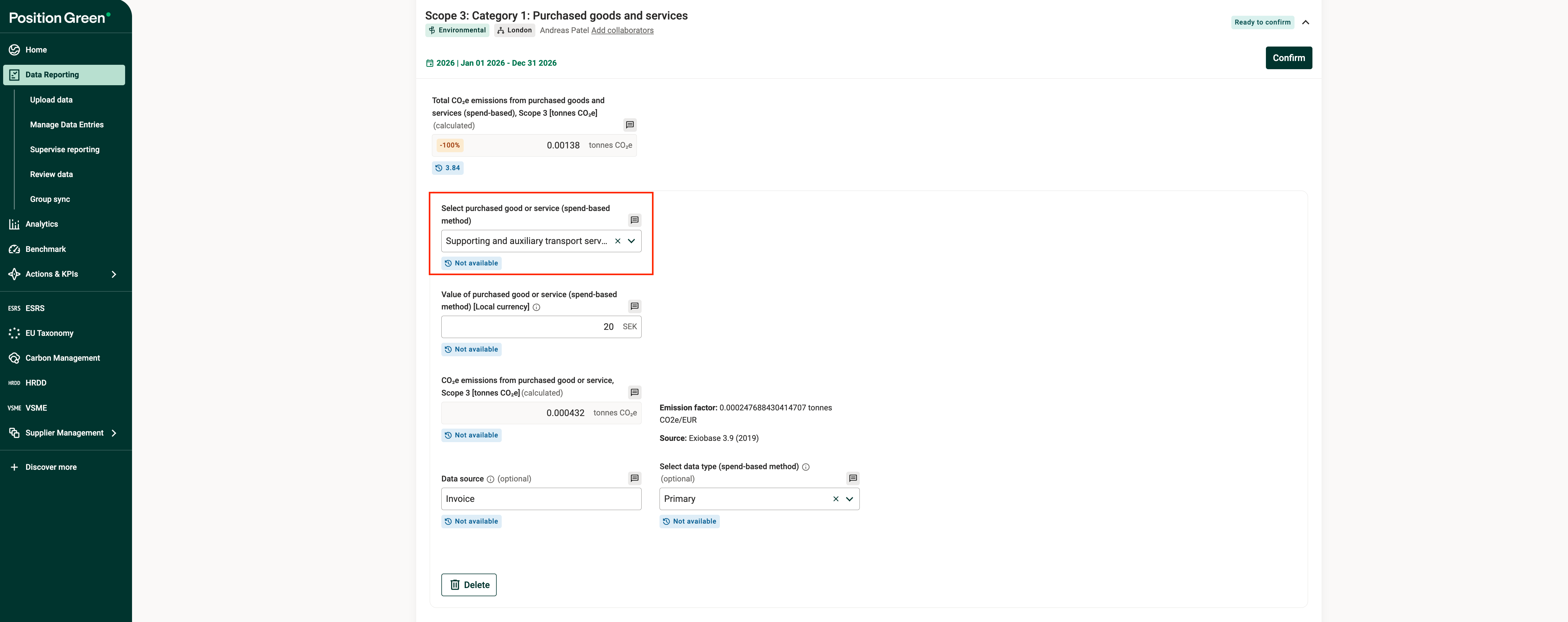
A dropdown example in Data Reporting
Add a dropdown question to a table
- Go to Analytics > Tabulate.
- Click “Create table” to start a new table, or open an existing table and click “Edit table”.
- In the Columns tab of the Edit table panel, select Quick add > Measure point.
- Search for the dropdown question, select its checkbox, and click “Add 1”.
The question is added as a new column. In the column settings, the question is listed under Measure points. To combine more questions in the same column, click “Add another question”.
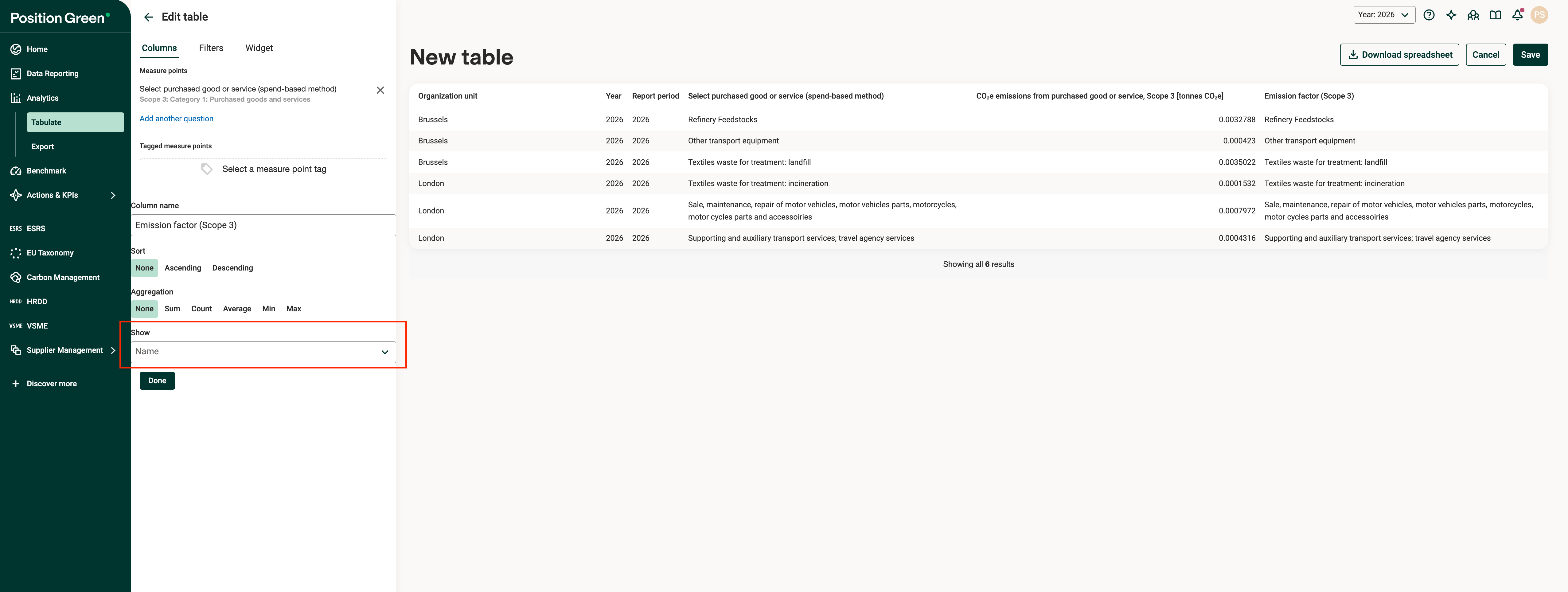
A dropdown question added as a column, with its column settings open
Choose which value to show
- In the Columns tab, click the cog icon next to the dropdown column to open its settings.
- Make sure Aggregation is set to None.
- Open the Show menu below Aggregation. It defaults to Name and lists the fields stored on the list items, for example
factor_scope_1orunit. - Select the field to display. The table preview updates to show the field.
- Click “Done” to close the column settings.
- Click “Save” to save the table. For a new table, enter a name and click “Confirm”.
The column now shows the selected field for each registration instead of the list item name. To show several fields from the same list, add the dropdown question once for each field and choose a different field in each column.
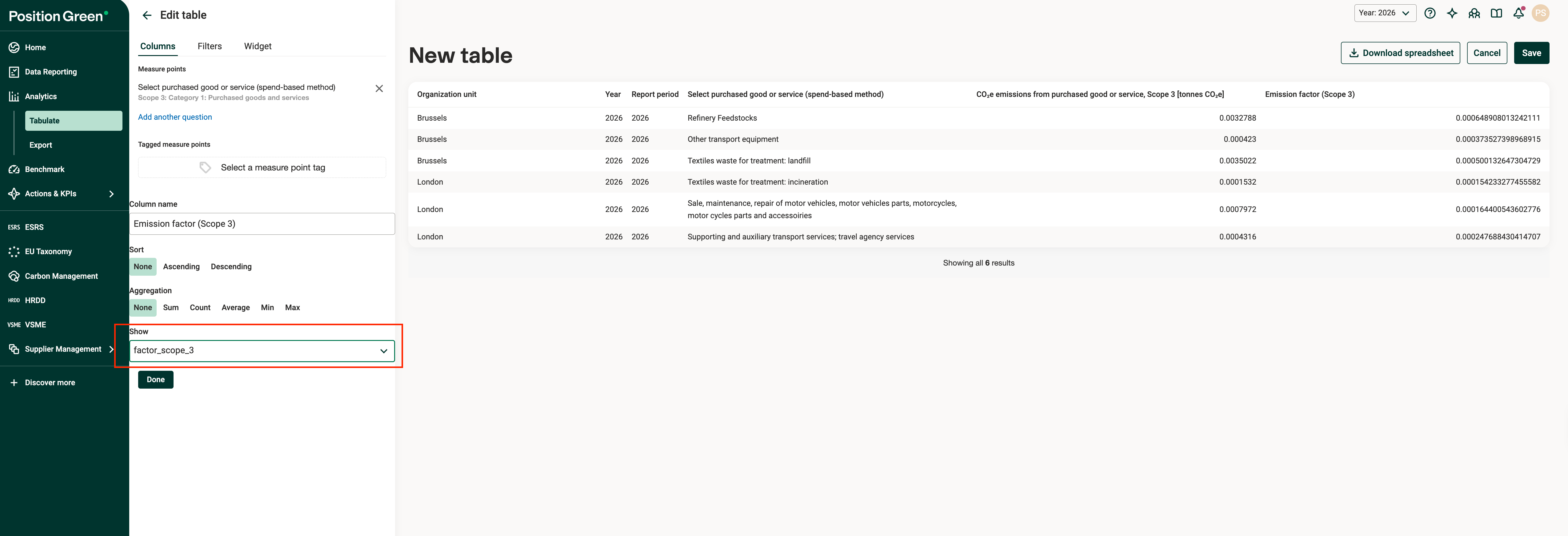
The Show setting in the column settings
How the values behave
- Numbers stay numbers: numeric fields, such as emission factors, sort, export, and calculate as numbers. Use the column as an input to a calculation column, for example, to multiply a quantity by its emission factor.
- No aggregation: a list item field cannot be aggregated. Choosing an aggregation such as Sum resets Show to Name and disables it. Set Aggregation back to None to choose a field again.
- Multi-select dropdowns: when several items are selected in one answer, a calculation column uses the values joined as text.
- Values follow the registration date: if a list item’s values change over time, the column shows the values that were valid on the date of each registration.
- Archived items: fields that exist only on archived list items can still appear in the Show menu, because existing registrations can still point to those items.
Was this article helpful?
That’s Great!
Thank you for your feedback
Sorry! We couldn't be helpful
Thank you for your feedback
Feedback sent
We appreciate your effort and will try to fix the article