As in financial reporting, sustainability reporting is organized by year. The first year is available as soon as Position Green is set up. A new year can be set up at any time, and there is no limit to the number of years.
Creating a new year
Create a new year in the Active year menu.

The year menu
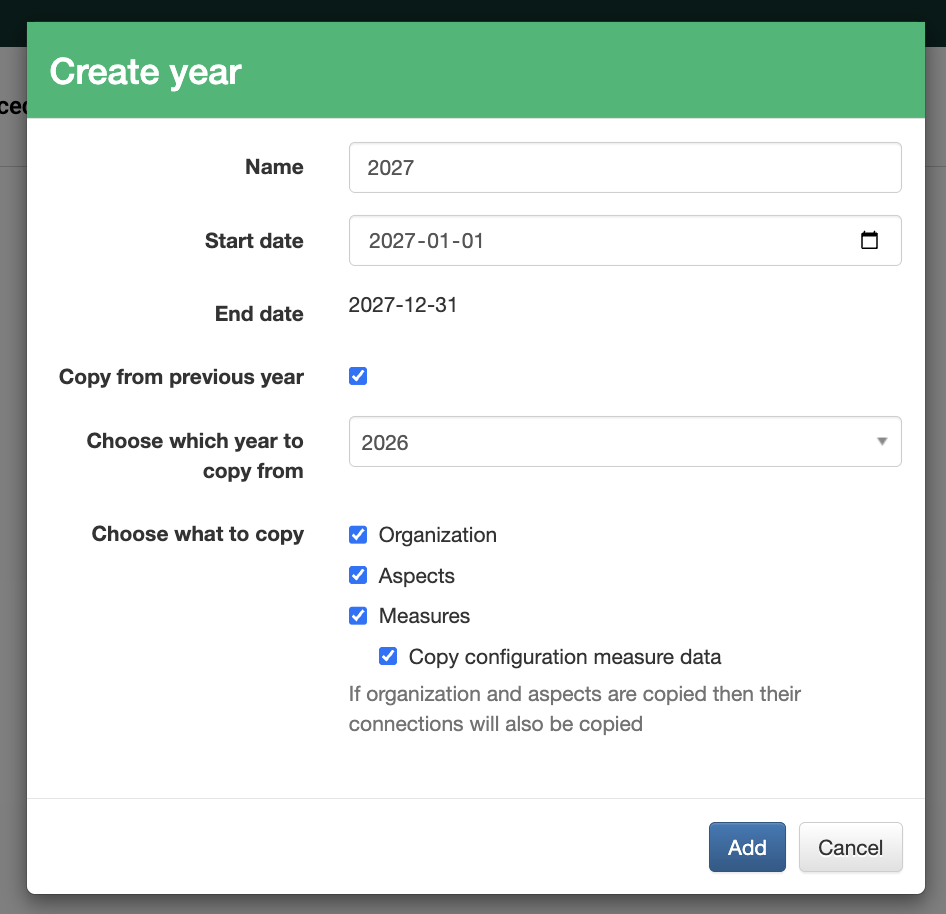
The setup from a previous year can be copied, including the organization, aspects, and measures. Copying a year makes it possible to monitor KPIs over time, for example with visualizations and historical data.
When “Copy configuration measure data” is ticked, the configuration measures and their values are copied to the new year. Tick this box to keep the same structure across historical years, so the configuration measures do not need to be filled in again.
Follow the Gregorian calendar year or define a custom period.
Define:
- A name - for example, 2027.
- A start date - for example, January 1st, 2027.
- An end date - for example, December 31st, 2027.
Edit year settings
Advanced settings
To open the advanced settings, click the pen icon (edit year).
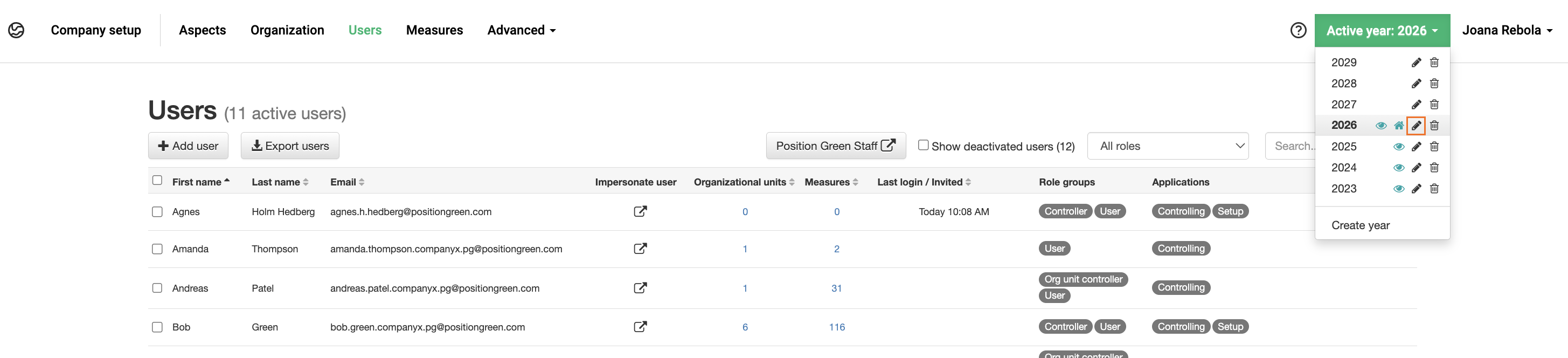
Pen icon for editing a year
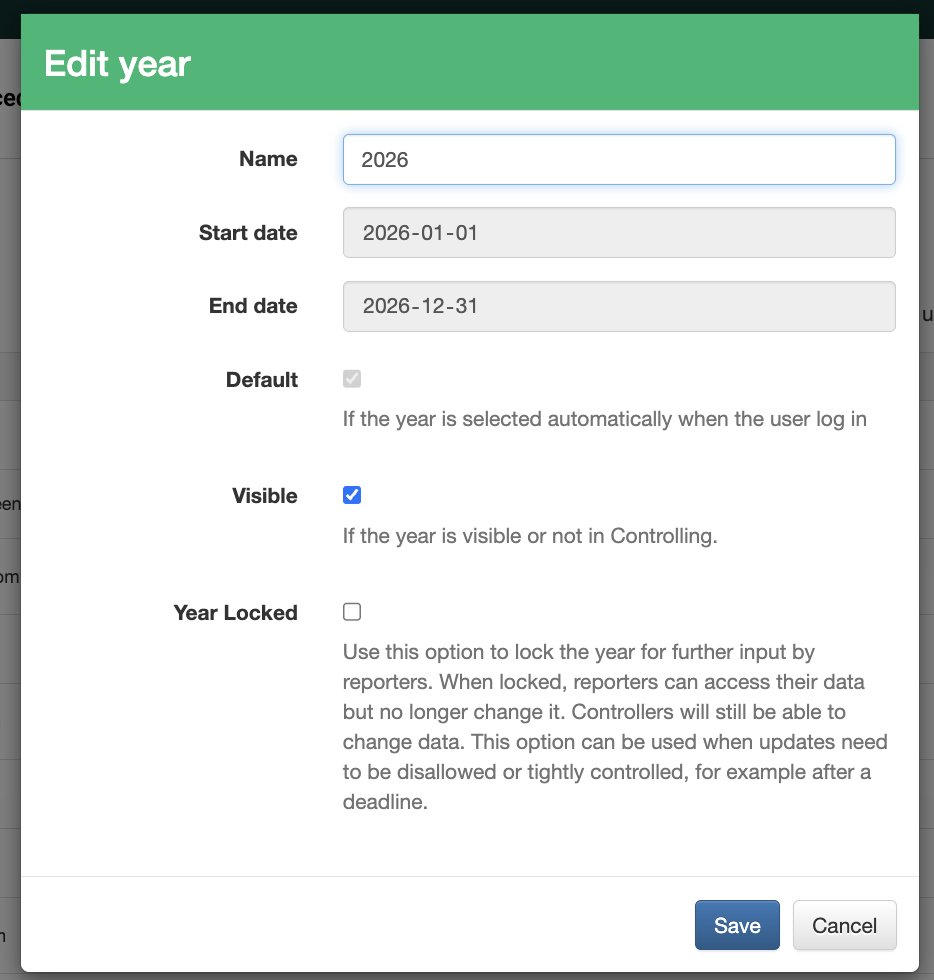
Advanced year settings
- Default - The year shown to reporters when they log in. Only one year can be the default.
- Visible - Reporters can see visible years. Ensure this box is ticked before reporting begins. Controllers can see all years, visible or otherwise.
- Year locked - At the end of a reporting year, once all registrations are made and no more changes are needed, a year can be locked. Reporters see an information bar when a year is locked.
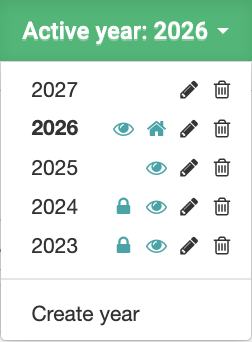
Four visible years: 2026 is the default, and 2024 and 2023 are locked
Was this article helpful?
That’s Great!
Thank you for your feedback
Sorry! We couldn't be helpful
Thank you for your feedback
Feedback sent
We appreciate your effort and will try to fix the article