What is AI Studio?
AI Studio is an AI workspace in Position Green. You ask questions in plain language, and AI Studio answers using the sustainability data your company has in the platform. You can use it to analyze your data, find missing data and values that look unusual, create charts and draft reports.
AI Studio only works with the data in the Position Green platform. It does not invent or estimate data that is missing.
Who can use it: Only users with the Controller role can use AI Studio. AI must be enabled for your company.
What can I do with AI Studio?
- Ask questions about your data, for example "How did our Scope 2 emissions change from last year?" or "Which sites have not reported water data yet?"
- Get a reporting status overview across your organization, such as which units or measures are complete.
- Spot missing data and unusual values before you finalize your report.
- Create charts and tables from your reported data. Charts use Position Green's style unless you provide your own graphic profile or template.
- Draft reports and disclosures, for example a VSME report or answers for CDP and EcoVadis, based on the data you have reported.
- Create files such as Excel workbooks and PowerPoint slides, for example a summary for your board or management team.
- Fill in your own templates. Attach a template, such as an auditor's Excel file, in the chat or as reference material in the context panel, and ask AI Studio to fill it in with your data.
- Ask general ESG questions about frameworks and standards such as ESRS, VSME, the GHG Protocol
How to use AI Studio
- Click the AI Studio icon in the top right corner of the platform.
- Start a new project and type your question, or ask AI Studio to create something, for example "Create a chart of our total emissions per year".
- Read the answer. Where a value comes directly from a registration in the platform, AI Studio links to it so you can check the source.
- Ask follow-up questions to go deeper, or ask for a shorter, high-level version.
- Download any files AI Studio creates, such as Excel or PowerPoint files.

[AI Studio icon in the top right corner]
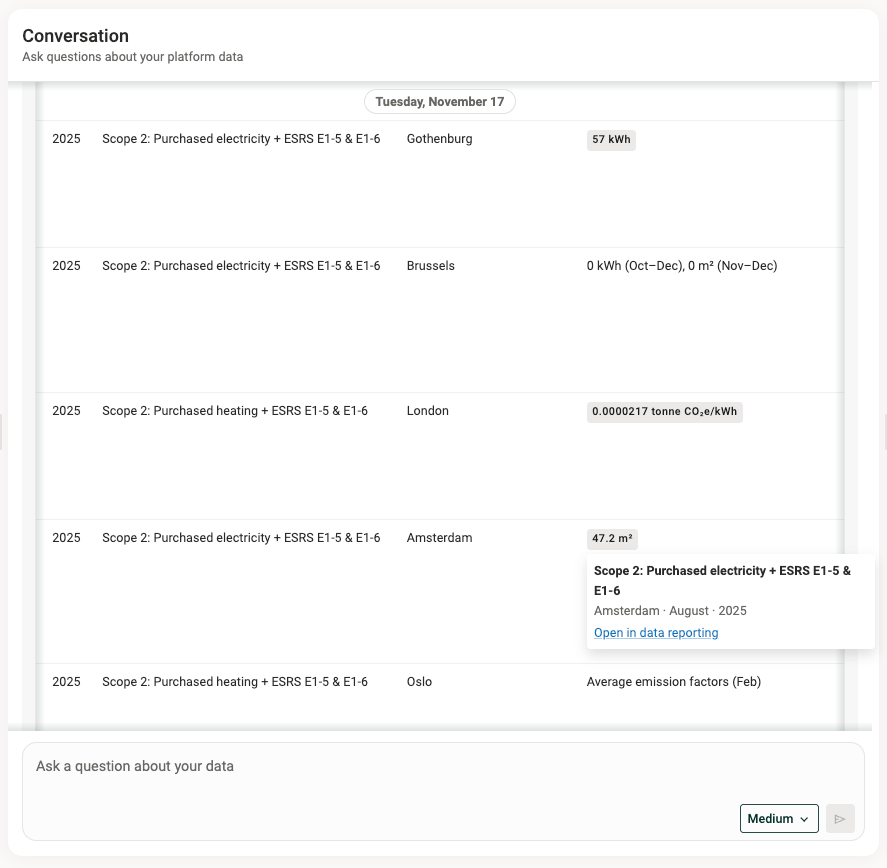
[AI Studio chat with an answer and links to registrations]
Tip: Start a new chat when you switch topic. Long chats can reach a limit, and AI Studio will then ask you to continue in a new chat.
The context panel
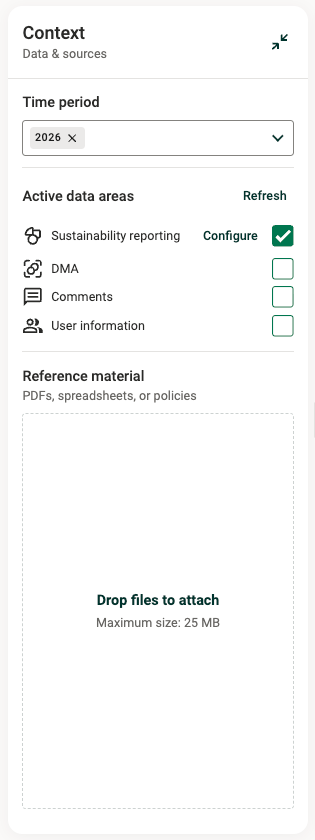
The context panel controls which data AI Studio works with. Here you can:
- Choose the time period, for example 2026.
- Choose the data areas AI Studio uses: Sustainability reporting, DMA, Comments and User information.
- Refresh your data with Refresh next to Active data areas.
- Add reference material, such as PDFs, spreadsheets or policies. For example, add a template you want AI Studio to fill in.
Create outputs from the side panel
The side panel in AI Studio lets you create common outputs with one click. You don't need to write a prompt.
| Output | What you get |
|---|---|
| Data quality check | A review of your data that points out gaps and values that look unusual, with links to the registrations to check. |
| Charts | Charts of your reported data, ready to use in presentations and reports. |
| Report draft | A first draft of a report or disclosure based on your reported data. |
Before a report draft is generated, AI Studio runs a quick check of your data and tells you what is missing. You can still generate the draft.
Report drafts are currently available for VSME. Your company needs the VSME module in Position Green. ESRS report drafts are coming later.
A report draft is a starting point. Always review and edit it before you use it.
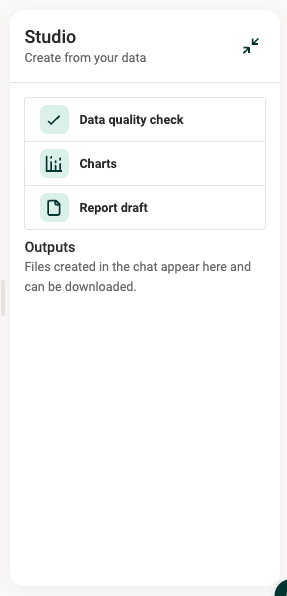
[AI Studio output panel]
Your data in AI Studio
- What data AI Studio uses. AI Studio works with a copy of your company's reported data, called a data package. Today this covers your Sustainability reporting data (for example VSME, ESRS and EU Taxonomy). Data from more sources, such as NextGen Carbon Management and Supplier Management, is coming.
- Keep the data up to date. AI Studio does not pick up changes in the platform automatically. If you have changed or added data, click Refresh in the context panel before you continue.
- Attachments. AI Studio can list and link to the attachments on your registrations, but it cannot read their content.
- AI consent. AI must be enabled for your company to use AI Studio. If you are unsure whether AI is enabled, contact your Customer Success Manager or Support.
- Data security. Your data is processed and hosted in the EU.
AI credits
AI Studio uses AI credits. Your company has included AI credits to get started.
- See your balance under Settings > AI usage > AI Studio.
- When 80% of your credits are used, you get a message in AI Studio.
- When your credits run out, AI Studio stops until more credits are added.
- Failed requests don't use credits.
- To buy more credits, contact your Customer Success Manager.
Good to know
- AI Studio does not invent data. If data is missing, AI Studio tells you instead of estimating it.
- Not every value links to a source. Values taken directly from a registration link back to it. Values AI Studio calculates, such as totals or percentages, do not.
- AI Studio cannot see your dashboards. Ask about the underlying data instead, for example the measure or the time period.
- AI Studio does not change your data. It reads your data but does not update registrations in the platform.
- Always review the output. AI can make mistakes. Check answers, charts and report drafts before you share or submit them.
- Findings in your data are worth a look. When AI Studio points out a gap or an unusual value, it often comes from how the data was entered or set up. Check the linked registration.
FAQ
- Why can't I see AI Studio? AI Studio is available to users with the Controller role, in companies that have AI enabled and access to AI Studio. Contact your Customer Success Manager if you think you should have access.
- Why doesn't AI Studio show my latest changes? AI Studio works with a copy of your data. Click Refresh in the context panel to update it.
- Can I use my own template? Yes. Attach the template directly in the chat, or add it as reference material in the context panel. Then ask AI Studio to fill it in with your data.
- What is the difference between AI Studio and AutoReporting? AutoReporting drafts answers to datapoints inside your reporting flow, based on documents you upload. AI Studio is a workspace where you analyze your reported data and create outputs such as charts, files and report drafts.
- Who do I contact with questions or feedback? Contact your Customer Success Manager or Position Green Support.
Was this article helpful?
That’s Great!
Thank you for your feedback
Sorry! We couldn't be helpful
Thank you for your feedback
Feedback sent
We appreciate your effort and will try to fix the article