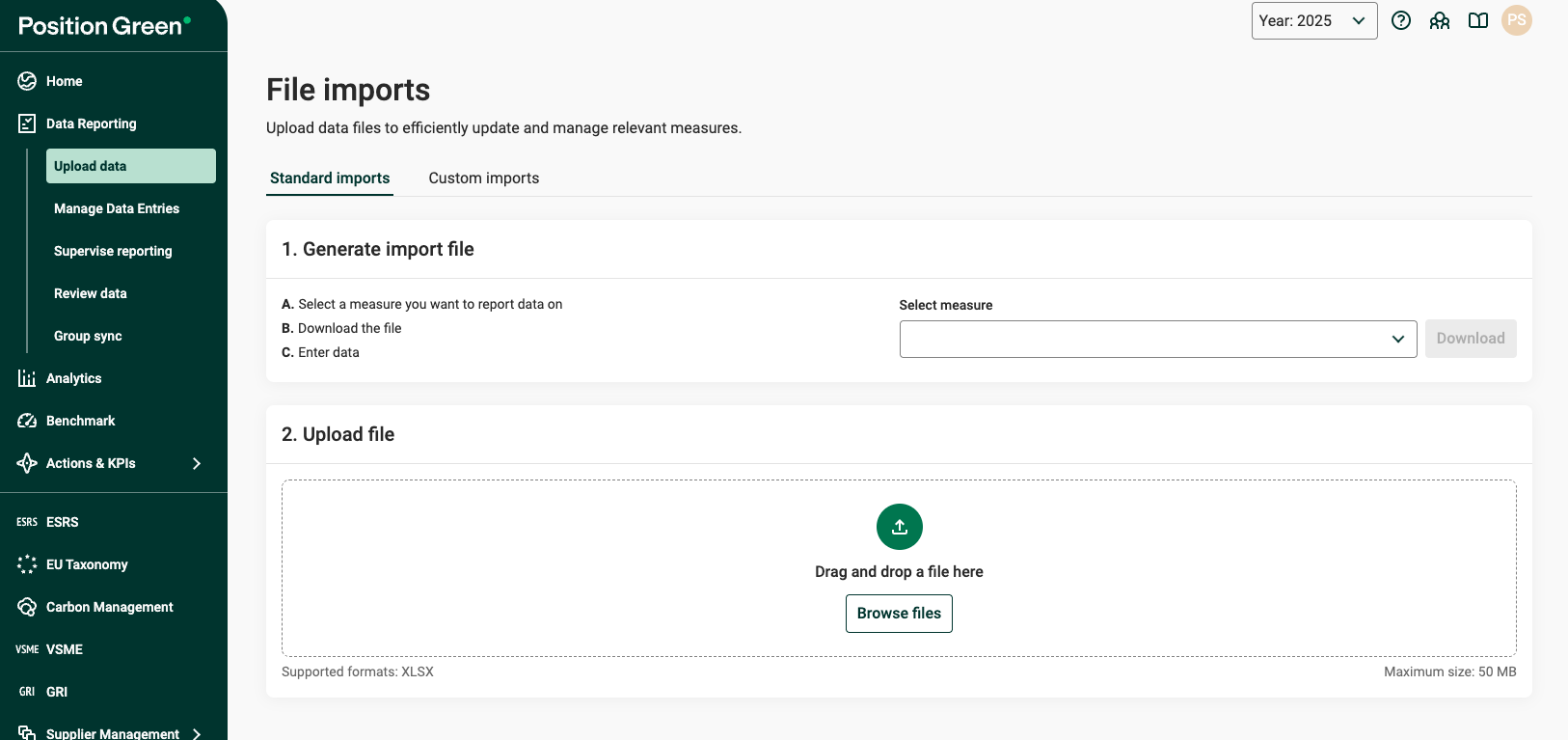
The Standard Import feature enables users to upload data using pre-configured, system-generated import file for supported measures.
Overview
Standard Upload allows users to:
- Download ready-to-use import files for specific measures
- Enter data with built-in validation
- Upload files without prior configuration
- Receive clear feedback during and after import
This functionality is available under Data Reporting → Upload data → Standard imports.
How it works
1. Generate a import file
- Choose a measure from the dropdown under Generate import file
- Click Download to retrieve the pre-configured Excel import file
2. Enter your data
- Fill in the spreadsheet using the provided structure
- Use built-in validations such as dropdowns to ensure correct input
3. Upload the file
- Drag and drop the file or click Browse files
- Maximum file size: 50 MB
4. Review and import
- Uploaded files appear under Ready to import
- Select Import Type if required
- Review the preview and confirm the import
Key improvements
- Automatic import file generation
Import files are created dynamically per measure and are immediately available to users - No configuration required
Import setup is auto-detected. Manual mapping and configuration are no longer needed - Built-in data validation
Import files include validations such as dropdowns to reduce errors at entry stage - Improved feedback
Enhanced preview and result views provide clearer insight before and after import - No need for prettyId
Measure identifiers are handled automatically
When to use Standard Upload
Use Standard upload when:
- The measure supports import file-based import
- You want a guided and validated data entry process
- You want to avoid manual configuration steps
Notes
- Only supported measures will appear in the file import dropdown
- Files must follow the import file structure to be successfully imported
- If a file requires manual matching, it will appear under Ready to import (requires manual matching)
- Import files generated by the feature Self-service imports can be uploaded as standard import files. You do not need to preselect a measure before uploading a file. Simply upload the file directly. If the system cannot automatically match the file to an existing configuration, it will appear in a list below the Upload file section. From there, you can manually select the appropriate configuration, similar to the previous workflow.
- If you import data to a registration that already has data in it, the registration will be overwritten with the latest imported data, you can find more information here: Import checklist, FAQ & Troubleshooting.
Was this article helpful?
That’s Great!
Thank you for your feedback
Sorry! We couldn't be helpful
Thank you for your feedback
Feedback sent
We appreciate your effort and will try to fix the article