Table of contents
To collect data from reporters, registrations must be generated. This is the last step in the setup process. Registrations must be generated to be live and published to reporters. Once a registration is generated for a measure, changes made to the measure are automatically visible in the Report data view.
To generate a registration for reporting, all connections between the 4 elements of the setup must be set up. If the setup is not complete, registrations appear under Registrations that cannot be generated with a reason text. When all prerequisites are fulfilled, registrations can be generated. Only measures that are not already published are generated.
Where to find it
Generating registrations requires the Controller role and access to the Setup application. Follow these steps:
1. Click the initials in the upper right corner and select Company setup.
2. Click Advanced and select Generate registrations.
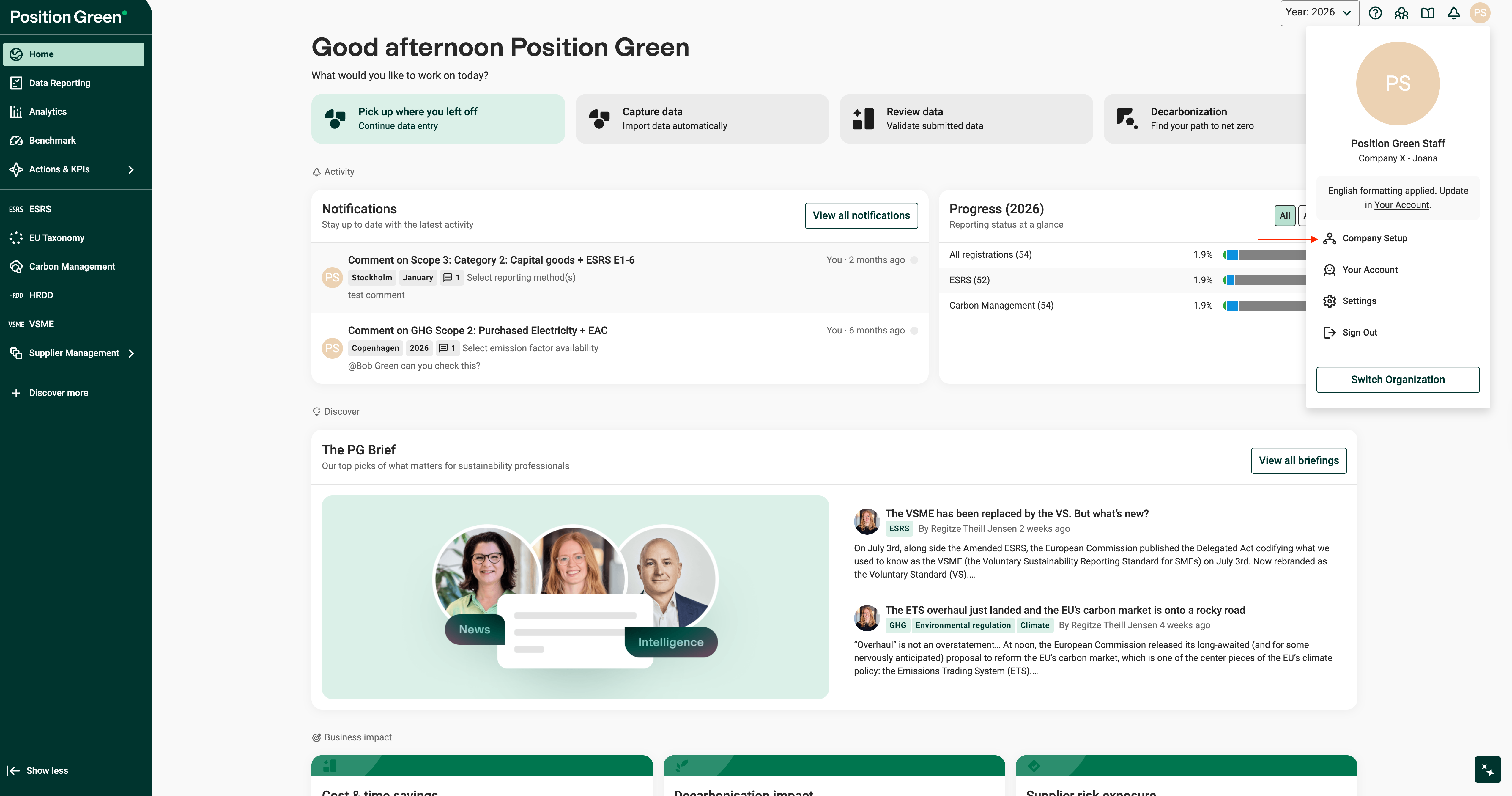
Company setup navigation
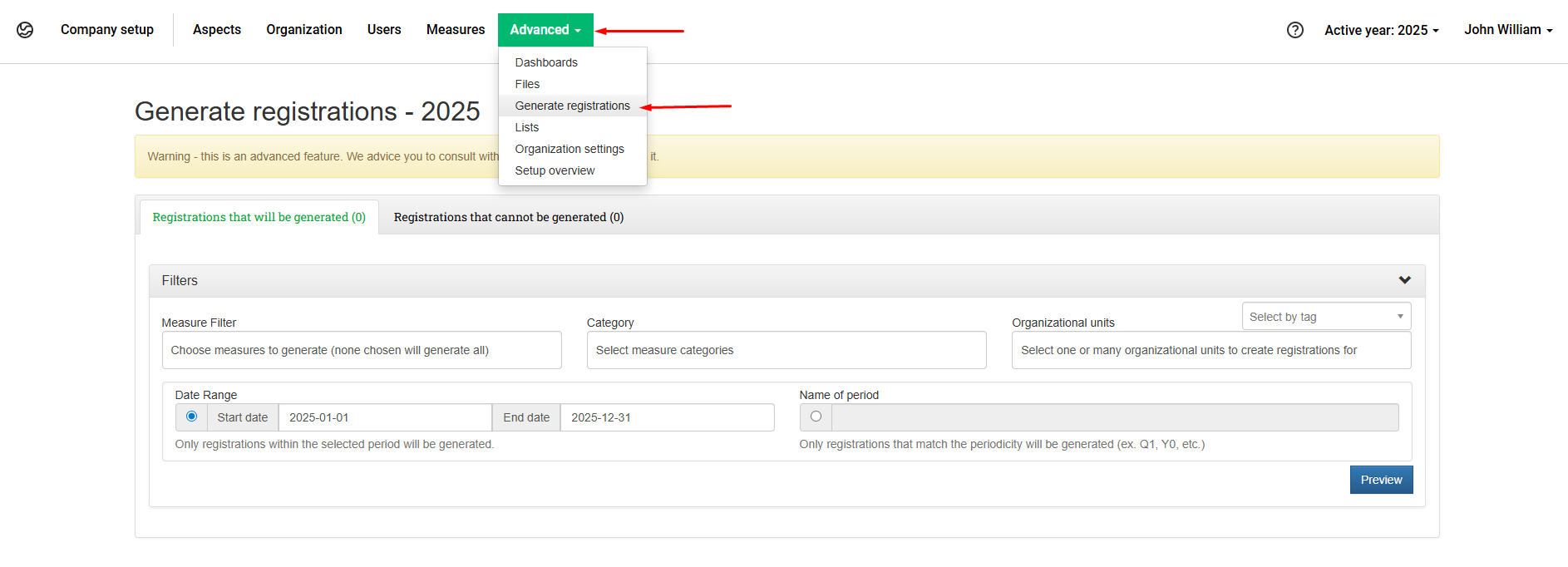
Find Generate registrations under Advanced.
How to generate registrations
Step 1. Identify items to publish by filtering to find the relevant org.units, periods, and measures to generate registrations for. If nothing is selected in the filter, the preview generates all registrations that meet the criteria.
Optional filters narrow down which registrations to create:
- Measure filter: Choose measures to generate registrations for.
- Org.units: Choose org.units to generate registrations for.
- Select by tag: Filter by unit tags.
- Select by tag: Filter by unit tags.
- Periods: A date range or a specific period:
- Date range
- Name of the period
- Date range

Filters selection overview
Step 2. Click “Preview” to view a list of all registrations with the following information:
- Measure name.
- Org. unit.
- Responsible: The person responsible for confirming data.
- Registration date: End date of the period.
- Period: According to the frequency in the organization.
Step 3. State a reason for generating registrations. The reason is collected and saved in a log for audit purposes.
Step 4. Click “Generate” to allow reporters to view registrations and begin reporting. If generated registrations are not visible to reporters, the reporting year may not be visible yet. Read more here.
Was this article helpful?
That’s Great!
Thank you for your feedback
Sorry! We couldn't be helpful
Thank you for your feedback
Feedback sent
We appreciate your effort and will try to fix the article