Table of contents
- What is Review data?
- Key features and how to use them
- Who has access to Review data and Review status in the organization?
Use the Review Data view under Data Reporting in the main menu to browse and assess collected data across the organization more efficiently.
What is Review data?
The Review Data view provides a centralized and organized overview of all collected data from all org.units in one place. It is designed to streamline the review process.
Key benefits include:
- Quickly identify and act on data issues. The platform highlights
- Deviations: Differences between the selected reporting period and the reference period.
- Self-confirmed data: Data which same person has both entered and confirmed.
- Get an overview of the reviewing progress based on the review status of data points.
- Update the review status on multiple data points across multiple questions at the same time.
- Faster feedback loops between controllers, responsible reporters, and auditors.
- Browse and search: Easily find specific data entries using various filters and search.
- Trace data and inspect details: Dive into individual data points to see all associated information and activity logs.
- Prepare for analysis and auditing: Export selected data for deeper analysis in spreadsheet tools, such as Excel.
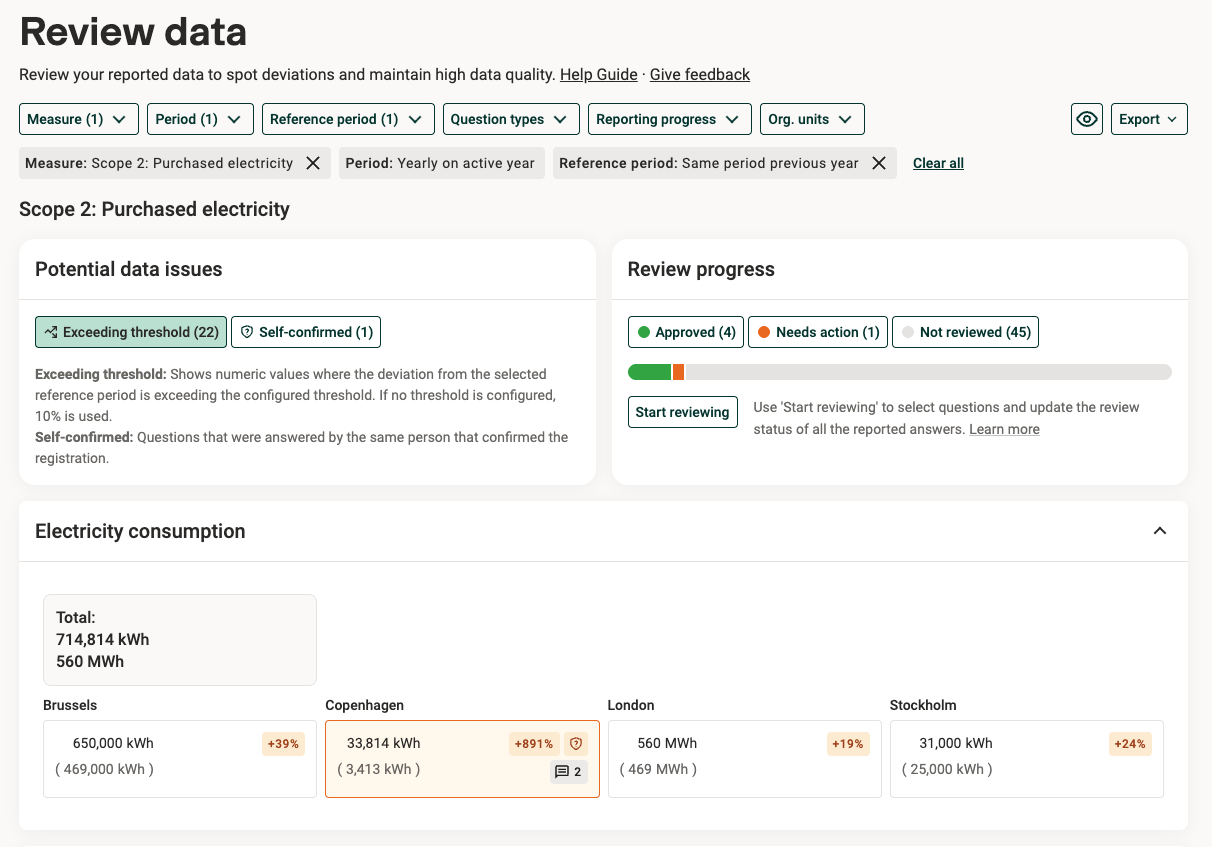
Key features and how to use them
Find and act on data issues
Deviations and numeric questions
See the "Potential data issues" section. Click “Exceeding threshold” to filter the results on data points where the deviation from the selected reference period is above the configured threshold.
If a threshold is configured for the setup, a measure or a specific data point, it is applied to the numeric values. Otherwise, a default threshold of ±10% is applied in Review data.
- Hover the deviation to see what threshold it compares to.
- If the difference is larger than 1000%, it is tagged as ">999%".
- If the reference period value is 0, the difference is tagged as "Diff".
Current limitation: Deviations are not available for the question type “Repeatables” if your templates do not include row identifiers to match data between periods.
Self-confirmed data
See the "Potential data issues" section. Click Self-confirmed to filter the results on data points that were answered by the same person that confirmed the registration.
- Tip: Combine Self-confimed filter with the Review progress filter, to show only self-confirmed points that "Needs action" or are "Not reviewed".
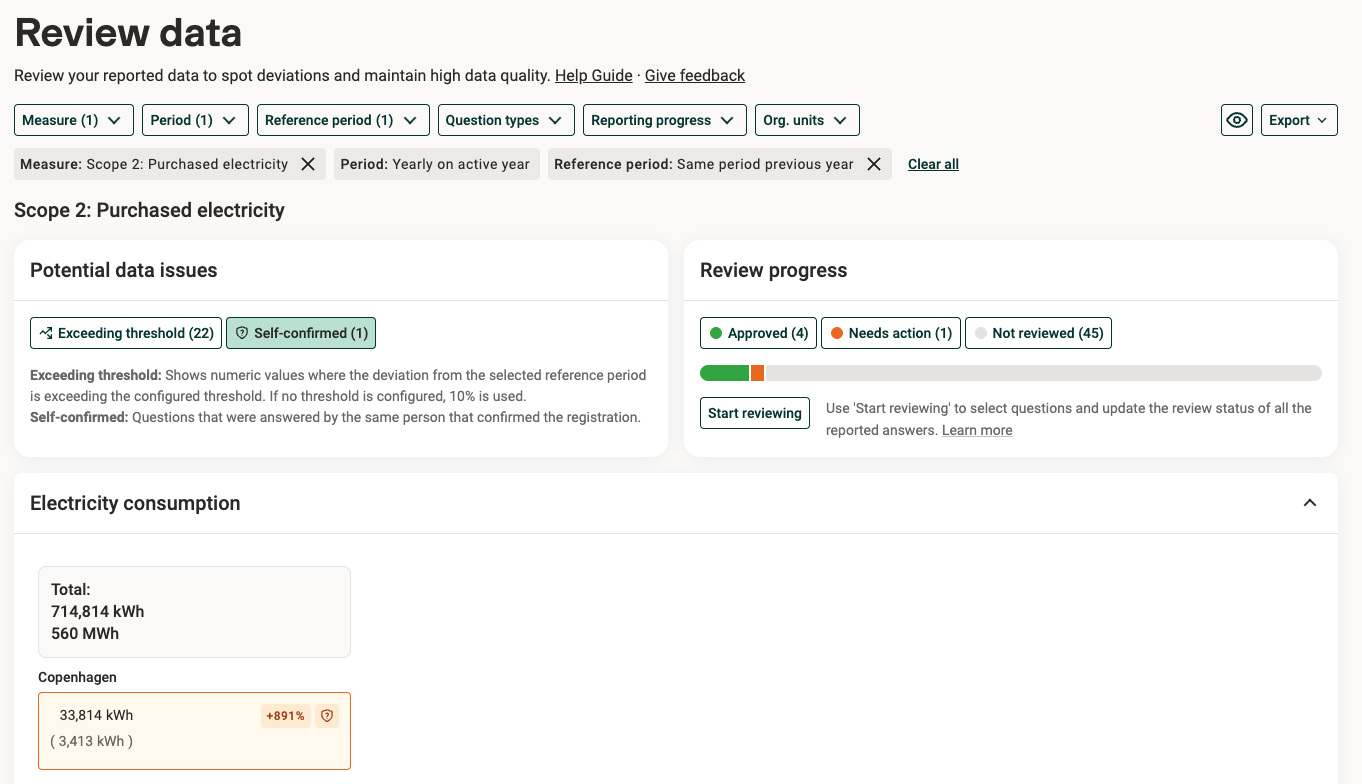
Tips
- Use the "Question type" filter and/or "Org.units" filter to review a subset of questions or business units.
- To detect deviations automatically, make sure the “Show deviations” checkbox (under the eye icon next to the filters) is enabled.
Non-numeric questions
Differences are tagged in yellow with “Diff”. Use the "Question type" filter.
Filters
Use filters and search options to focus the data view. Available filters currently include:
- Measure
- Reporting period
- Reference period
- Question type
- Numbers, Calculated numbers, Texts, Yes/No questions, Dropdowns, Dates, File uploads
- Repeatables: Exclude repeatables, Show only repeatables
- Reporting progress
- Filter on: Not started, In progress, Ready to confirm, Confirmed.
- Organizational units
- Tip: Toggle on "Select all subunits" to select trees of org.units, e.g. all offices in a country.
To request additional filter options, send feedback to Position Green.
Data sections
After a measure is selected for review, an interactive list of expandable data sections is shown:
- Each section represents a question (data point). The order follows the structure in the data registration.
- Only the first section is expanded by default; others can be expanded as needed.
- Each card displays data from a specific org.unit for a particular data point:
- Line 1: Data from the reporting period.
- Line 2: Data from the reference period (if selected).
- For numeric questions, values smaller than 1 are displayed with decimals rounded to one significant figure. For more details, open the registration via the Details panel.
- Comments on data points: Marked with a speach bubble icon.
- Self-confirmed data points: Marked with a shield icon.
- Synced: If data has been synced from other setups with Group Consolidation, the label “Synced” is shown.
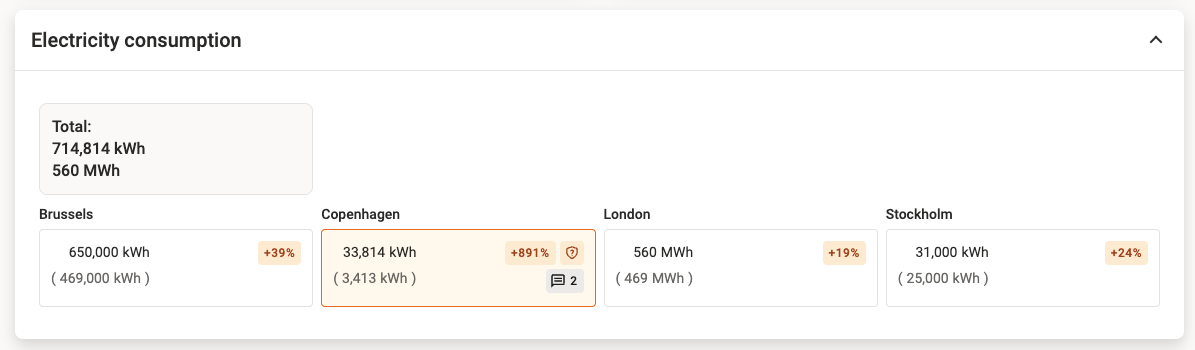
Examples of cards in the dat section in Review data.
Details panel
Clicking a card opens a side panel with in-depth information:
- Basic information about each answer
- Who is responsible and who has done each step in the reporting process:
- Responsible: The person who is the responsible reporter for this registration.
- Last edited: The person who did the last edit to the data point, e.g. a collaborator. A visual indicator is shown when the same user has entered and confirmed data.
- Confirmed: The person who confirmed the registration.
- Reviewed: The person who did the last review status update to the data point, and what review status (Approved / Needs action / Not reviewed).
- Comments. Access the same conversation that is available on each data point in the "Data registration" view. Controllers and auditors can ask questions and mention any users with access to the registration, or use comments to make notes at data point level.
- Related data and data source. If the data was not entered manually, the data source will be presented and linked.
- Activity log on updates made on the data point level
- Drill down into details - Click the link icon next to the heading to view the measure in the Data Registration view.
- Review data points - To keep track of which data points have been reviewed, click the Review button and flag a data point as Approved or Needs action.
- Data points reviewed as Approved turn green.
- Data points reviewed as Needs action turn yellow.
- By default only controllers, org.unit controllers and auditors can review data points. By a setting this can be limited to only controllers.
- All users with access to a measure can see the Review status and the name of the reviewer in the Data registration view and the Activity log.
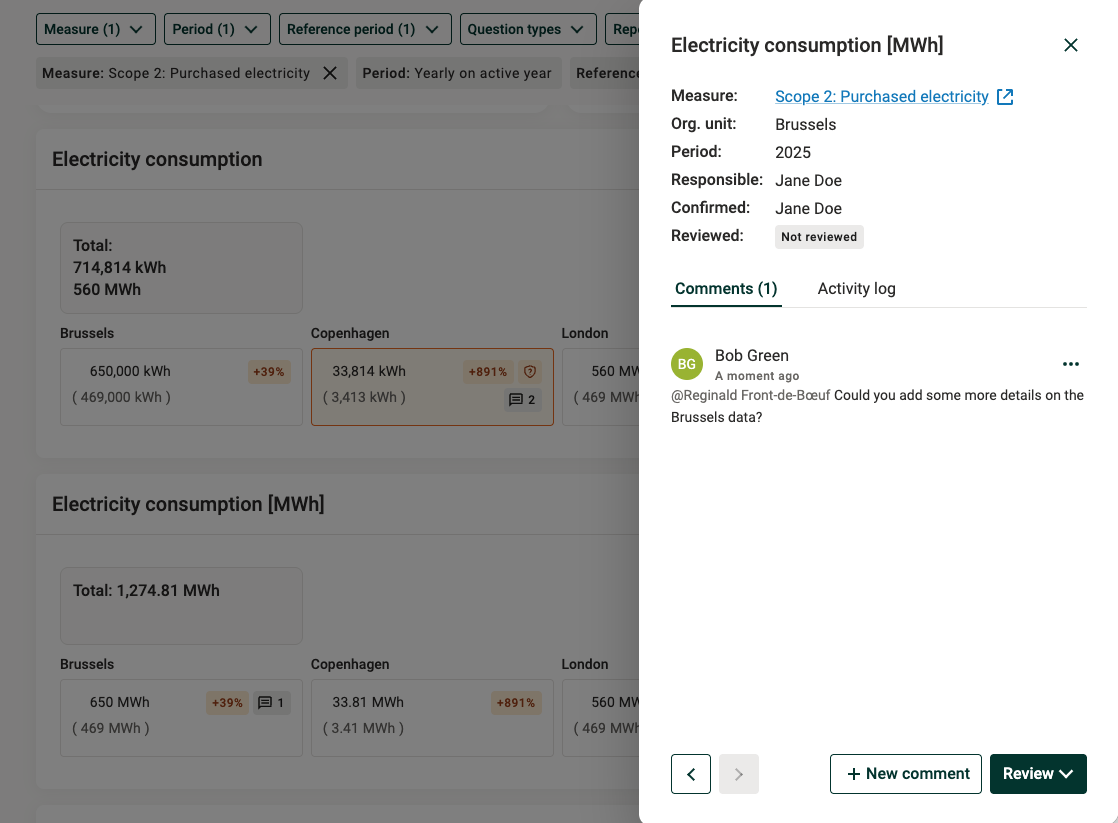
Example of details panel in Review data.
How to get started with reviewing a measure
- Select a measure and a reporting period.
- Change the reference period filter to compare the data against another reporting period.
- Use the org.units filter to narrow down the view. (Note: Disabled org.units do not report on the selected measure/period.)
Tip: Activate the "Select all sub-units" toggle to select specific branches of the organizational structure.
Review progress
To keep track of which data points have been reviewed (as Approved or Needs action), either review single data points in the details panel (where comments are also found) or review multiple data points at the same time.
Tip: To review a subset of org.units or questions, filter on those criteria before starting to review.
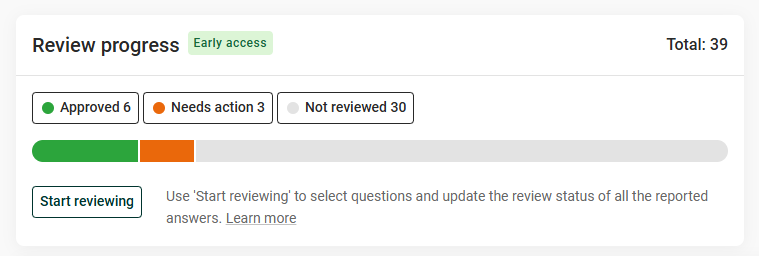
Review progress box
Total: The total count of all data points currently shown in the measure. The selected filters affect this number.
Distribution of data points by review status: Approved / Needs action / Not reviewed
Filter by review status
Click Approved / Needs action / Not reviewed to filter, for example to show only data points set to "Needs action".
Note: To update the review status of multiple data points, apply the filters before starting to review.
Start reviewing
To update the review status for multiple data points at the same time, click “Start reviewing” and select one or more questions (data points).
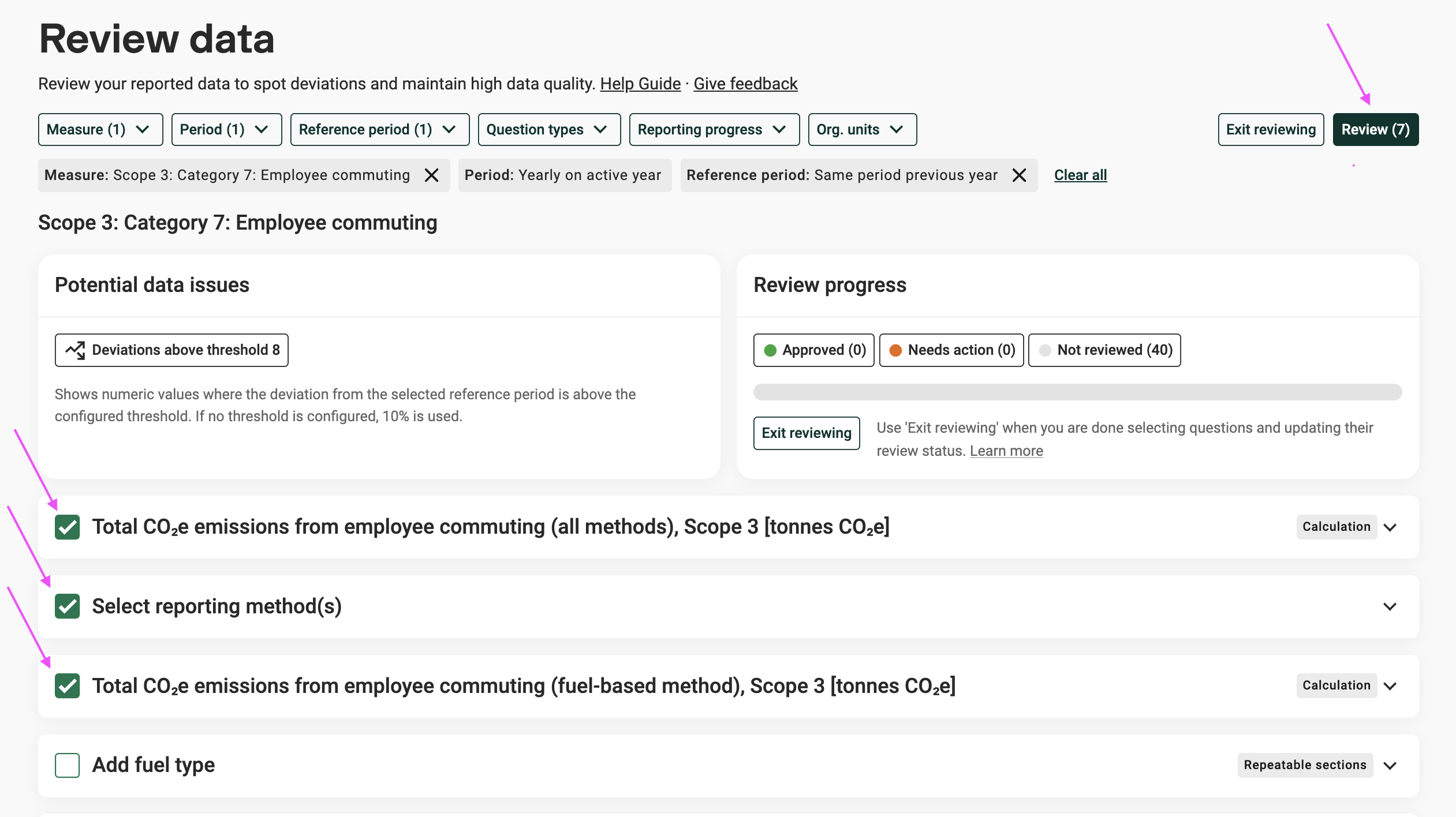
“Start reviewing” button
Selecting a question will mark all its data points containing data. Data points waiting for data cannot be given a review status. The number of marked data points that will be updated is shown in the “Review” button in the upper right corner.
After selecting all questions to give a specific review status, click the “Review” button and select the review status. All marked data points get the same review status.
- Data points reviewed as Approved turn green.
- Data points reviewed as Needs action turn yellow.
Changing filters resets the selection of questions to avoid accidentally setting an incorrect review status.
When done updating the review status for multiple questions, click “Exit reviewing” in the Review progress box.
Tip: For traceability, all updates of review status are visible in each registration’s and data point's Activity log.
Exporting Review data to spreadsheet
After filtering and refining the view, export the data for further analysis or reporting.
Download as Excel
There are two options:
- Basic export
- Includes data, reference period data, unit and diffs.
- Is downloaded immediately when clicked.
- Full export
- Also includes details on status, comments and involved users. Suitable for traceability needed in auditing.
- This export might take a few minutes. An email with a link to the Excel spreadsheet is sent once it is available.
Current limitation with the export:
- Filters set for deviations and review status are not applied, but the data is included in the export so it can be filtered in Excel if needed.
(Alternative: For customers with data synced with older version of Group Sync assistant - Generate table and Download spreadsheet in Tabulate
Note: Once the updated Group reporting functionality is enabled and previously synced data has been migrated, Download as Excel is enabled.
Meanwhile:
- Click “Generate table” to create a custom Tabulate table based on the active filters.
- In Tabulate, the data can be adjusted, e.g. by adding or removing columns.
- Current limitation: The generated table does not include reference period data, deviations or comments.)
Who has access to Review data and Review status in the organization?
Access to Review data is based on each user's role in the Position Green setup:
- Controllers: See data from all org.units.
- Org.unit controllers and Auditors: See data from the org.units they have access to.
- Reporters and Collaborators: Do not have access to Review Data by default. Upon request, reporters in the setup can get access to Review data. Contact the Position Green team if relevant.
Access to edit Review status
By default, controllers, org unit controllers, responsible reporters and auditors can edit Review status. To restrict this to controllers only, use the setting under "Settings > Registrations > Validations > Review status".
Questions or suggestions about the Review data view? Contact Position Green support.
Was this article helpful?
That’s Great!
Thank you for your feedback
Sorry! We couldn't be helpful
Thank you for your feedback
Feedback sent
We appreciate your effort and will try to fix the article