The Settings section in Position Green allows users and administrators to configure personal preferences, manage system integrations, set data quality controls, and customize platform communications.
TABLE OF CONTENTS
Accessing Settings
To navigate to Settings, select your profile initials or user icon located at the top-right corner of the screen, then select Settings from the menu.
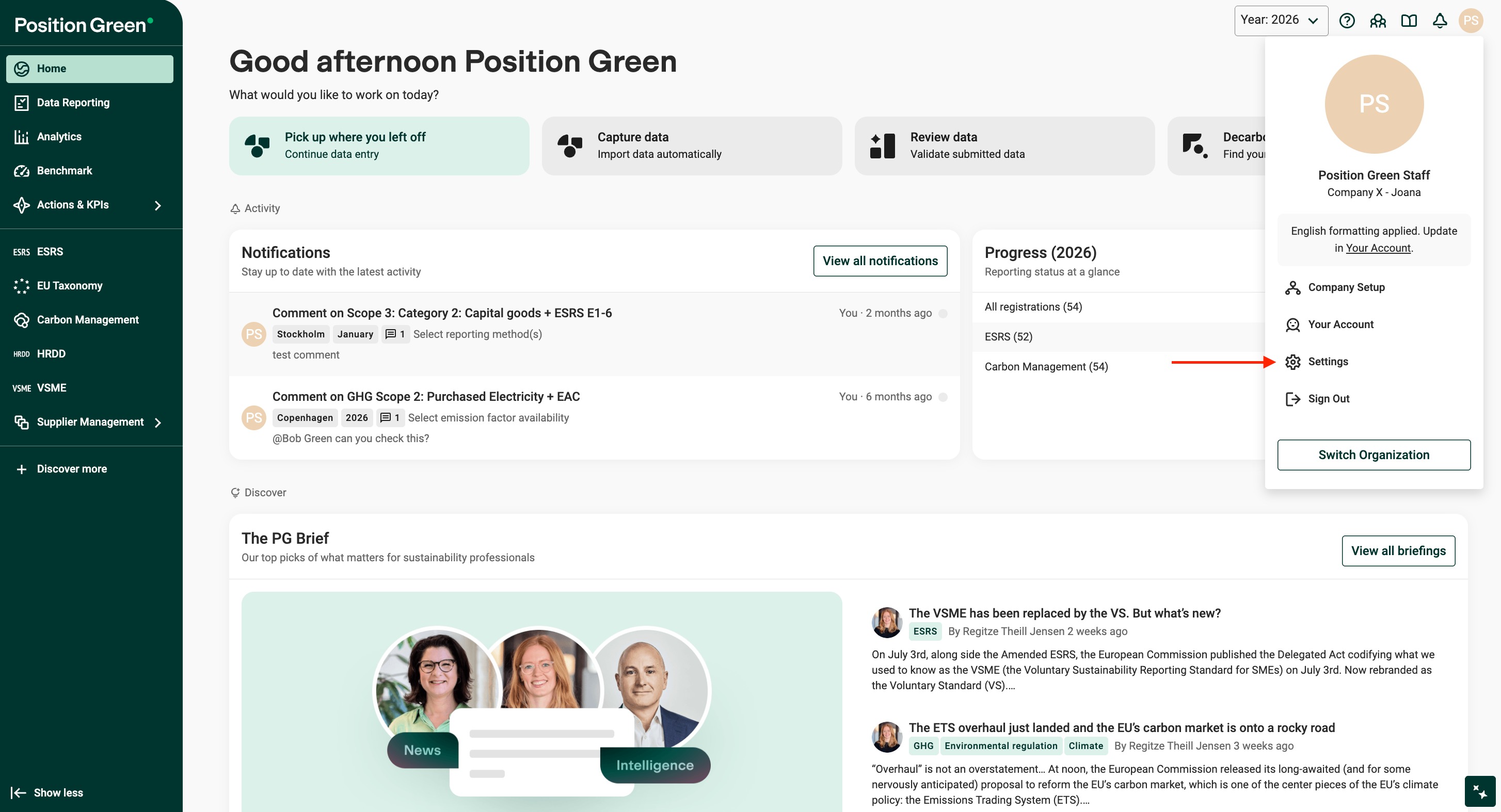
Your Settings
Notifications
Manage your personal notification preferences to stay informed about reporting activities.
- Reporting progress notifications: Enable or disable automatic notifications that alert you whenever a reporter completes all reporting for a given period.
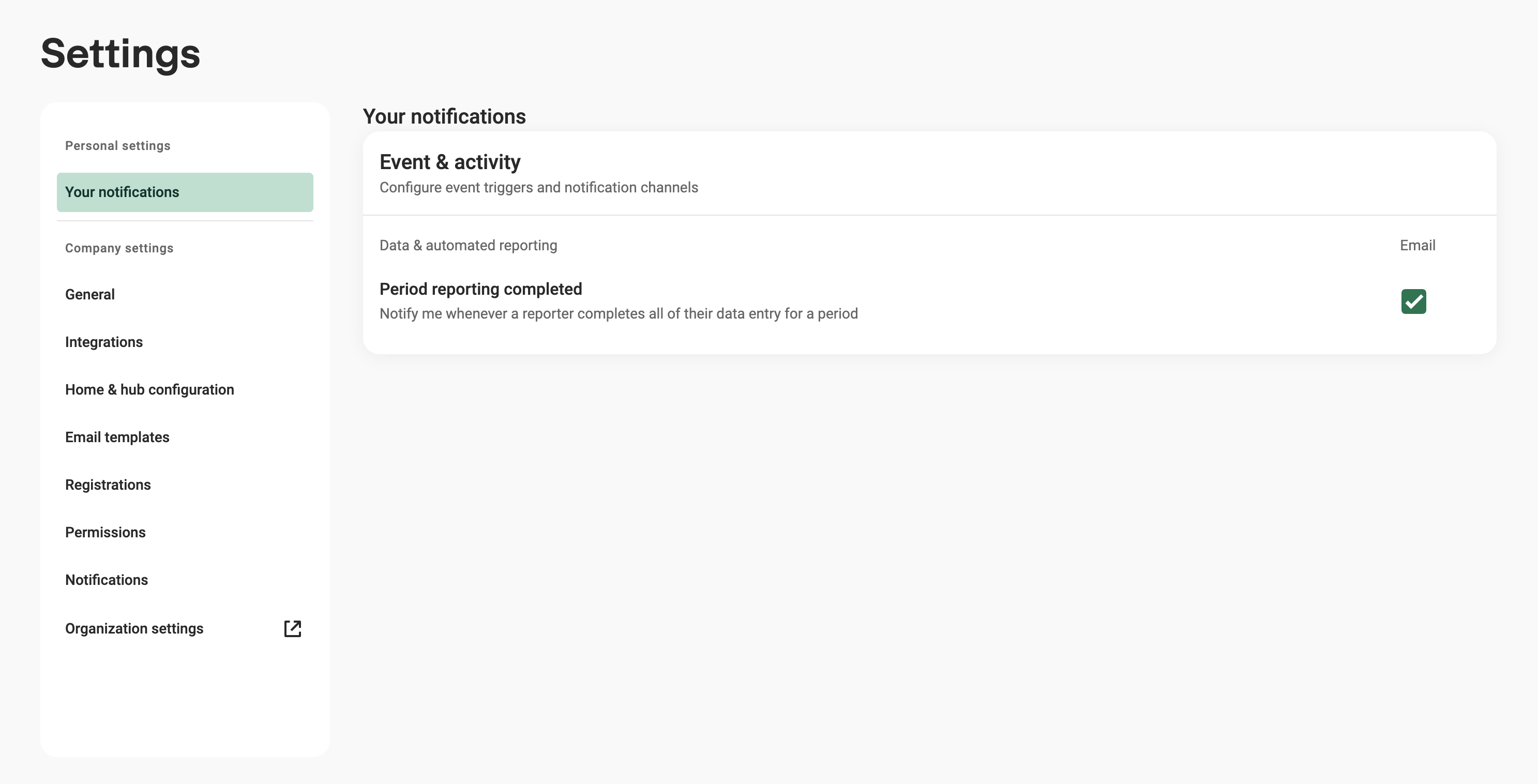
Notifications settings view
Company Settings
1. General
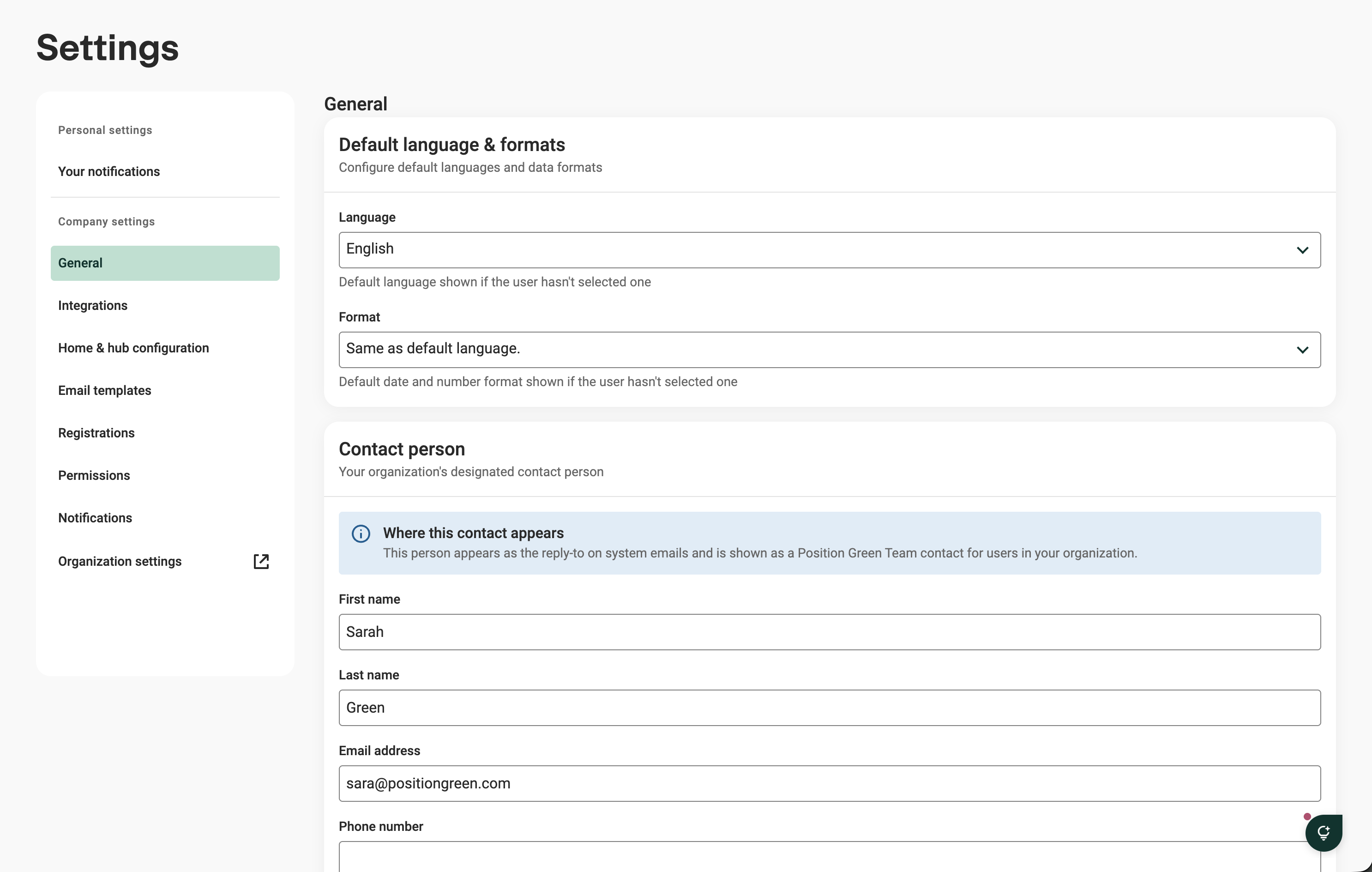
Set default language, contact person and logo for your organization.
- Language - Default language shown if the user hasn’t selected one: With this setting you can change the default language for your Position Green site, however users will be able to change their profile language in Your account.
- Format - Default date and number format shown if the user hasn’t selected one:
Format for numbers, dates, and time - With this setting you can select the default formatting for your Position Green site, however users will be able to change their preferred formatting in Your account.
- Contact person: Set the designated contact person for your organization
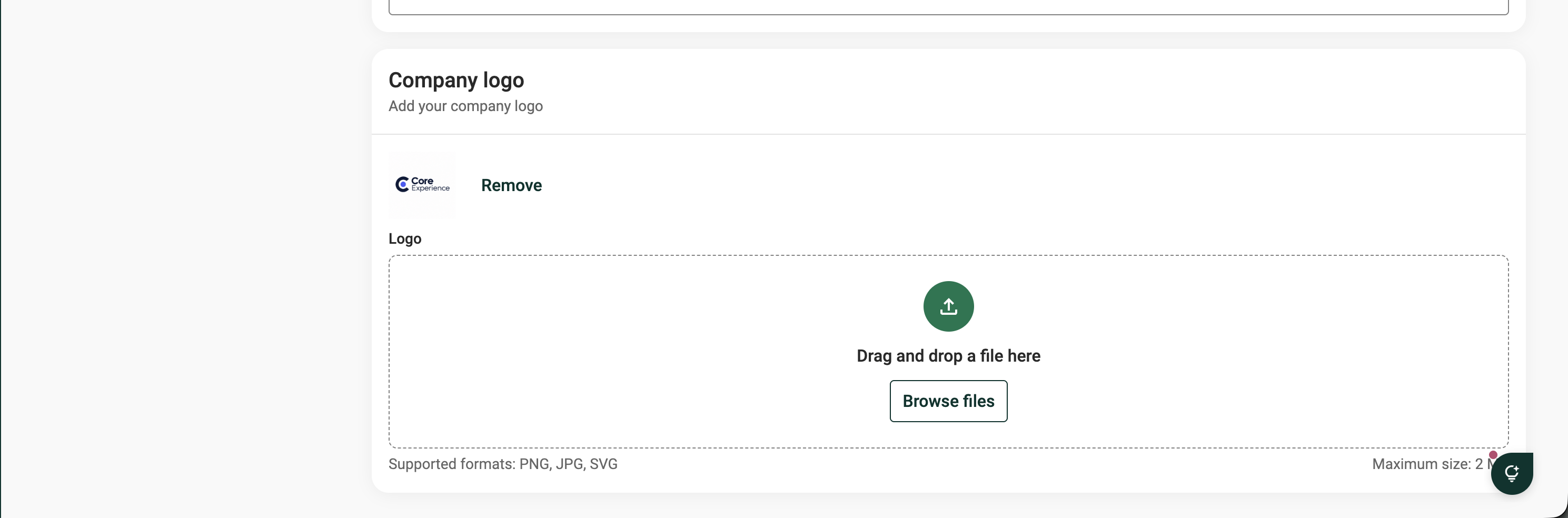
- Company logo: Upload a logo for your organization
2. Integrations
Manage external applications connected to your Position Green platform. You can view the status of connected services (such as HiBob, Metry, or Microsoft Dynamics 365 Business Central) and see when data was last synchronized. Additional services like Amazon S3, Arcadia, Azure Blob Storage, Bamboo HR, and Elhub Statnett are listed here.
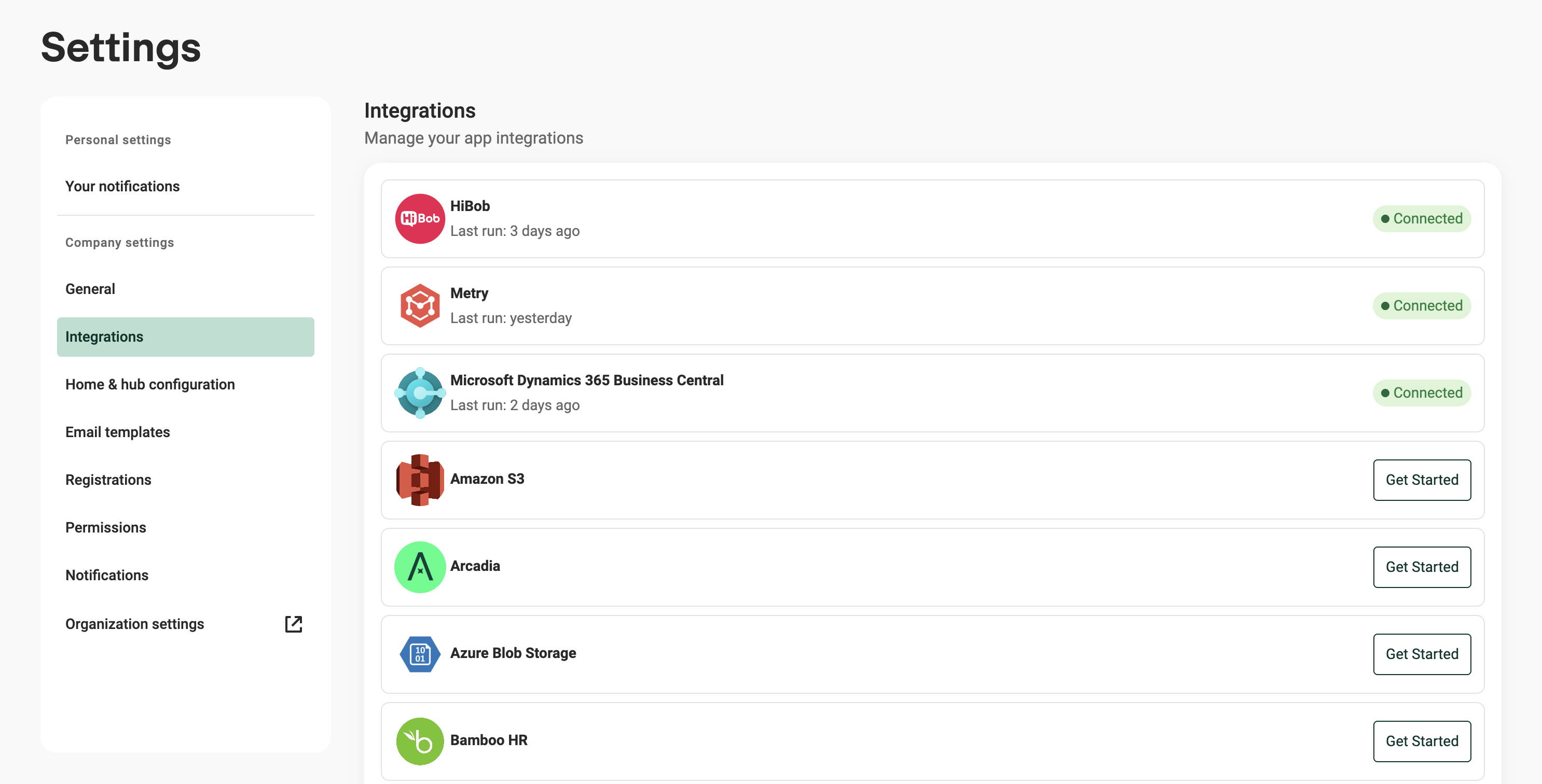
Integrations settings view
2. Home & Hub configuration
Customize default display rules and metrics for your organization's dashboard and management hubs:
- Overdue Limit: Set the threshold (in number of days) after which an incomplete data registration is marked as overdue.
- Carbon Management Hub: Expand and configure display preferences for specific indicators, including Emissions per unit of revenue, Emissions per employee, Data quality, and Methods for Scope 3.
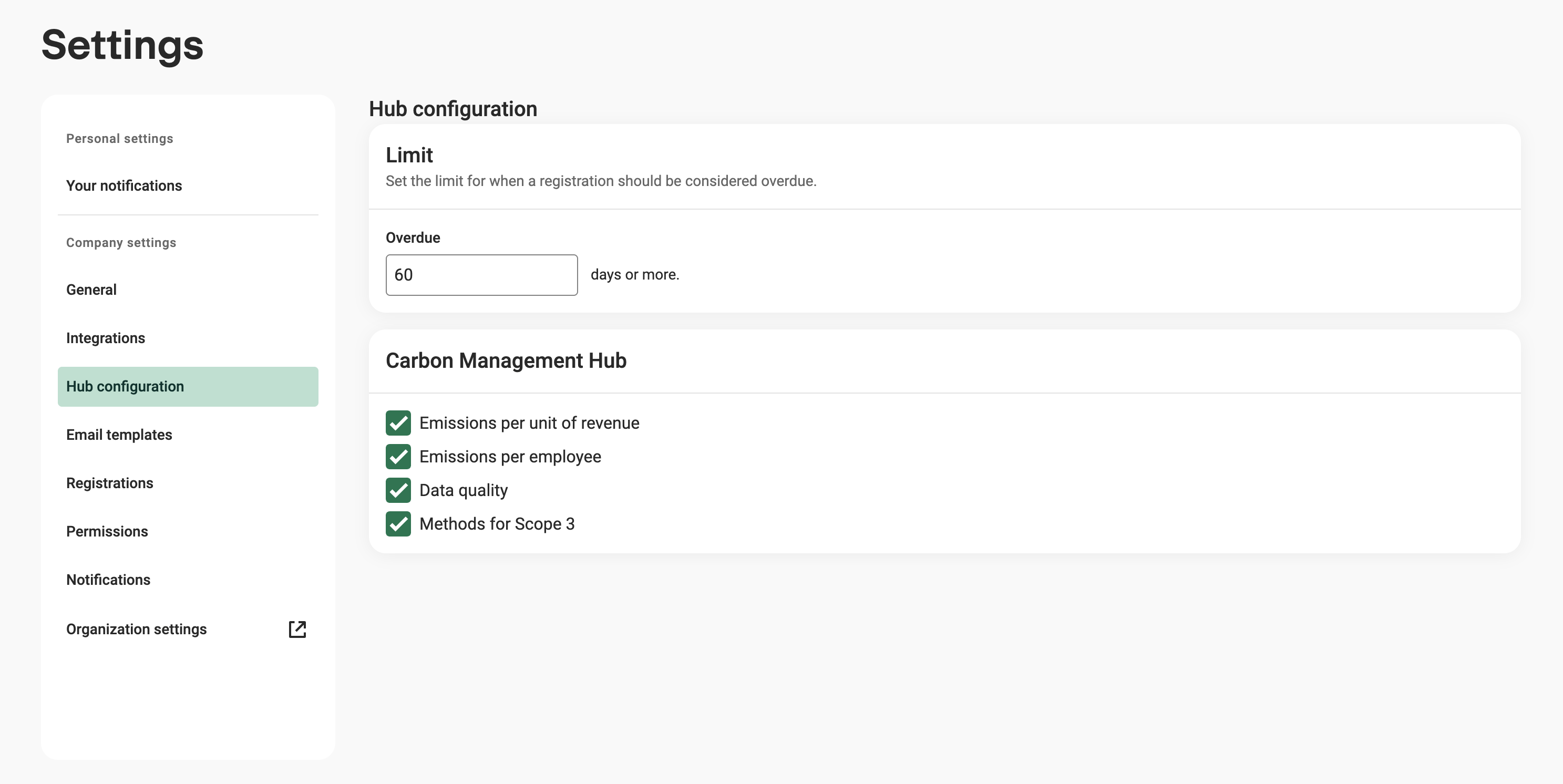
Home & Hub configuration settings view
3. Email templates
Review and manage standard and custom email communications sent automatically by the platform to users. This section includes notification types such as:
- Automatic reporting reminders
- Migration and module updates
- Collaboration invites and reminders
- User invitations and registration confirmations
Each template displays its intended description, link expiration period (such as 30 days), and whether a custom override is active.
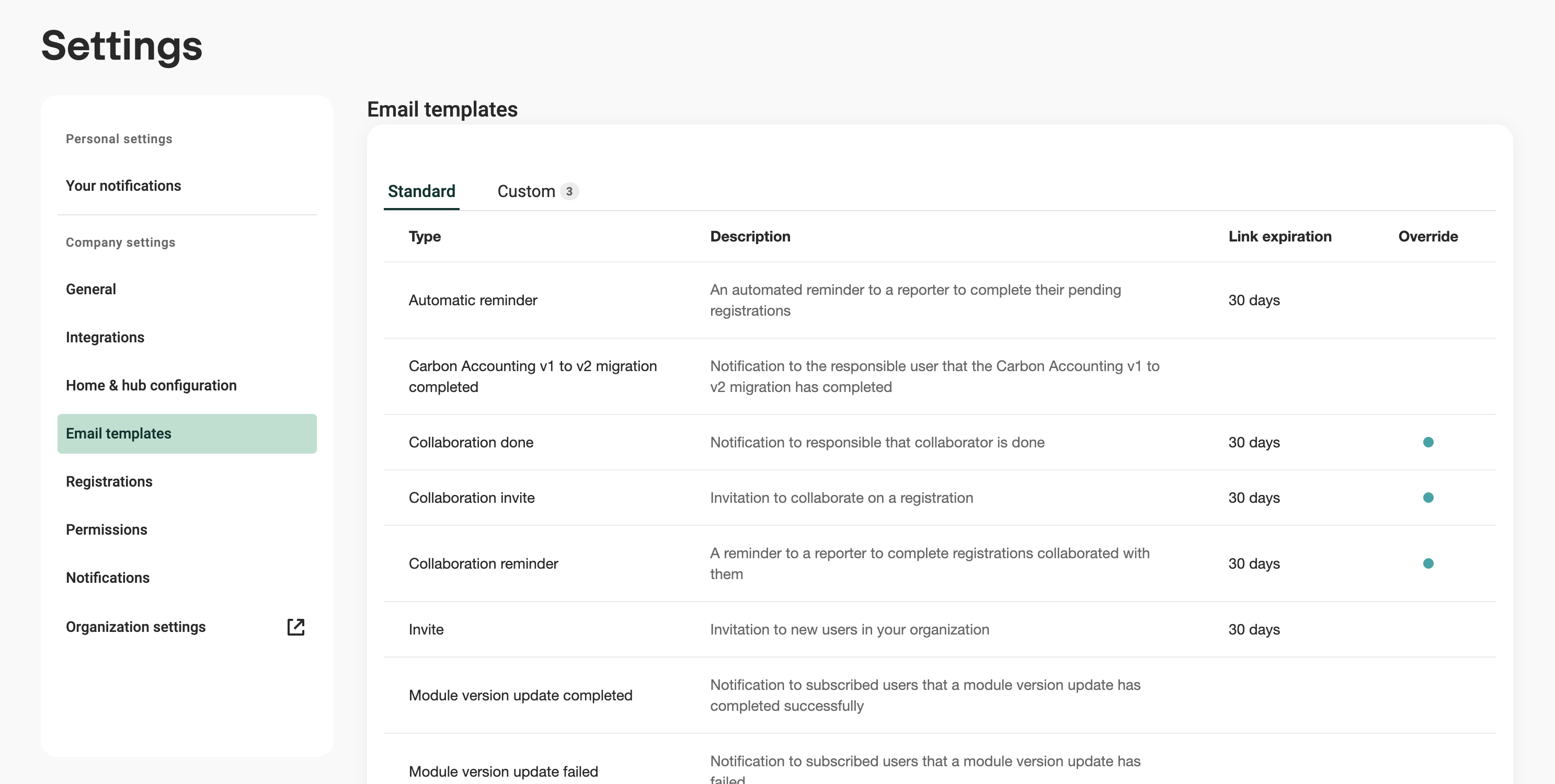
Email templates settings view
4. Registrations
Configure general rules for data reporting quality across all organizational units and reporting periods:
- Historical comparison: Set a baseline percentage threshold to highlight unusual values in registrations across all measures (default starting point is typically 10%). Specific thresholds set on individual measures during setup will take precedence over this baseline.
- Validation: Configure rules to ensure data integrity.
- Four-eyes principle:
- Warn reporters when they attempt to confirm a registration where they submitted the data themselves.
- Prevent reporters entirely from confirming registrations where they submitted data themselves.
- Four-eyes principle:
- Previous Data Visibility: Enable or disable the option to allow all users to view previously reported historical data.
- Reporting instructions: Add a message that will be shown above the registrations in the data reporting page. Use HTML to format the appearance of the message.
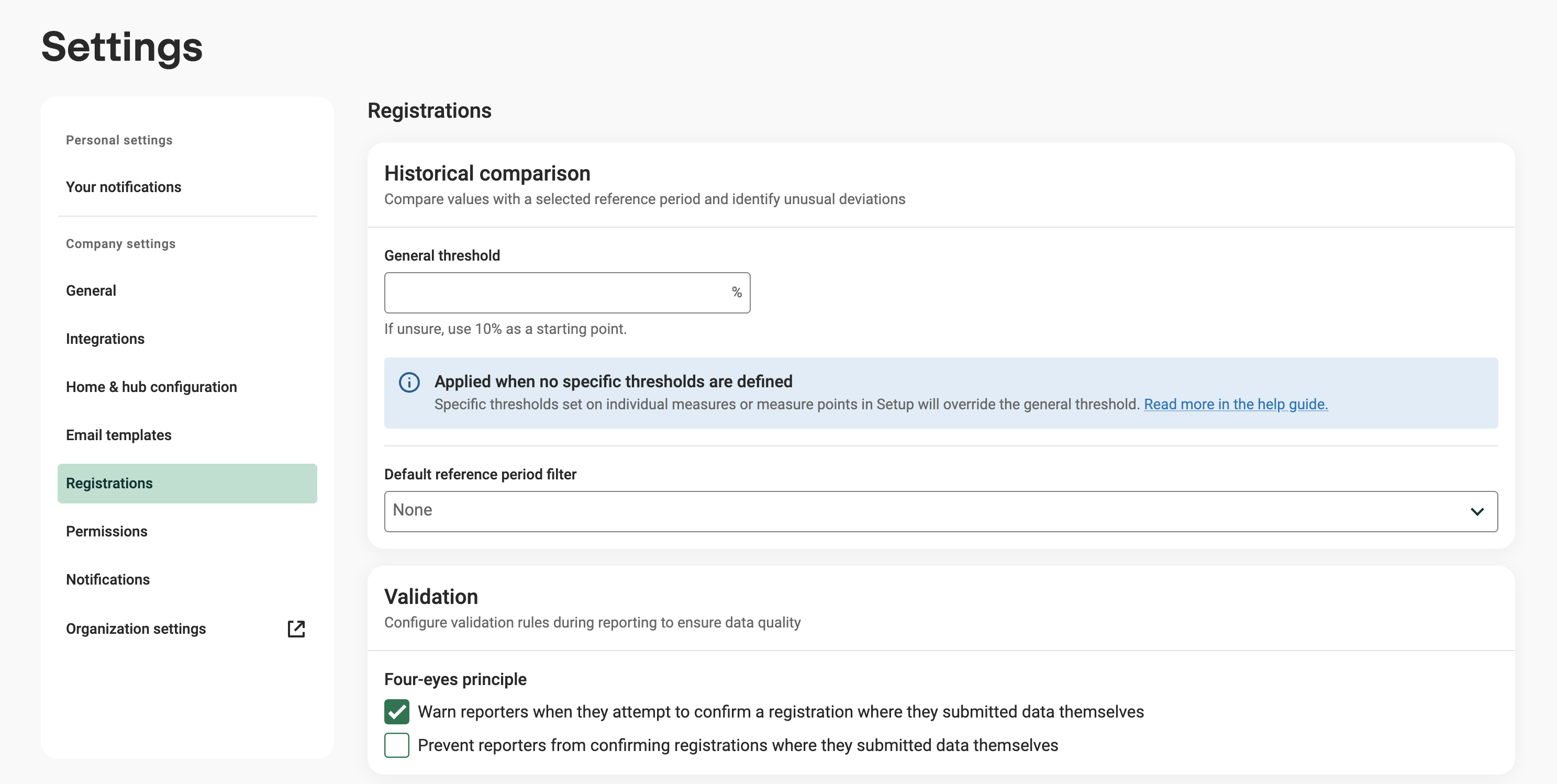
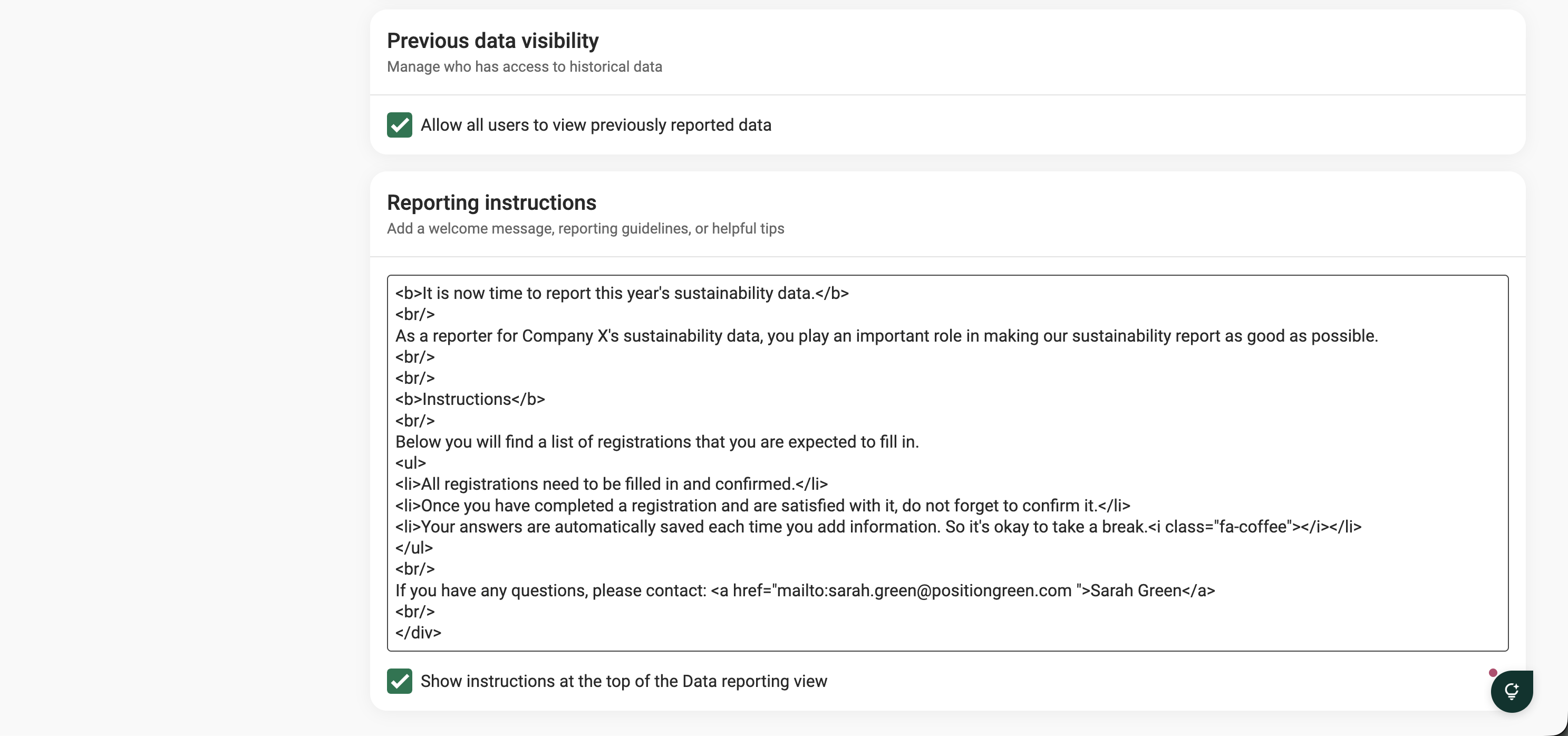
Registrations settings view
5. Permissions
Configure user access in the organization
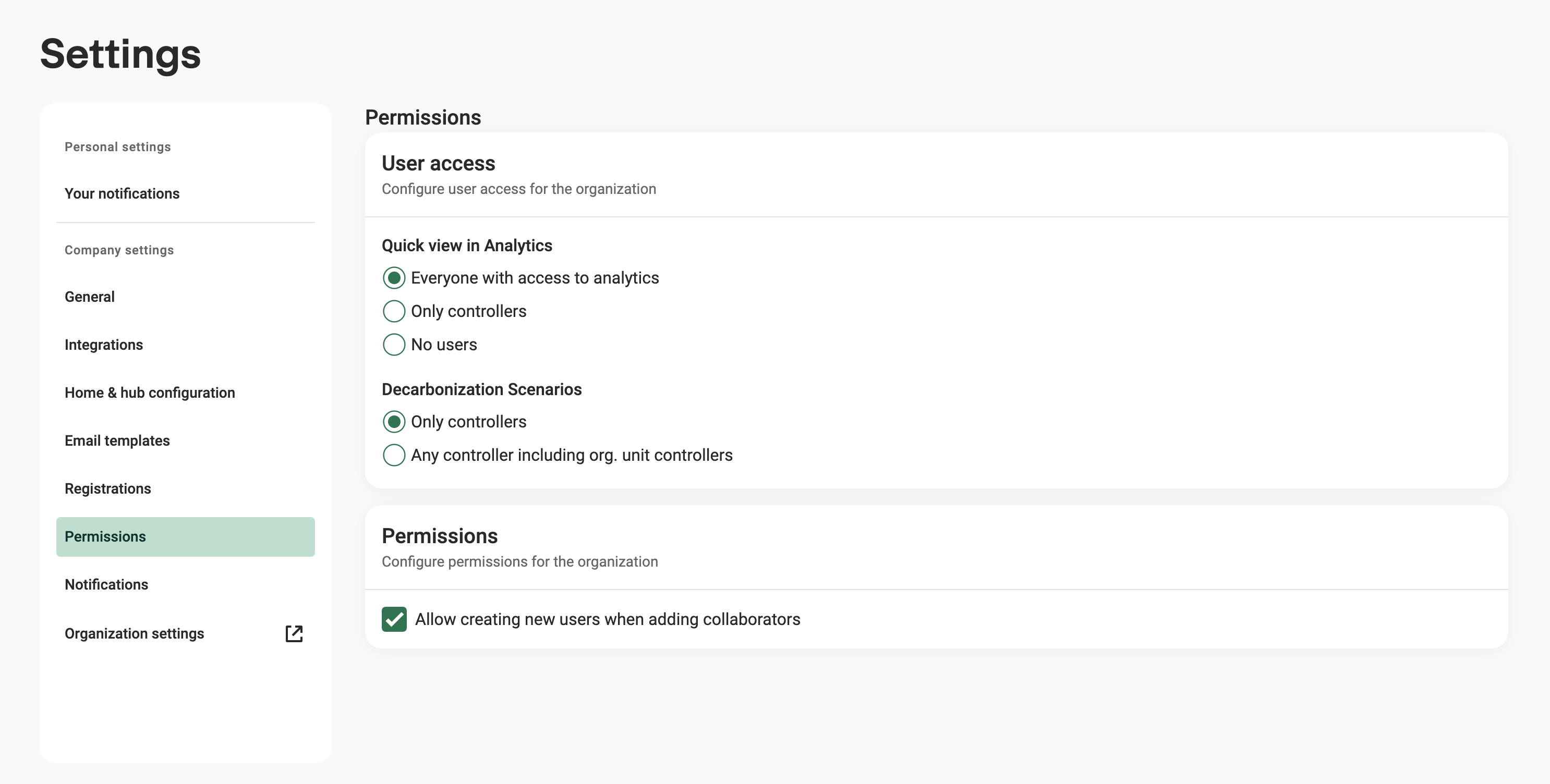
- Quick view in Analytics: This governs which role group have access to quick view in Analytics.
Decarbonization Scenarios: This govern which role groups should have access to decarbonization scenarios.
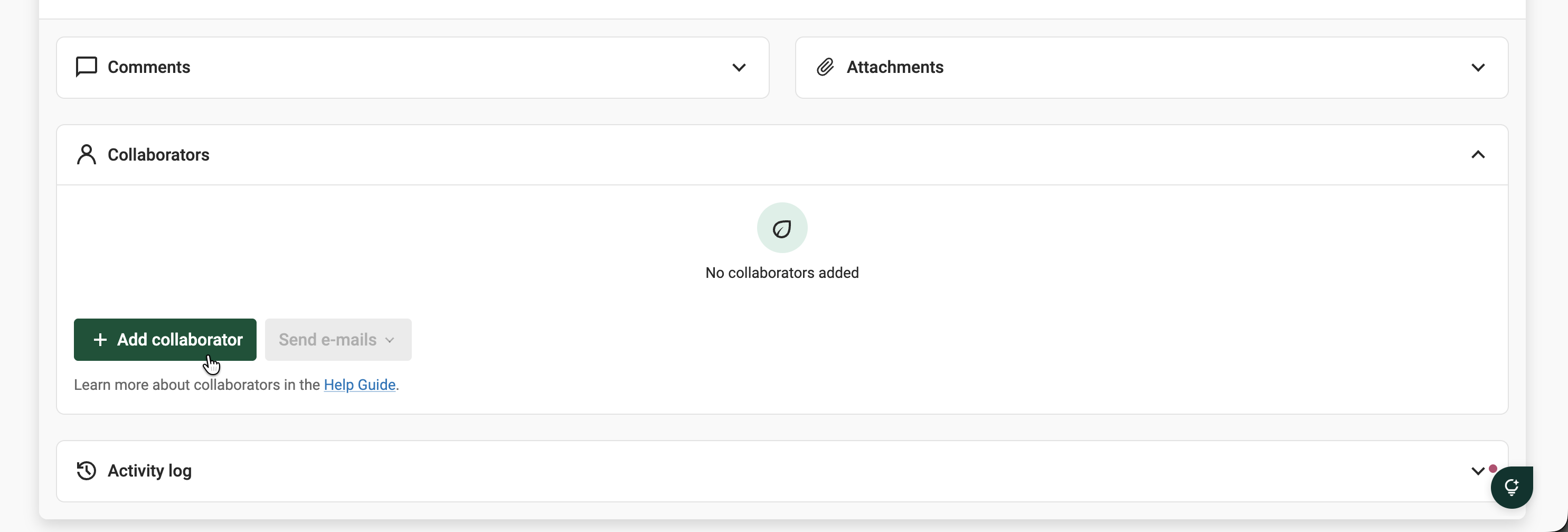
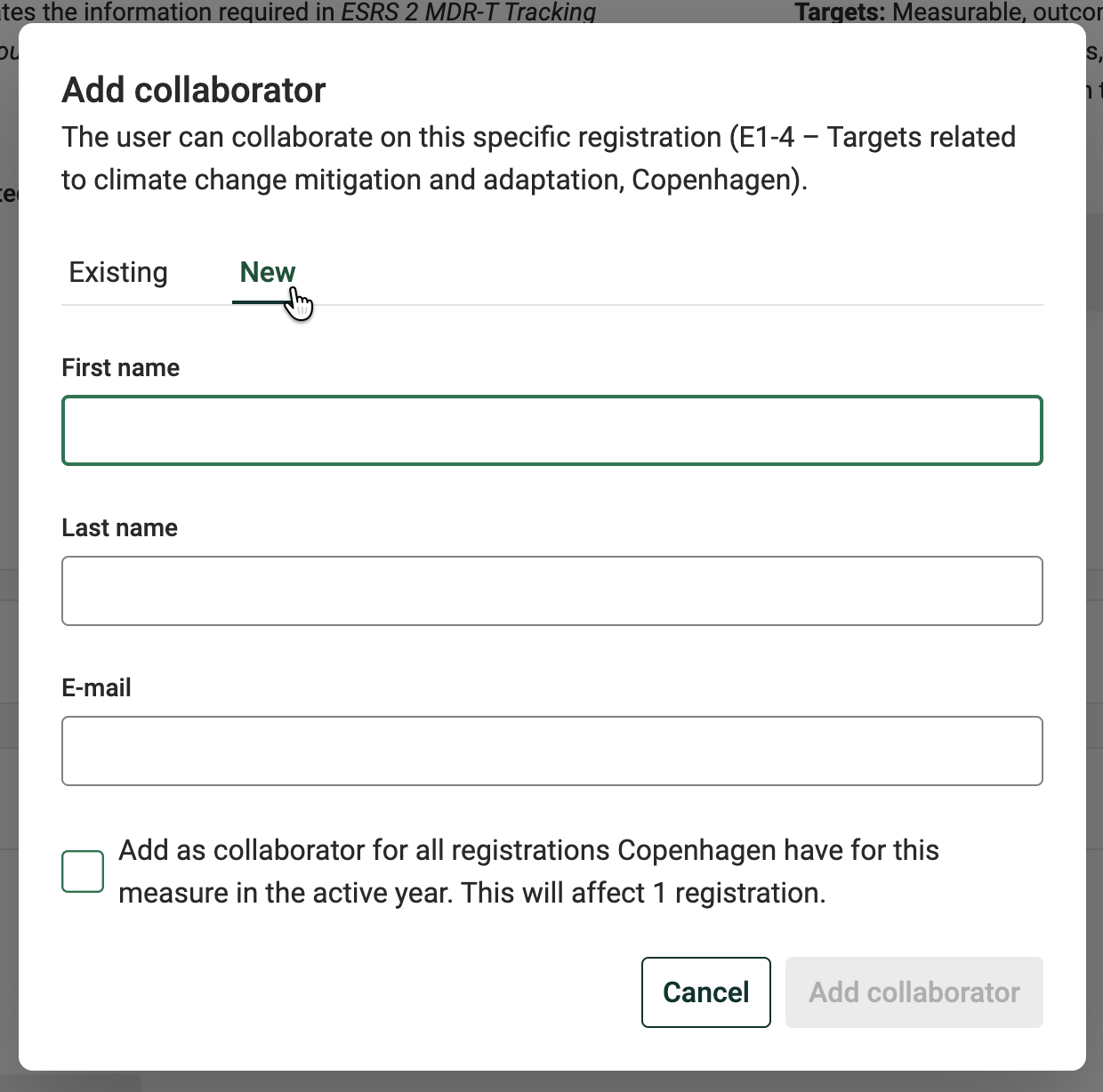
Allow creating new users when adding collaborators: Allows for new users to be created by reporters when establishing a collaboration, see screenshots below.
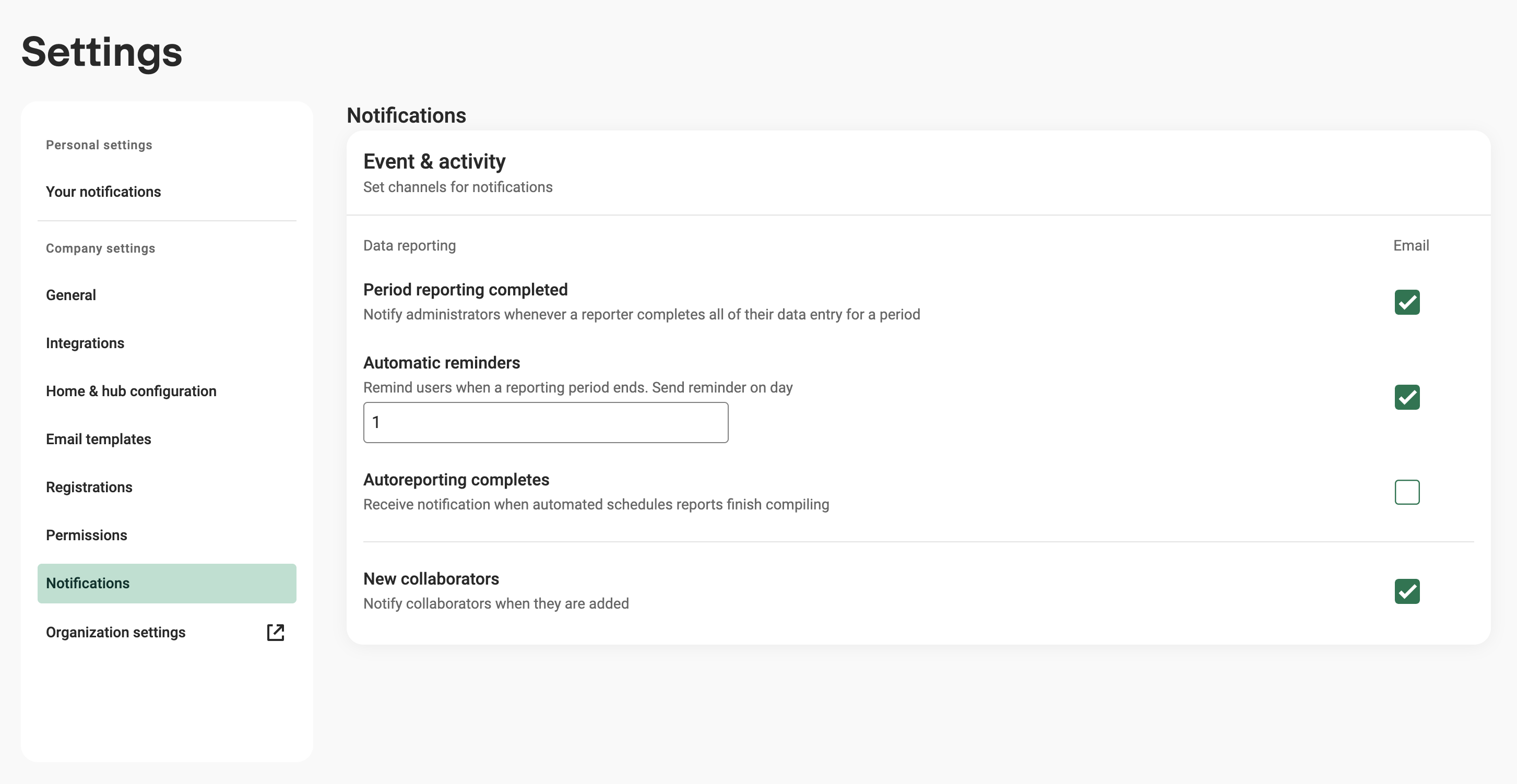
6. Notifications
- Period reporting completed: This setting enables all controllers, reporters and collaborators to receive an email when a user confirms their last registration in a reporting period.
- Automatic reminders: Activating this enables automatic reminders to be sent, utilizing the "Automatic reminder" email template.
- Send reminder on day: When activating the above setting you are given the option of selecting which date of the month the reminder should be sent. Reminders are only sent for unconfirmed registrations that have passed their registration date. E.g., if your company has quarterly reporting and sets the reminder date to 1 the first reminder will be sent out on April 1st
- Autoreporting completes: Send an email notification once AI-generated suggestions are ready
- New collaborators: Ensure that the "Collaboration invite" email is sent when a collaboration is initiated
7. Organization settings
Select this option to open the external organization management tool to configure company structure, business units, and legal entities.
Was this article helpful?
That’s Great!
Thank you for your feedback
Sorry! We couldn't be helpful
Thank you for your feedback
Feedback sent
We appreciate your effort and will try to fix the article