Organize your emissions: Org. units, emission groups and labels
Next-gen gives you three ways to organize your emissions beyond the GHG categories: organizational units, labels and groups. Each answers a different question. An org unit is a part of your organization, an emission group is an activity that causes emissions, and a label is a tag you filter by.
| Tool | Answers | Examples | Set up in |
|---|---|---|---|
| Organizational units | Which part of the company? | Legal entities, subsidiaries, business units | Settings → Organizational boundary |
| Labels | Where, or for which project? | Sites, offices, projects, departments, customers | Data → Label Manager |
| Groups | What are these emissions for? | Company cars, Offices, Social events | GHG Inventory |
Organizational units
An organizational unit is a part of your organization that reports its own emissions. It is usually a legal entity, but it does not have to be. A country, a site or a business area can also be an organizational unit.
Organizational units sit in a hierarchy under Settings → Organizational boundary. Each link between a parent and a child has a control approach (operational control, financial control or equity share) and an ownership percentage. These decide how emissions consolidate up through the group. See Organizational boundary for how to set it up.
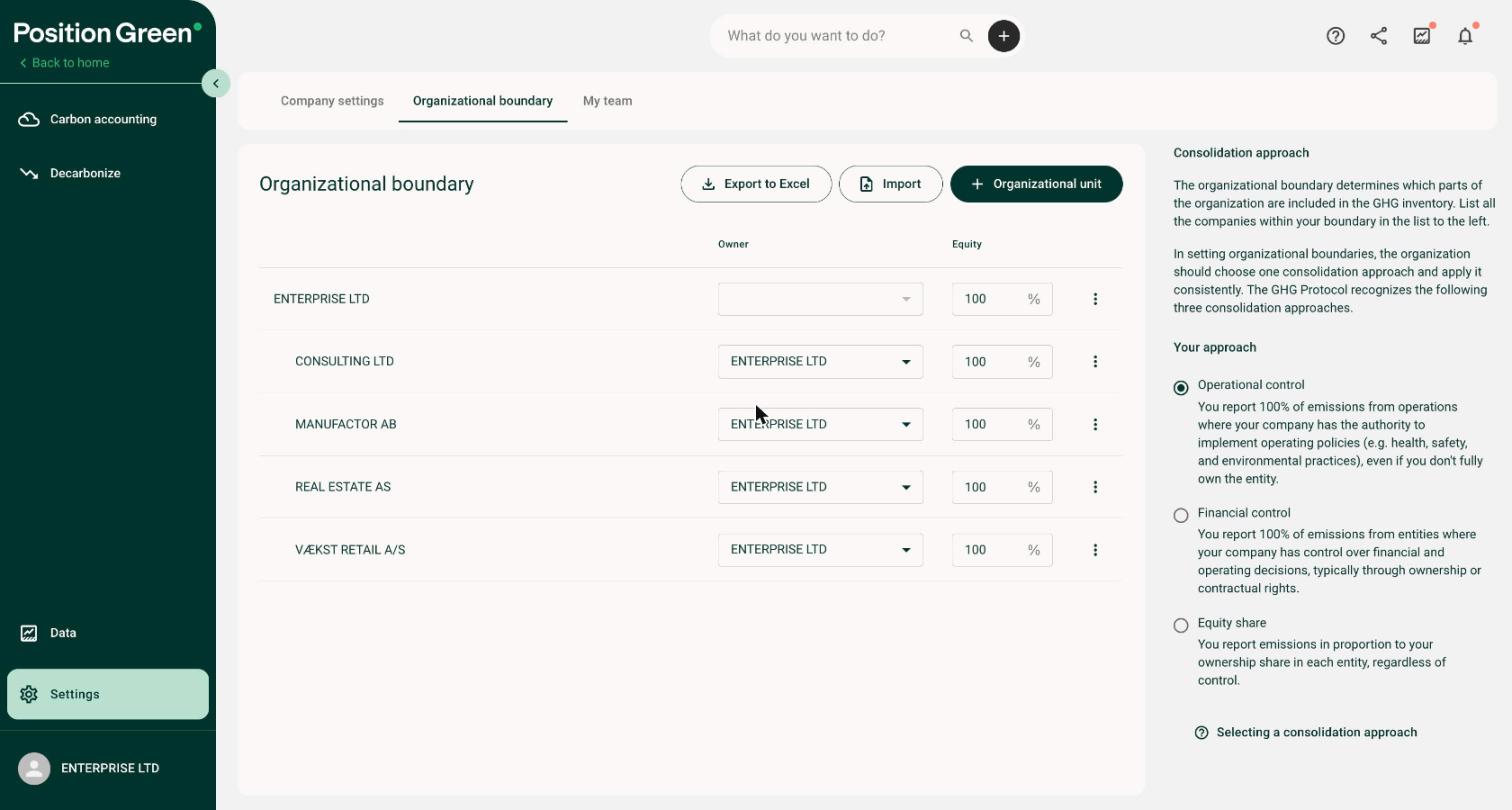
The organizational boundary of a demo company: four organizational units owned by the parent, with the consolidation approach chosen on the right.
Organizational units are the only level where you can:
- Give users access. Roles (Owner, Editor, Viewer) are set per organizational unit. A data owner can get Editor on their own entity, while the central team holds Owner.
- Connect data. Integrations and file uploads are scoped to an organizational unit, so the data lands in the right entity.
- Track structural changes over time. Acquisitions and divestments are date-stamped, and historical years are rebaselined automatically.
- Set targets and transition plans. Targets can be set per organizational unit or for the group as a whole.
Labels
Labels tag your data by site, project, department or anything else you track. Once data has labels, you can filter every view by them.
Where labels come from
Most ERP systems already sort transactions by dimensions, such as projects, departments, locations or customers. Next-gen reads these dimensions when your data comes in, from an integration or a file upload. You choose which dimensions to bring in when you set up the integration, or later in its settings.
After your first import, check that the dimensions you need have arrived. See Review and Reconciliation.
Set up labels in Label Manager
Go to Data → Label Manager. You see two sides:
- Metadata: everything found in your data streams and organizational units.
- Labels: what you choose to use.
- Move the metadata you need from the Metadata side to the Labels side.
- Merge labels that mean the same thing, such as "Oslo" and "Oslo office".
- Rename labels so everyone understands them.
- Share labels across organizational units if several units use the same ones.
Use labels
The filter bar at the top of every view filters by label, organizational unit and period. Use it to see the footprint of one site or one project.
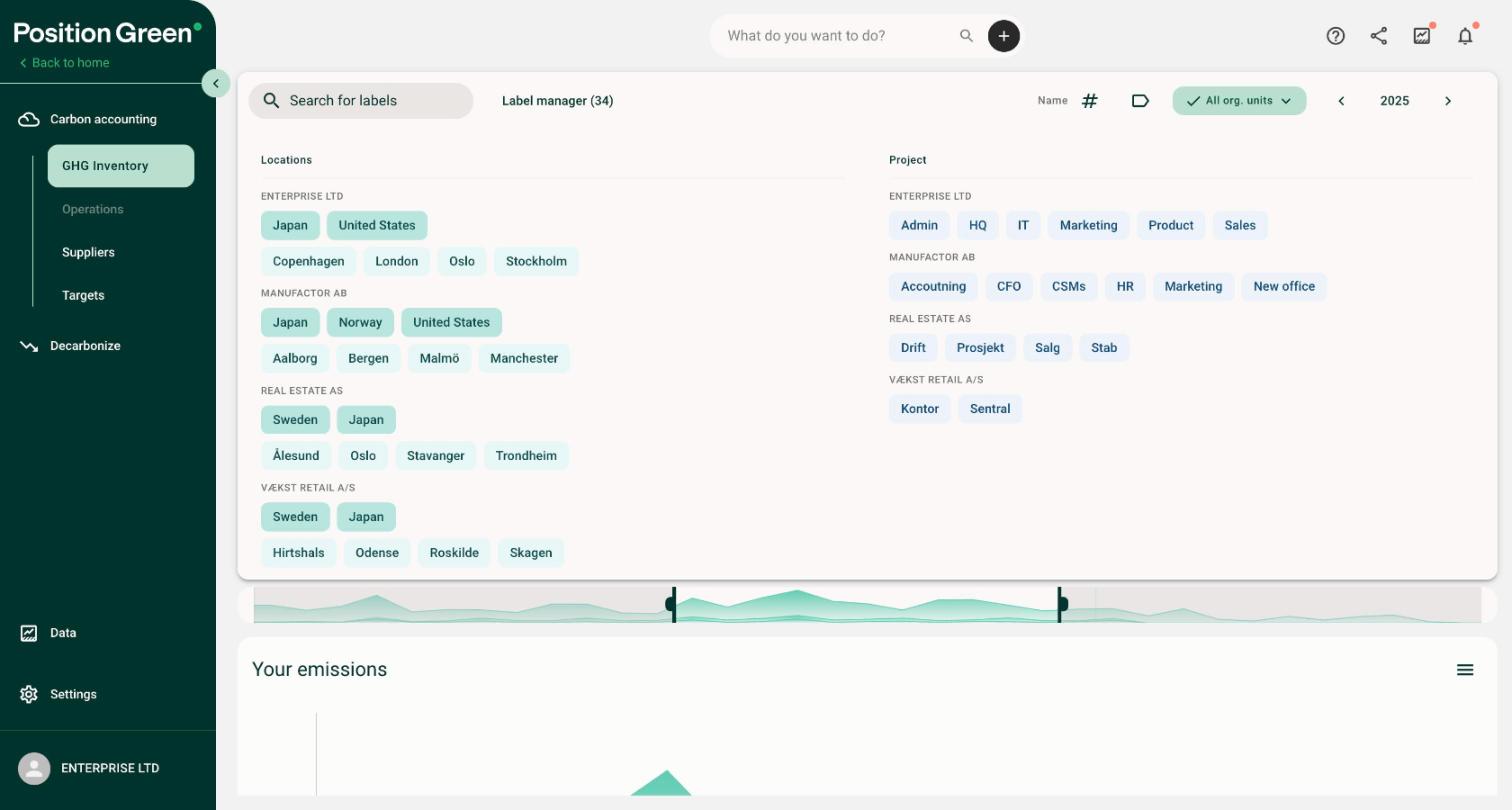
The label filter, opened from the label icon at the top of the GHG inventory. Location and project labels are listed per organizational unit.
- One line can carry several labels, for example a location and a project. The emissions are still only counted once.
- Labels do not control access or data flows. You cannot give users access to a label, scope an integration to it, or set an ownership percentage on it. That is reserved for organizational units.
Note: some actions are blocked while a label filter is on, such as linking activity data to a spend line. Clear the filter first.
Groups
Groups organize your emissions by what they are for, such as "Company cars" or "Offices". An emission factor says what was burned or bought. A group says why.
A group lives inside one organizational unit.
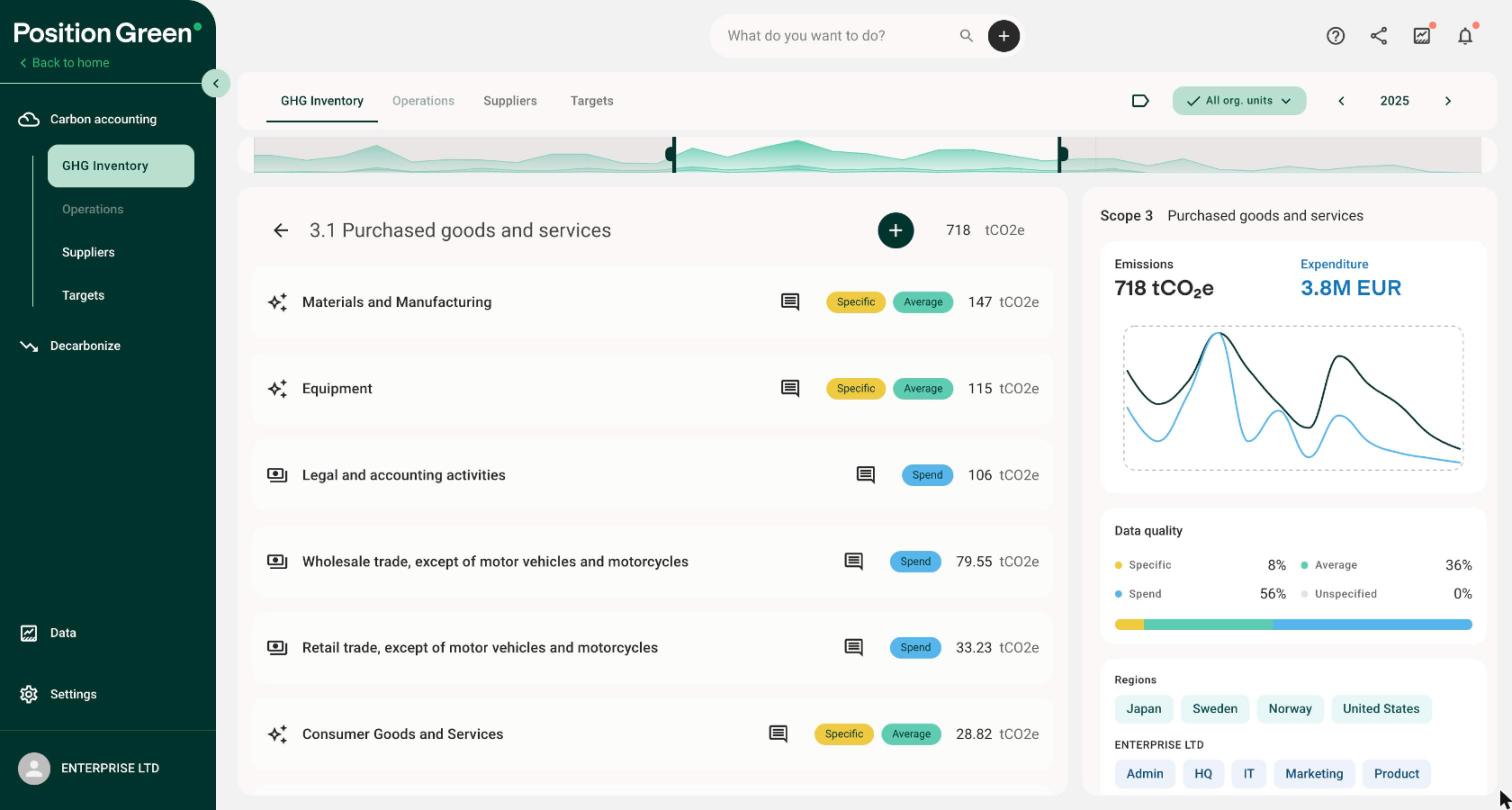
Groups in Scope 3.1 Purchased goods and services, such as Materials and Manufacturing and Equipment. Each group shows its data quality and total emissions.
Why use groups
- Fit your organization. See emissions the way you run the business, not only by GHG category.
- Give Decarbonize context. The factor says diesel. The group says whether it runs a company car or a backup generator. They need very different reduction actions.
- Control access your way (coming). Give access by company, group and label.
Groups cut across scopes
A "Company cars" group can hold:
- Scope 1: diesel combustion
- Scope 2: electricity for charging EVs
- Scope 3: upstream diesel and electricity
- Scope 3: leased cars, under leased assets
Together they show the full footprint of your car fleet.
Name the activity behind the emissions
Ask: what would we call this in a transition plan?
| Good | Avoid | Why |
|---|---|---|
| Company cars | Diesel | The factor already says diesel. |
| Offices | Electricity – Norway | The factor already knows the country. |
| Social events | Group 1 | Says nothing. |
| Customer meetings | Invoices Q3 | Describes the data, not the activity. |
- Avoid "Other". Catch-all groups hide what drives your emissions.
- Add a description. It is searchable and gives more context.
- Not everything needs a group. Some Scope 3 categories, such as business travel, are already detailed. If you upload large volumes of invoices, focus groups on your largest sources.
Create a group and add emissions
- Open Carbon accounting → GHG Inventory and go to a GHG category.
- Select the emissions you want to group.
- Send them to an existing group, or create a new one and name it.
- Carry on through the inventory.
You can also send lines to a group straight from the Activity Capture review, or search for "Create or add to an emissions group". When you upload activity data, an Emission group column puts rows straight into an existing group.
Every group has tabs for Group description, Emissions & consumption, Financials, Change log, Comments and Attachments.
Use groups and labels together
Use groups for the purpose and labels for the place or project. One "Offices" group with a label per site beats one group per office. You keep a short list of groups, and you can still see each site on its own.
Choose your labels early, before your groups grow large. It is easier to tag data as it comes in than to sort it later.
Full comparison
| Organizational unit | Group | Label | |
|---|---|---|---|
| Where it lives | In the organizational hierarchy | Inside one organizational unit | On data lines, shareable across organizational units |
| Consolidation and ownership % | Yes | No | No |
| User access (Owner, Editor, Viewer) | Yes | Coming | Coming |
| Integrations and uploads scoped to it | Yes | No | No |
| Targets and transition plans | Yes | No | Filter only |
| Counts emissions once | Yes | Yes | Yes, even with several labels per line |
Which one should I use?
Start with what you need to do, not what you want to call it.
- Use an organizational unit if the part of the business needs its own users, its own integration or upload, its own ownership percentage, or its own targets. Example: a subsidiary with its own ERP and its own data owner.
- Use a group to describe what causes the emissions. Example: Company cars across all fuels and scopes, or Offices for electricity, heating and waste.
- Use a label to describe where or for what, when you only need to filter and analyse. Example: the project, site or department codes that already come with your ERP data.
The three work together. One line of diesel can sit in the organizational unit Norway AS, in the group Company cars, and carry the labels Oslo and Project X. It is counted once, in Norway AS.
Was this article helpful?
That’s Great!
Thank you for your feedback
Sorry! We couldn't be helpful
Thank you for your feedback
Feedback sent
We appreciate your effort and will try to fix the article